Workspaces
A workspace groups boards and the people who work on them, the way a team, a department or a client does. Adding someone to a workspace gives them every board shared with that workspace in one step.
Every site starts with one workspace, the Default workspace. You can work in it alone for as long as you like and add more when you need them.
The workspace switcher
The switcher sits in the header of every page. Choose All workspaces or one workspace: the boards page, My Tasks, the Planner's "To plan" list and the Dashboard then show that workspace only. Your choice is remembered on that browser.
The switcher menu also links to the chosen workspace's members and settings, to Manage workspaces (the list of all your workspaces) and to New workspace.
Creating a workspace
- Open the workspace switcher and choose New workspace.
- Give it a name, and optionally a description and a colour.
- Click Create workspace. You are its first admin.
Creating a workspace needs the Create workspaces site permission. On a fresh install the Manager group has it through the "Workspace manager" role.
Members
Open a workspace's Members tab to see who is in it.
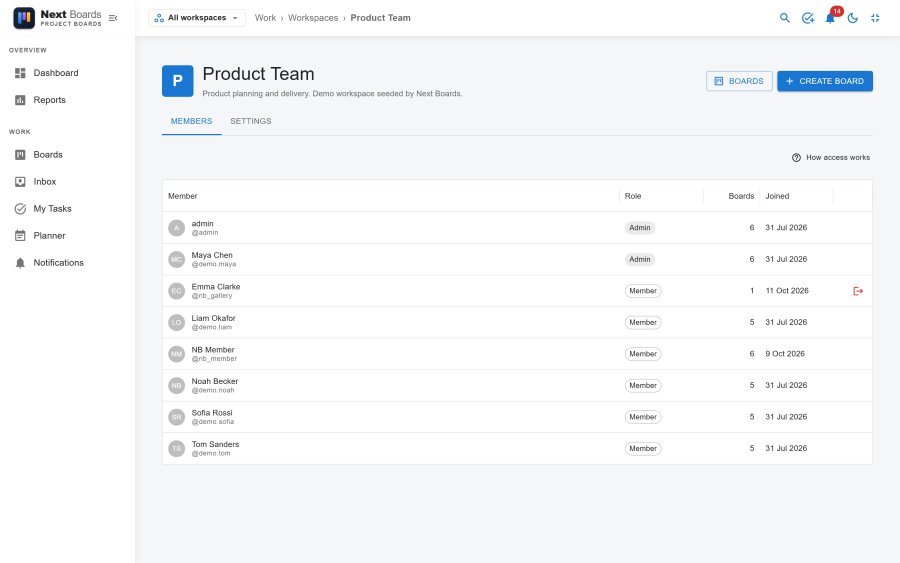
| Role | Can do |
|---|---|
| Admin | Manage the workspace, its members and its settings, and act as an admin on every board in it, private boards included. |
| Member | See the boards shared with the workspace and join them. Create boards in it when the workspace allows that. |
To add someone, type at least two letters of their name or username in Add someone to the workspace, pick them and choose a role. They get a notification.
When you remove a member you can tick Also remove them from the workspace's boards. Without it they stay on the boards they are a member of and only lose the boards that were shared with the workspace.
Below the members, Guests lists people who are on some board of the workspace without being workspace members.
A workspace always keeps at least one admin: the last admin cannot leave or be changed to a member.
Board visibility
Each board has a visibility that decides who can see it without being added to it.
| Visibility | Who sees the board |
|---|---|
| Private | Only board members. Workspace admins can still manage it. |
| Workspace | Every member of the workspace can see it and join it. |
| Public | Anyone signed in to the site can see it. Only members can edit it. |
Someone who sees a board through its visibility, without being a member, is an observer: they can read it but not change it, they cannot be assigned or mentioned, and they get no notifications. On a Workspace board, a workspace member clicks Join board to become a member.
Only workspace admins can make a board public. A site administrator can switch public boards off for the whole site under Configuration → Settings → General → Allow public boards; public boards are then visible to their workspace only.
Change a board's visibility under Board settings → Workspace & visibility. You need to be a board admin and a member of the board's workspace.
Workspace settings
On the Settings tab of a workspace, its admins choose:
| Setting | Options |
|---|---|
| Workspace name, description, colour | Shown in the switcher and on the boards page. |
| Who can create boards | Workspace admins only, or Any workspace member. Either way the person also needs the Create boards site permission. |
| Visibility of new boards | The visibility the new board form starts with. |
In the Default workspace anyone with the Create boards permission can create a board.
Who a board admin can add to a board
On a board that belongs to a named workspace, a board admin can only add people who are members of that workspace. A workspace admin adds people to the workspace first. Workspace admins themselves, and people who hold the Manage site permissions capability, can add anyone.
On a board in the Default workspace, a board admin can add any user of the site.
Moving a board to another workspace
Open Board settings → Workspace & visibility and pick the new workspace. You need to be a member of the workspace the board is in, and be allowed to create boards in the one it goes to.
After the move, members of the old workspace who are not board members lose access, and the admins of the new workspace gain it. Board members keep their place.
Leaving and deleting
- Leave workspace stops you seeing the boards shared with it. You stay on the boards you are a member of.
- Delete workspace is only possible once the workspace is empty: move or delete its boards first, archived ones included. The Default workspace cannot be deleted.
See also
- Access and permissions: how workspace roles, board roles and site permissions fit together
- Boards
- Board settings