Cards
A card is one piece of work. Click a card on any board, list, calendar or task page to open its card window. Every card also has its own address, so a link to it opens the board with that card on top.
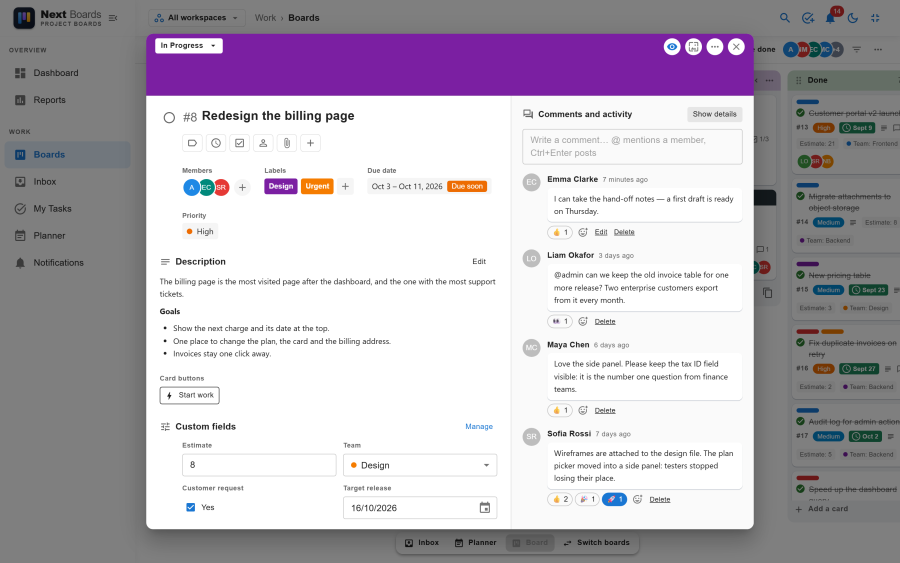
There is no Save button. Each field saves by itself when you change it, and a small "Saved" note confirms it.
The basics
| Field | Notes |
|---|---|
| Title | Click it to edit. |
| Mark done | The circle next to the title. A done card keeps its place on the board and shows its due date as completed. |
| Description | Written in Markdown: headings, lists, links, tables, code. Click Edit description, then Save description. |
| Labels | Coloured tags of the board. Create and edit labels without leaving the card. |
| Members | The people assigned. A card can have several. Only board members can be assigned. |
| Dates | A start date and a due date. Tick Include a time to give the due date an hour. |
| Reminder | When to remind the assignees and watchers before the due date: at the due time, 15 minutes, 1 hour, 1 day or 2 days before, or none. |
| Priority | Low, Medium, High or Urgent. |
| Cover | A colour, or one of the card's image attachments, shown across the top of the card on the board. |
The row Add to card under the title adds what the card does not have yet: Labels, Dates, Checklist, Members, Attachment, and under More to add a cover and a priority.
Watching
Click Watch to follow a card you are not assigned to. Watchers are notified of comments, moves, completion and due dates, each according to their own notification preferences. People assigned to a card are notified without watching it.
Checklists
Add one or more checklists to break a card into steps. The bar above each checklist shows how many items are done, and the card front shows the total.
- Type in Add an item and press Enter; Enter again adds the next one.
- Click an item to rename it, drag it to reorder it or to move it to another checklist of the card.
- Hide checked items keeps a long list short.
Each item has a menu with:
| Action | Result |
|---|---|
| Assign | Gives the item to one board member. It appears in their My Tasks and they are notified. |
| Due date | A day for the item. It shows in My Tasks and in the calendar feed of the person it is assigned to. |
| Convert to card | Turns the item into a card of its own in the same stage. The new card takes over the item's day and person. |
| Delete | Removes the item. |
Attachments
Click Attach a file, drop files anywhere on the card window, or paste an image from the clipboard. Images and PDF files open in the browser; other files download.
On an image attachment, Make cover shows it on the card front.
The site sets the largest file size (10 MB unless changed), the allowed file types and the storage each board may use, under Settings → Attachments. Files are only served to people who can see the board; they have no public address.
Comments and activity
The right-hand column of the card window holds the discussion and the card's history together.
- Write a comment in Markdown and post it with Post comment or Ctrl+Enter.
- Type
@to mention a board member. They get a notification. - Edit or delete your own comments. An edited comment is marked "(edited)".
- Add reaction puts an emoji under a comment; click an existing reaction to add yours or take it back.
- Show details adds the card's activity between the comments: who moved it, changed its dates, assigned someone, and so on. The history cannot be edited.
Moving, copying and archiving
The … menu of the card window (Card actions) holds:
| Action | What it does |
|---|---|
| Move | To another stage and position, or to another board with Move to another board…. |
| Copy | Makes a copy on this board or another one. You choose what the copy keeps: labels, members, checklists, attachments. |
| Send to Inbox | Moves the card to your personal Inbox. |
| Mirror | Shows the card on another board as well (see below). |
| Make template | Turns the card into a card template (see below). |
| Copy link | Copies the card's address. |
| Archive | Takes the card off the board. Restore it from Archived items. |
| Delete | Deletes the card with its checklists, comments and attachments, for good, after a confirmation. To keep a card out of sight, archive it. |
When a card moves to another board, its labels and custom field values are matched to the labels and fields of the same name there. Members who are not on the target board are taken off the card.
Card templates
A card template is a card you copy from again and again, for example a bug report with its checklist already written.
- Open a card and choose Make template in its menu. It gets a Template badge and stops counting as work.
- In any stage, open Add a card and choose From template… to create a card from it.
Choose Make template again on the template to turn it back into a normal card.
Mirrors
A mirror shows one card in a list of another board. It is the same card, not a copy: whatever changes on the original shows on the mirror at once. Use it when a card belongs to one team but another team needs to see it on their own board.
- Open the card and choose Mirror in its menu.
- Pick the board and the stage where the mirror goes.
The mirror has a small mirror badge. Click it to open the original card over the board you are on. Its menu offers Go to the original board and Remove mirror. Moving or removing a mirror never changes the original card.
Someone who cannot see the original board sees a locked placeholder in place of the mirror, with no title. A card can be mirrored once per board, and not to or from an Inbox. You need to be at least an observer on the card's board and a member of the board the mirror goes to.
Card buttons
Board admins can add buttons that run a set of actions on a card, such as "Send to review". They appear in the card window. See Automation.
See also
- Custom fields: your own fields on every card
- The Kanban board
- Notifications