Inbox
The Inbox is a private list for things you have not sorted yet: an idea in a meeting, a request in the corridor, an e-mail you need to act on. Every user has one, and only its owner sees it. Not even a Super User can open someone else's Inbox.
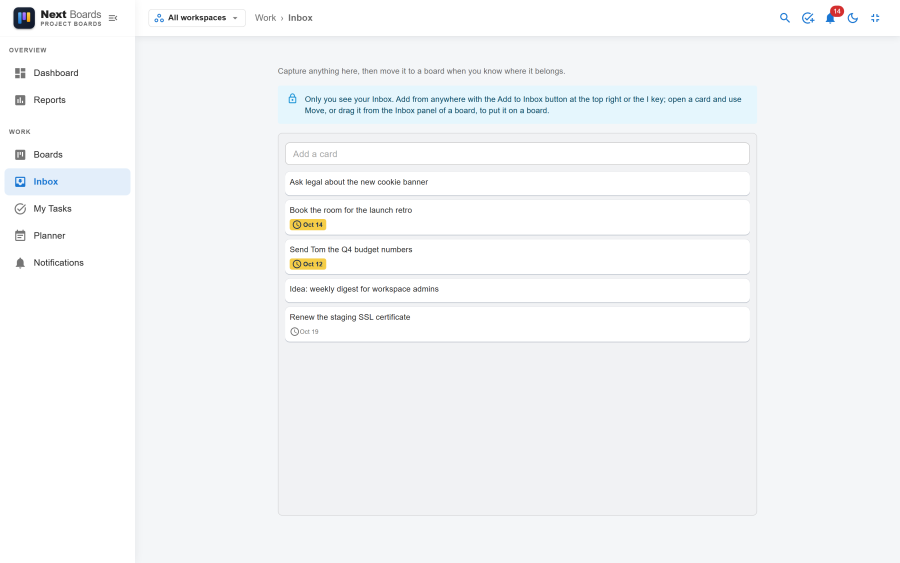
Adding to your Inbox
| How | Where |
|---|---|
| Add to Inbox | The button in the header of every page. Type, press Enter, carry on. Enter again adds the next one. |
The i key |
Opens the same field from anywhere, when you are not typing in a field. |
| The Inbox page | Work → Inbox, with Add a card at the top of the list. |
| Send to Inbox | In the … menu of any card you can edit: moves that card from its board to your Inbox. |
| By e-mail | Send or forward a message to your private Inbox address (see below). |
Inbox cards are full cards. Open one to give it a description, a due date, a checklist or attachments before it goes anywhere.
Moving a card to a board
- Open the card and choose Move, then pick the board and the stage. In an Inbox the action is also offered as Send to board.
- Or open a board, click Inbox in the dock at the bottom, and drag the card from the Inbox panel onto a list. You can drop it at the exact place you want between two cards.
A card dragged the other way, from a list into the Inbox panel, leaves the board and becomes private again.
Where a card came from
Inside the Inbox each card shows a small icon for its origin, and the chips above the list filter by it:
| Chip | Cards |
|---|---|
| All | Everything. |
| Cards that arrived by e-mail. The card names the sender. | |
| Added by me | Cards you typed in. |
| From boards | Cards you sent to the Inbox from a board. The card names the board. |
The origin stays with the card when it moves on to a board, as a line under its title.
E-mail to Inbox
When the site administrator has connected a mailbox, the Inbox page shows an E-mail to Inbox button.
- Click it to see Your Inbox address, something like
boards+3f9a…@example.com. - Copy address and save it as a contact in your mail program.
- Send or forward a message to that address.
Within a few minutes the message is a card at the bottom of your Inbox:
| Part of the message | Becomes |
|---|---|
| Subject | The card title |
| Text | The description. For an HTML-only message, its text without the formatting. |
| Attachments | Attachments of the card, at most 10 per message, under the same size and file-type rules as an upload. A file that is refused is named on a "Not imported:" line in the description. Pictures placed inside the text of an HTML message are not taken. |
The address is a secret: anyone who knows it can add cards to your Inbox. If it got out, click New address. The old address stops working at once.
A user can receive at most 200 cards by e-mail in 24 hours. The same message is never filed twice for the same person.
Setting the mailbox up is described in E-mail to Inbox setup.
What an Inbox cannot do
An Inbox is a list, not a board. It has no members, no settings, no automation and no mirrors, and it cannot be shared, exported or deleted. Nobody is notified about its cards.
See also
- Planner: drag Inbox cards onto your day
- Cards
- E-mail to Inbox setup