Boards
A board is one project or one flow of work: a row of stages (the columns) with cards in them. The boards page is where you find, create and tidy up your boards. It is the first screen you see when you open Next Boards.
Finding a board
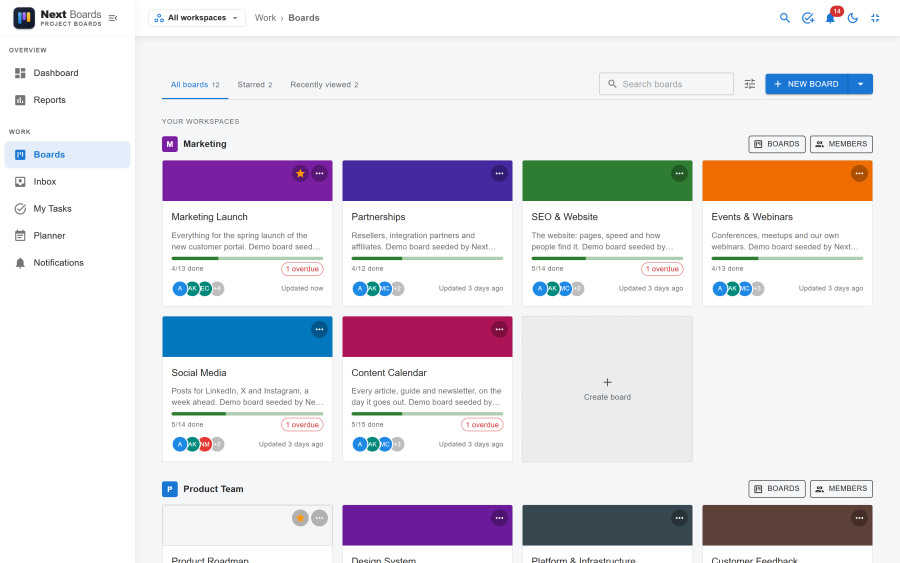
The header row of the boards page has three tabs, each with a count:
| Tab | Shows |
|---|---|
| All boards | One section per workspace you belong to, then Other workspaces. With a workspace chosen in the header switcher it reads Boards in this workspace and shows that workspace only. |
| Starred | The boards you starred. |
| Recently viewed | The boards you opened, the latest first. |
Next to the tabs:
- Search boards looks through every board you can see, whatever tab you are on.
- View options holds the sort order, whose boards to show (All, Mine, Shared with me), Grid view or List view, and the link to Archived boards. With a workspace chosen it also links to that workspace's members and settings.
- New board starts a board.
The tab you opened last, the layout and the sort order are remembered for you on that browser.
A board tile shows the board's background, how many of its cards are done, how many are overdue and who its members are. Click the star on a tile to keep the board under Starred.
The board switcher
Press b on any page, or use Switch boards in the dock at the bottom of a board, to jump to another board without going back to the boards page. The switcher has a search box, one chip per workspace, a grid or list layout, and sections for recent and starred boards. Pin the switcher keeps it open beside the board as a panel.
Creating a board
- Click New board.
- Pick a template. Each one shows the stages it creates before you choose.
- Give the board a title, and optionally a description and a background.
- Choose the Workspace the board belongs to and its Visibility (see Workspaces).
- Click Create board. You are its owner and admin, and it opens straight away.
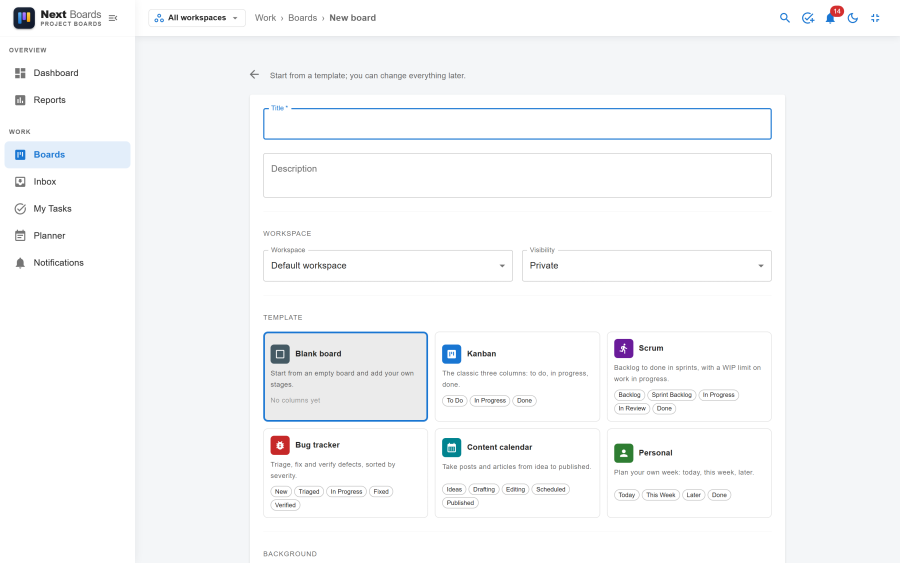
| Template | Stages it creates |
|---|---|
| Blank board | None |
| Kanban | To Do, In Progress, Done |
| Scrum | Backlog, Sprint Backlog, In Progress, In Review, Done |
| Bug tracker | New, Triaged, In Progress, Fixed, Verified |
| Content calendar | Ideas, Drafting, Editing, Scheduled, Published |
| Personal | Today, This Week, Later, Done |
Scrum, Bug tracker and Content calendar also bring a few labels and one example card.
Creating a board needs the Create boards site permission and a workspace that lets you create boards in it. If New board is missing, see Access and permissions.
More ways to create a board next to the button offers Import from JSON…, which rebuilds a board from a Next Boards export. See Import and export.
Backgrounds
A board has a plain background unless you give it one. On the new board page and under Board settings → Appearance you can pick a colour or one of eight gradients. An image (PNG, JPEG, GIF or WebP) is uploaded under Board settings → Appearance once the board exists; it is shown darkened behind the lists so the cards stay readable.
Duplicating a board
Choose Copy board in the board menu, or Duplicate board under Board settings → Danger zone. Give the copy a title and decide what comes along with two switches: Include cards and Include members. The stages, labels and custom fields are always copied. Automations and mirrors are not.
Archiving and deleting
| Action | Where | What happens |
|---|---|---|
| Archive board | Board menu, or Board settings → Danger zone | The board becomes read-only and leaves the boards list. |
| Restore | View options → Archived boards | The board is back on the boards list and members can edit it again. |
| Delete board | Archived boards, or the Danger zone of an archived board | The board and everything on it (cards, comments, files, activity) is deleted for good. You type the board's title to confirm. |
A board can only be deleted once it is archived. That makes deleting a two-step action nobody does by accident.
See also
- Workspaces: group boards and share them with a team
- The Kanban board: working inside a board
- Board settings: every tab of a board's settings