Notifications
Next Exams sends email through Joomla's own mailer, driven by templates you edit. Nothing is hard-coded: every message is a template row, so you can change the wording, the subject and the HTML without touching any files.
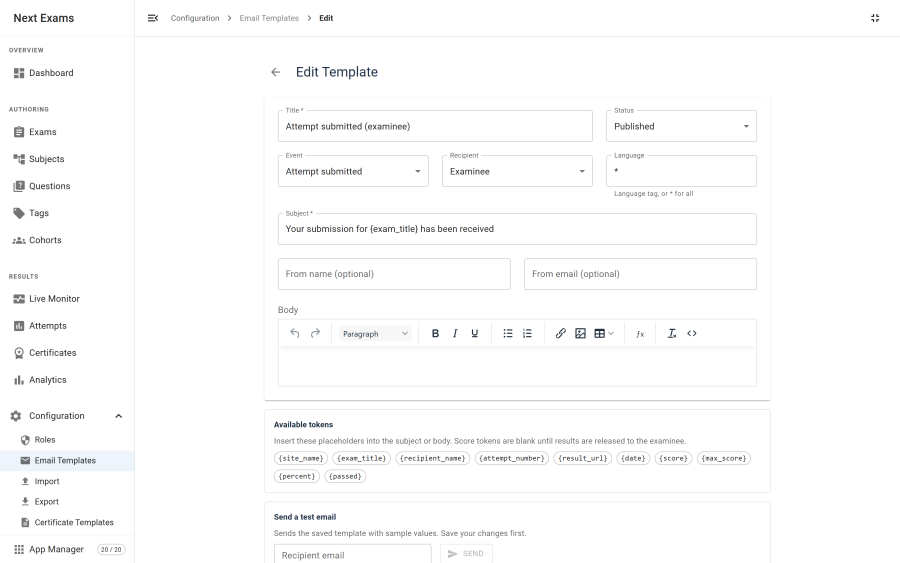
Events
| Event | Sent to | When |
|---|---|---|
| Attempt submitted | The examinee | Confirmation that their paper was received |
| Attempt closed automatically | The examinee | Their attempt was closed without them handing it in — see Auto-close. Each exam can send this, send the ordinary confirmation instead, or send nothing |
| Attempt graded | The examinee | Their results are ready — only when the attempt is fully graded |
| Needs grading | The administrator | An attempt was submitted containing work that needs marking |
| Attempt submitted (admin) | The administrator | Every submission, when enabled. Off by default |
| Certificate issued | The certificate holder | They passed and a certificate was issued — once the exam's results are released |
| Certificate expiry reminder | The certificate holder | Ahead of expiry, at the offsets you configure |
| Certificate expired | The certificate holder | Their certificate's validity has ended |
| Analytics report | The report's recipients | On the schedule you set |
| Monitor invite | An invigilator | When you issue an accountless monitoring grant |
The needs-grading and every-submission notices are independent. With both active, an ungraded attempt produces two administrator emails, deliberately — they answer different questions.
Templates
A template holds a subject and an HTML body for one event. Tokens in either are replaced when the message is built.
| Token | Value |
|---|---|
{site_name} |
Your site's name |
{exam_title} |
The exam |
{recipient_name} |
Who the email is going to |
{attempt_number} |
Which attempt this was |
{result_url} |
A link to the result page |
{date} |
The date |
{score}, {max_score}, {percent}, {passed} |
The result — only populated once results are released |
{examinee_name}, {ungraded_count}, {admin_attempts_url} |
Administrator notices only |
{closure_reason} |
Why an attempt was closed automatically — the time limit, inactivity, or the exam window. Auto-close notice only |
Result tokens respect the release policy. An exam set to manual release does not leak a score through the submission confirmation email; the tokens are simply empty until results are released. Token values are escaped when inserted into the HTML body.
Certificate emails wait for the results. A certificate is issued the moment an attempt passes, so an email about it would tell the learner they passed. When the exam's results are not released yet, the certificate issued email is held and sent once they are:
| Release policy | The held email goes out |
|---|---|
| Manual | When you release the results by saving the exam |
| After close, or scheduled | At the next pass after the release time: the Notifications scheduled task, or the once-a-minute check that runs whenever an administrator opens Attempts or the Live Monitor |
A held email whose certificate is revoked before release is cancelled, never sent. Expiry reminders are not sent at all for a certificate whose results were never released.
Delivery
Delivery is hybrid, which matters for understanding failures.
- When an event fires, the message is queued and an immediate send is attempted.
- If that send succeeds, the queue row is marked sent and nothing more happens.
- If it fails, the row stays pending with a backoff, and is retried by a scheduled task.
- After a number of failed attempts the row is marked failed and no longer retried.
Warning: the retry step needs a Joomla scheduled task that you create. Immediate sending works without it — most mail goes out on the first attempt — but with no task, anything that fails once is never tried again. Certificate expiry reminders and scheduled reports depend on tasks too. See Scheduled tasks.
Settings
In Configuration → Settings → Notifications:
| Field | What it does |
|---|---|
| Notifications enabled | The master switch. Off means nothing is sent at all |
| From name | The sender name on outgoing mail |
| From email | The sender address |
| Administrator email | Where administrator notices go. Not defaulted to the site email |
| Notify administrator on submission | Enables the every-submission notice. Off by default |
The section is hidden when the Notifications app is switched off in the App Manager.
When mail does not arrive
Check in this order — the first two account for most cases:
- Joomla's own mail configuration. Use System → Global Configuration → Mail → Send Test Mail. Next Exams sends through Joomla's mailer; if that fails, nothing else matters.
- The master switch and the app. Both must be on.
- A template exists for the event. No template row means no message.
- The administrator address is set. Administrator notices are not sent anywhere by default.
- The plugin is enabled. Immediate sending is driven by the notifications system plugin.
Dependencies elsewhere
Two features send their mail through this system rather than their own, which means switching notifications off silently stops them:
- Certificate expiry reminders
- Scheduled analytics reports
This coupling is intentional — one mail pipeline, one place to configure the sender — but it is worth knowing that turning notifications off does more than stop attempt emails.
Access control
| Action | Required permission |
|---|---|
| View and edit email templates | configuration — manage_notifications |
| Change notification settings | configuration — manage_settings |