Exam Builder
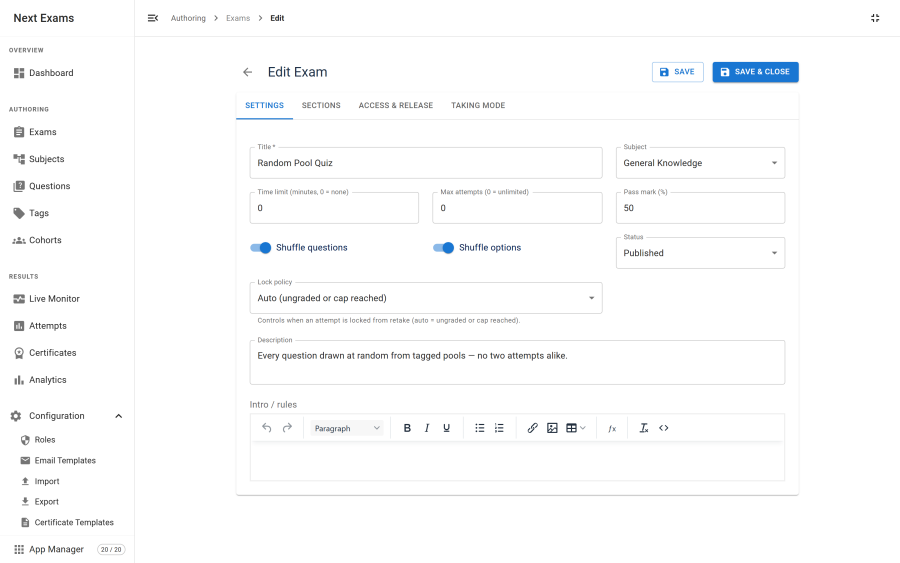
An exam draws on the question bank and decides everything about how the assessment behaves: which questions appear, in what order, how long the examinee has, who may sit it, and when the result is released.
The builder is organised into tabs. This page walks through what each one controls.
Fixed questions and pools
An exam gets its questions two ways, and can use both at once.
Fixed questions are pinned. Every examinee receives exactly these, in the order you set (subject to shuffling). Use them when the paper must be identical for everyone.
Pool rules draw questions at random. A rule names a source — a subject or a tag — and a number to draw. Each examinee gets a different selection.
| Fixed questions | Pool rules | |
|---|---|---|
| Source | Individually chosen | A subject or a tag |
| Same for everyone | Yes | No — drawn per attempt |
| Points | Set per question | Set per rule, or inherited from each question's own default |
| Ordering | Explicit, drag to reorder | Drawn, then placed |
Note: the question count in the exam list counts fixed questions only, so a pure-pool exam legitimately shows zero there. The exam detail view reports the real total — fixed questions plus each pool's draw count — and flags the total points as approximate when a pool inherits per-question points rather than setting its own.
The draw happens once. When an examinee starts, the pool is resolved and the resulting paper is frozen into the attempt along with the taking mode. Editing the exam or the bank afterwards never changes a paper already in progress.
Sections
Questions can be grouped into named sections. A section carries its own ordering, and lets you build a paper with a recognisable structure — a comprehension section, a calculation section — rather than one flat list.
Sections are presentational and organisational; grading is still per question.
Shuffling
Two independent switches:
| Setting | Effect |
|---|---|
| Shuffle questions | Randomises the order questions are presented in |
| Shuffle options | Randomises the order of the options within a choice question |
Both are resolved when the attempt starts and frozen with the paper, so an examinee who reloads sees the same order they had before — shuffling is not re-rolled on every page load.
Timing and attempts
| Field | What it does | Notes |
|---|---|---|
| Time limit | Minutes allowed for the attempt | Enforced on the server. Reaching zero auto-submits. |
| Maximum attempts | How many times one person may sit the exam | Practice attempts are excluded. |
| Cooldown | Minutes that must pass between attempts | Checked at start, next to the attempt cap. |
| Open from / Open until | The window during which the exam can be started | Absolute times. See When the exam window shuts, below. |
Taking mode
Four behaviours, set per exam, each with a global default that seeds new exams.
| Setting | Options | What changes |
|---|---|---|
| Attempt mode | Exam or practice | Practice ignores the time limit, the attempt cap and the cooldown, and never auto-locks. |
| Practice reveal | On submit, or per question | Per-question reveal grades and locks one answer at a time and shows feedback immediately. |
| Layout | Single page, or one per page | One-per-page pages through the questions client-side over a server-rendered form. |
| Pause and resume | Allowed or not, with caps | Freezes the clock. Both the number of pauses and total paused minutes can be capped; zero means unlimited. |
The chosen mode is frozen into the attempt at start, so changing the exam does not alter how a running attempt behaves.
Exam runner
Three more settings on the same tab decide how the runner presents itself, and are frozen into the attempt the same way.
| Setting | Options | What changes |
|---|---|---|
| Review answers before submitting | On or off | Adds a final step listing every question as answered, not answered or flagged, so nothing is handed in blank by accident. On by default. |
| Allow finishing early | On or off | Puts a Finish action in the runner header, reachable from any question. With it off, finishing is only offered on the last question. On by default. |
| Fullscreen | Off · Offered · Expected | Offered adds a fullscreen button. Expected also asks at the start and again if the examinee leaves. Off by default. |
Fullscreen is best-effort and never blocks an attempt: Safari on iPhone and iPad cannot grant it, and neither can many LMS embeds, so those examinees continue in a distraction-free view. Leaving fullscreen is recorded as an integrity signal and nothing more. See Exam Runner.
Auto-close abandoned attempts
An examinee who closes the browser mid-exam never tells the server anything. Without a rule to close it, that attempt stays in progress indefinitely: it keeps holding one of the learner's allowed attempts, and the answers they had already saved are never marked. These settings decide what happens instead. Each is per exam, with a global default under Settings → Taking that seeds new exams.
Three situations close an attempt:
- The time limit runs out. Applies to timed exams only.
- Nothing is heard for the inactivity period. This is the only rule that reaches an untimed exam or a paused attempt — neither has a deadline that can pass, so without an inactivity period they would stay open forever.
- The exam window shuts, if the exam is set to stop everyone at that moment.
| Setting | Options | What it does |
|---|---|---|
| When an attempt is closed automatically | Hand it in and mark it · Void it | Marking uses whatever was already saved. Voiding records no result and gives the learner their attempt back. |
| Close after inactivity | Minutes, 0 to disable | Measured from the last contact with the examinee's browser. |
| When the exam window shuts | Stop every attempt · Let each run its own clock out | Stopping is the usual choice for an invigilated sitting. Running out is kinder to someone who started late. |
| Tell the examinee | Say it was closed automatically · Send the usual submission email · Send nothing | The first option uses a dedicated email template that explains why it closed. |
| Time spent on a closed attempt | Cap at the deadline · True wall clock | Capping keeps duration statistics honest: a one-hour exam closed a week later still reads as one hour. |
| Also close attempts an invigilator paused | Yes / No | Off by default. A room frozen deliberately — for a fire alarm, say — should not submit itself while everyone is outside. |
Notes worth knowing:
- Attempts started near the closing time do not outlive it. When the exam is set to stop everyone at the window, the deadline is capped at the closing time when the attempt starts, so the countdown the examinee sees is truthful. Pausing and resuming cannot be used to push past it.
- Grading is never skipped. Marking a closed attempt runs the normal grading path, including partial credit, so a result closed automatically is indistinguishable from one handed in by hand.
- Webhooks and LMS grade passback always fire, whichever notification option you choose — an external gradebook stays correct regardless of what the learner is told.
- Closures are recorded in the live monitoring activity log, attributed to Automatic.
Access and release
The Access & Release tab decides who may sit the exam and what they see afterwards.
| Field | What it does |
|---|---|
| Access type | View level, open registration, access code, identified guest, or restricted to an allow-list. Covered in full under Access gates. |
| Access code | The shared code, when the access type requires one. |
| Result release | Immediate, after the exam closes, at a scheduled time, or manual. |
| Release at | The absolute time, for scheduled release. |
| Show answers | Whether the correct answers are revealed alongside the score. A separate decision from releasing the score itself. |
| Pass message / Fail message | Rich text shown on the result page under the pass or fail banner. Inherits the release gating, so it is not shown before results are released. |
| Certificate template | Which certificate to issue on a pass. None by default. |
| Lock policy | Whether the attempt's review locks after being seen. |
| Pass mark | The percentage needed to pass, and the threshold certificates are issued against. |
Integrity and monitoring
Two per-exam switches connect the exam to the observation features:
- Track integrity enables focus-loss, paste, tab-switch and fullscreen-exit capture for this exam. It is frozen into the attempt at start, and also requires the global capture switch. See Integrity signals.
- Live monitoring needs no per-exam switch — any in-progress attempt appears on the board. See Live monitoring.
Custom fields
If custom fields are defined for the exam context, they appear in the builder alongside the native fields. Searchable fields are stored so they can be filtered on; the rest are stored with the exam. See Question Bank for how the two storage modes differ.
Access control
| Action | Required permission |
|---|---|
| View exams | exams — view |
| Create an exam | exams — create |
| Edit an exam | exams — edit |
| Delete an exam | exams — delete |
| Publish or unpublish | exams — publish |
| Build a restricted access rule | Also needs cohorts — view, to choose a cohort |
The exam detail view additionally shows a performance card drawn from analytics; it is only populated for users who also hold reports view permission, and is simply omitted otherwise rather than erroring.