Speaking Questions
A speaking question asks for a spoken answer. The learner reads a role-play card, gets time to prepare, then records their answer in the browser. A teacher listens to the recording and marks it with a rubric, as they would an essay.
Speaking (recorded) is the sixteenth question type. It is written like any other question, in the question bank or inside an exam in the Exam Studio.
Writing one
| Field | What it does | Range |
|---|---|---|
| Stem | The role-play card: the situation, who the learner is speaking to, what they must cover | Rich text |
| Preparation (seconds) | Time to read the card and prepare before recording starts | 0 to 900 (15 minutes); 60 by default |
| Speaking time per take (seconds) | The longest one take may be | 10 to 3,600; 180 by default |
| Takes allowed | How many times the learner may record. The last take sent is the one handed in. | 1 to 5; 1 by default |
| Rubric | The criteria the marker scores | As for an essay — see Rubrics |
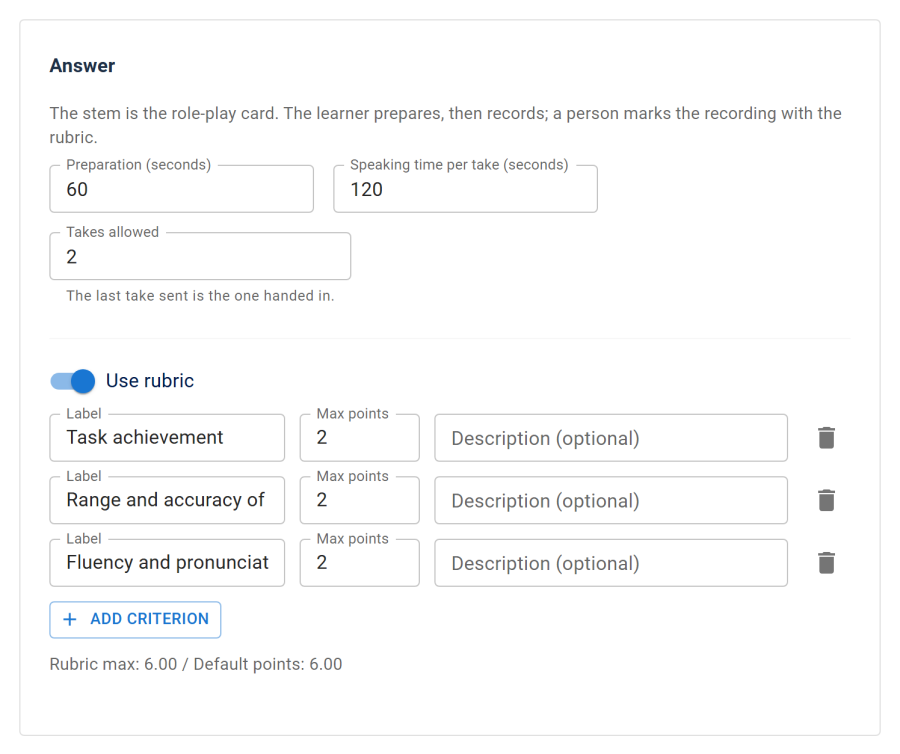
A speaking question you add in the Exam Studio to a part made from a blueprint is pre-filled with that part's timings instead of these defaults — for the OET-style Speaking role plays, 180 seconds of preparation and one take of 300 seconds. The part's Part settings → Defaults for new content shows them; questions already in the part are not changed.
The site setting Longest speaking take (minutes) caps every take, whatever a question asks for — see Settings.
Timed parts must have room. In a timed part, the part's time must hold every speaking question in it: its preparation plus every take recorded in full. The Exam Studio lists a part that is too short (Section 2 gives its speaking questions 8 minutes, but they need 9) and will not save it.
What the learner does
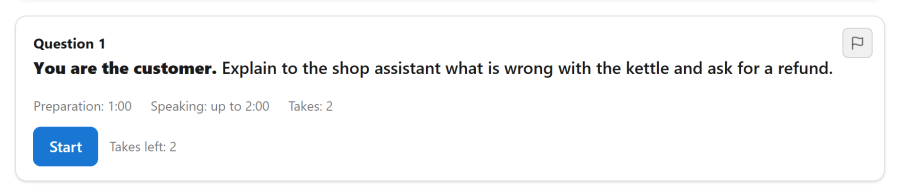
- Reads the card. The question shows Preparation: 1:00, Speaking: up to 3:00 and Takes: 1.
- Presses Start. The preparation countdown runs; Start speaking now skips the rest of it.
- Speaks. Recording stops at Stop recording or when the speaking time runs out.
- The recording is sent: Sending your recording, then Your recording is saved.
- With takes left, Record again starts another take (Takes left: 1). The last take sent is the one handed in.
Recording takes exam time like any other answer: the exam's clock keeps running.
Nothing is lost to a bad connection. The browser keeps each take until the server has confirmed every piece of it. If the connection drops, it tries again (Connection lost: trying again) and resumes where the upload stopped; after a reload it sends the take again. If the learner tries to hand in while a take is still being sent, they are asked to wait for it or hand in without it.
A take is refused when the question has used all its takes, when its part has closed, or when it is longer or larger than the question allows. Whatever was started of a refused take is deleted.
In a preview the recorder works, but recordings are not sent.
HTTPS and the microphone
Browsers only allow microphone recording on a secure (HTTPS) page. On a plain HTTP site the question says so and offers a file field instead.
The browser asks the learner for the microphone the first time they press Start. Before that, the question warns that the browser will ask. Until the learner answers, the question waits and says so. The preparation time and the recording only start once the microphone is allowed, so a learner who takes a while to find the browser's prompt loses no speaking time. (The exam or part clock keeps running as usual.)
When the microphone cannot be used, the question says why, offers Try again, and shows the file field:
| Situation | What the learner is told |
|---|---|
| Refused at the browser's prompt | Press Try again and choose Allow |
| The site is blocked in the browser's settings | Allow it in the site settings (the icon beside the address), then press Try again. The question knows this before Start is pressed, and notices when the learner unblocks it, without a reload. |
| No microphone connected | Connect one and press Try again |
| Another application holds the microphone | Close it and press Try again |
| The microphone stops mid-recording (unplugged, or access withdrawn) | What was recorded so far is kept and sent as a take |
| The microphone records silence (muted in the system) | A level bar shows while recording, and after 4 seconds of silence: Nothing can be heard. Check that your microphone is not muted. |
With the file field the learner records the answer with their device's own recorder and chooses the file. It is sent when they hand in or move to another part. The same field is what a learner without JavaScript gets.
Serve your exam pages over HTTPS if you use speaking questions.
Recording formats
Browsers record in different formats. Next Exams asks for MP4 (AAC) where the browser can record it — Safari always can — and otherwise takes WebM (Opus), which is what most other browsers write. Both are accepted, and a file uploaded by hand may also be M4A, MP3, Ogg or WAV. Every file is checked by its contents before it is kept, so a renamed file that is not a recording is refused.
Marking
A speaking question is never graded automatically. A submitted attempt with one waits for a person, as an essay does.
- Open the attempt under Results → Attempts.
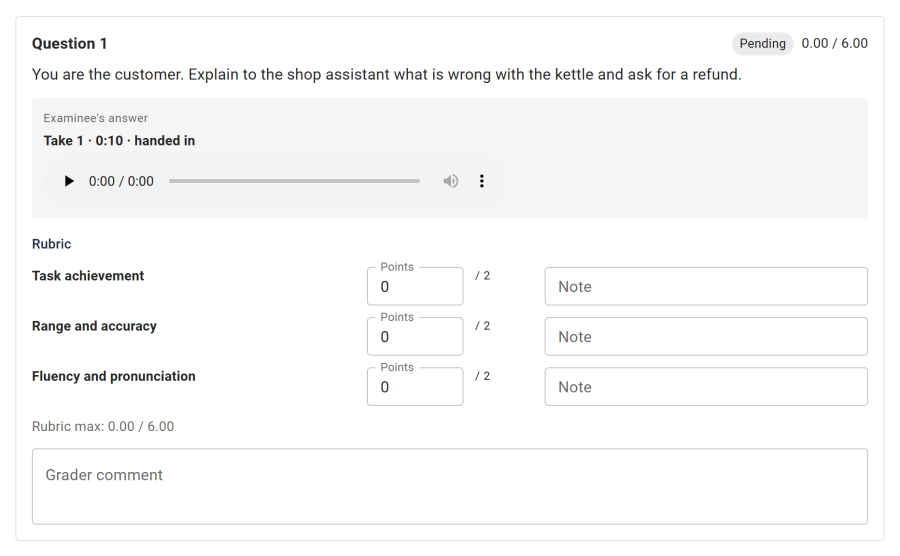
- Each speaking question lists its takes — Take 1, Take 2 · handed in — with a player for each.
- Listen, score each rubric criterion and add a comment, exactly as for an essay.
Only someone allowed to grade attempts can play a recording: Only a grader can play recordings. A take whose upload never finished is listed, with The upload never finished: there is nothing to play. If nothing was handed in, the question says No recording was handed in.
Recordings are not shown to the learner on their result page.
Storage, limits and retention
Recordings are personal data — a person's voice — so their storage is bounded and their life is yours to set.
| Setting | What it does | Default |
|---|---|---|
| Longest speaking take (minutes) | The longest any one take may be, on any question. 1 to 60 | 10 |
| Keep recordings for (days) | Recordings older than this are deleted. 0 keeps them for ever | 0 |
Both are under Settings → Taking modes.
- Retention deletes recordings in batches of 200 at a time, as part of Next Exams' housekeeping. The marks given for a deleted recording stay.
- A half-finished upload — a take whose page was closed before it was sent — is deleted after a day.
- Size is bounded too. A take may weigh at most about 48 KB per second of its allowed length, which is three times what a browser writes for speech.
The files are kept in images/com_nextexams/private/recordings/, under random names, and are never linked to. On nginx the folder needs the same rule as listening audio — see Hosting requirements. The App Manager warns on the Speaking card if the folder can be reached from the web, and shows how many recordings are stored and how much space they take.
Privacy
- A Joomla privacy export lists each of the person's recordings: when, how long, which question.
- A privacy erasure deletes their recordings, files and all. The record that a take was handed in, and its marks, stay.
- Deleting an attempt deletes its recordings.
See Security and privacy.
Import and export
| Format | Speaking questions |
|---|---|
| QTI 2.1 | Exported and imported. Written as an upload interaction, with the timings and rubric in the Next Exams extension, so another Next Exams site imports the question complete |
| Moodle XML | Exported as an essay, so Moodle gets the card as an essay question. A Moodle XML import creates essays, never speaking questions |
| CSV | Left out of an export, and counted; skipped on import, with a count |
| Aiken, GIFT | Cannot describe one; skipped on import |
See Import and export.
The Speaking app
Speaking questions belong to the Speaking app in the App Manager. Switched off, new speaking questions cannot be written. Existing ones keep being answered, recorded and graded, and no recording is deleted.
Access control
| Action | Required permission |
|---|---|
| Write a speaking question | questions — create / edit |
| Listen to recordings and mark them | attempts — the grading action |
| Change the recording settings | configuration — manage_settings |