Exam Parts
A part is a section of an exam that brings its own rules: the passages the learner reads while answering, a split screen, its own timer and reading time, and what happens when the learner moves on. It is what you need for a reading or listening paper — "Part A: four short texts, 15 minutes, collected when the time is up" — rather than one flat list of questions.
Parts are made in the Exam Studio. An exam that uses none of the settings below behaves exactly as an ordinary exam, so nothing changes for papers you already have.
Turning a section into a part
Every section of an exam can become a part.
- In the Exam Studio, select the section's heading in the outline, or choose Passages and part settings on it.
- The section opens in the middle of the studio, with its passages and instructions, and Part settings replace the question settings on the right.
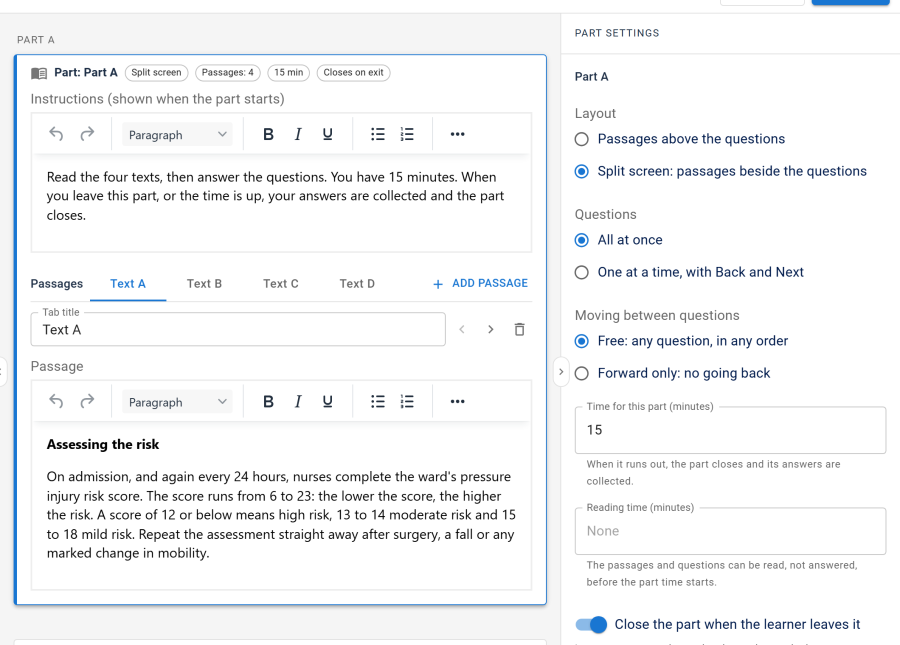
- Add passages, choose a layout, set the clocks. The section's heading in the outline shows chips for what it now does: Split screen, Passages: 4, 15 min, Reading 5 min, Forward only, One at a time, Closes on exit.
A section whose settings are all left at their defaults stays a plain section. Make it a plain section removes its passages, instructions and settings again; its questions stay.
Note: two sections in a row with the same title and the same settings are given to learners as one part. The studio warns you when that happens, so a part is never split or merged by accident.
Part settings
| Setting | Options | What it does |
|---|---|---|
| Instructions (shown when the part starts) | Rich text | Read by the learner at the top of the part |
| Passages | Up to twelve, each with a Tab title | The texts the learner reads while answering, such as Text A to Text D |
| Layout | Passages above the questions, or Split screen: passages beside the questions | See The split screen |
| Questions | All at once, or One at a time, with Back and Next | See One question at a time |
| Moving between questions | Free: any question, in any order, or Forward only: no going back | Forward only refuses an answer to a question behind the furthest one already answered |
| Time for this part (minutes) | A number, or No limit | When it runs out, the part closes and its answers are collected |
| Reading time (minutes) | A number, or None | The passages and questions can be read, not answered, before the part time starts |
| Close the part when the learner leaves it | On or off | Its answers can no longer be changed once the learner moves on |
A part can also play a recording — see Listening audio.
Passages are content, the rest are rules. Passage text and instructions are read live, so you can correct a typo in a passage while people are sitting the exam. Layout, timing and navigation are frozen into each attempt when it starts, because changing them under a running attempt would change the rules of that attempt.
What the studio refuses
| Refusal | Why |
|---|---|
| A random draw inside a part with passages | A question drawn at random would not be about the passages beside it |
| Parts whose times add up to more than the exam's time limit | The exam's own limit always wins, so the last part could never get its time. Reading time counts too |
| A timed part shorter than its speaking questions need | Each needs its preparation plus every take recorded in full |
Each one is listed in the studio's issue count before you save, and refused by the server as well, so an API client gets the same answer.
The studio also warns, without refusing, when a split-screen part holds picture questions: they get a narrow column.
The split screen
With Split screen, the passages sit in a column beside the questions. More than one passage becomes tabs above that column, titled with each passage's Tab title.
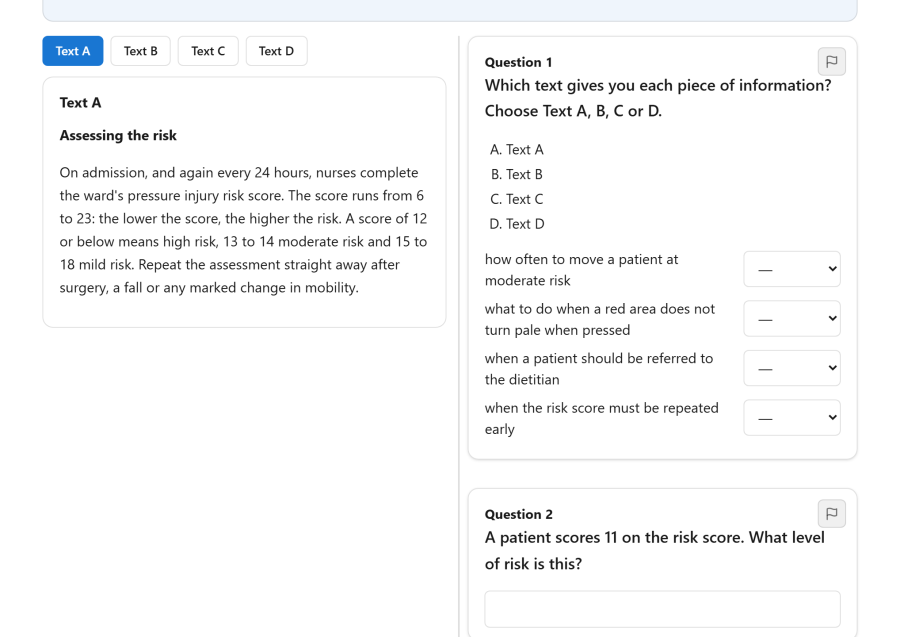
- The divider between the two columns can be dragged, or moved with the arrow keys once it has focus, between a quarter and three quarters of the width.
- In a right-to-left language the columns and the divider's keys are mirrored.
- On a phone — anything too narrow to hold two readable columns — the split screen becomes two tabs, Passage and Questions, so neither is squeezed. As with the question navigator, this is measured from the room actually available, not guessed from the device.
One question at a time
One at a time, with Back and Next shows a single question of the part at once, with Question 3 of 6 in this part beside the Back and Next buttons, while the passages stay where they are. It is set per part, so Part B of a reading paper can page through its six short texts while Part A shows all its questions together.
It is independent of the exam's own layout (single page or one per page), which applies to an exam without parts.
Timers and reading time
The server owns each part's clock, as it owns the exam's. When a part starts, the server records when its reading time ends and when its time runs out; the countdown in the browser only displays it, so a wrong clock on the learner's device changes nothing.
- Reading time comes first. The learner can read the passages and the questions, but the answer fields are read-only until it ends: Reading time. You can answer in 4:12.
- Time for this part starts when reading time ends. The header shows Time left in this part. When it reaches zero the part closes: Time is up for this part. Your answers are saved. In a strict exam the notice adds The next part opens in a moment., and three seconds later the next part opens by itself, as the learner pressing Start part 2 would. The same happens when a listening part's checking time runs out.
- The exam's own time limit still applies and always wins.
- Pausing freezes the part's clock as well as the exam's, and a pause never reopens a part that had already closed.
- Extra time given from the live monitor is added to the part in progress too.
- A part's time running out is enforced on the server. An answer that arrives for a closed part is not kept, whatever the browser sent.
Strict and relaxed exams
How learners move between parts depends on one question: does any part close behind the learner?
An exam is strict when at least one of its parts has reading time, Close the part when the learner leaves it, or Forward only. Otherwise it is relaxed.
| Strict exam | Relaxed exam | |
|---|---|---|
| Parts on the page | Only the part being taken. The others, and their passages, are not sent to the browser at all | Every part, on one page |
| Order | Parts are taken in order. A later part opens after the parts before it | Any part, in any order |
| Starting a part | Start part 2. The part's clock starts then | The clock starts with the first answer in it |
| Going back | Go back to part 1, unless that part closed when it was left | Always, until a part's own time runs out |
| A part whose time is up | Closed | Shown read-only |
In a strict exam a part change is a page load that saves the part being left. Before leaving a part that closes behind them, the learner is asked: Leave this part? You cannot come back to this part once you leave it.
Not sending the other parts matters. Hiding them with a script would still leave a passage readable in the page source before its reading time had started.
Practice mode
In practice mode a part keeps its layout and passages, but its clocks and closing are switched off, and a recording uses the simple player. Practising never locks a learner out of anything.
Highlights and private notes
In an exam with parts, the learner can mark up what they read.
- Highlight. Select words in a passage or a question and choose Highlight, or Highlight and add a note.
- Notes. A note can be attached to any highlight, and edited or removed later.
- Notepad for this part. One free-text notepad per part, for working out an answer.
- My notes. A button opens every highlight and note of the paper, with Go to to jump to each.
They are saved with the learner's answers and come back after a reload or on another device. If you correct a passage during the sitting, a highlight moves to where its words now are, or is dropped quietly if they are gone.
Only the learner ever sees them. Highlights and notes are never marked, and no staff screen shows them — not the attempt detail, not grading, not the attempts list, not the REST API, not an export. The runner tells the learner so: Only you can see your highlights and notes. They are not marked.
They are part of the learner's personal data: a Joomla privacy export includes them, and an erasure request deletes them, as does deleting the attempt. See Security and privacy.
Limits per attempt: 300 highlights, a selection of up to 2,000 characters, a note of up to 1,000 and a notepad of up to 5,000.
Highlighting needs JavaScript. An exam without parts offers none of this.
Without JavaScript
The runner is a real form, and parts keep that promise.
- Strict exam. Only the current part is on the page. Start part 2 and leaving a part are ordinary form buttons that save the part being left and load the next. Reading time is shown read-only. An answer posted into a part that has closed is not kept, and nothing can be handed in before the first part has started.
- Relaxed exam. Every part is on the page and the whole paper submits as one form. Each part's clock starts when the first answer reaches it.
Timers are not counted down without JavaScript, but the server still enforces them.
On the result page
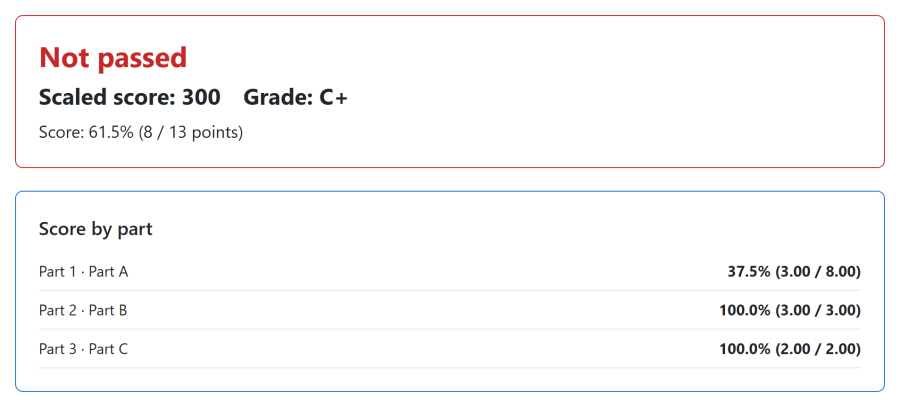
When results are released, a result with parts adds a Score by part card — points per part in the order the learner took them — and the review is headed part by part. A part with an answer still waiting for a person to mark it shows Awaiting marking instead of a number until the marking is done. See Grading and results.
The Exam Parts app
Parts belong to the Exam Parts app in the App Manager. Switched off, authors cannot change part settings in the studio; exams that already use parts keep running with them, and nothing is deleted. Blueprints need this app.
Access control
| Action | Required permission |
|---|---|
| Edit a section's part settings | exams — edit (or create for a new exam) |
| Take an exam with parts | None beyond the exam's access gate |
| Read a learner's highlights or notes | Nobody. There is no screen or permission for it |