Settings
Component-wide defaults for Next Exams, at Configuration → Settings.
Next Exams deliberately has no Joomla Options screen. There is no config.xml and no Options button in the component toolbar — every setting lives here, in the application's own settings page, stored in the component's settings table. This keeps configuration in one place rather than split between two interfaces.
Sections
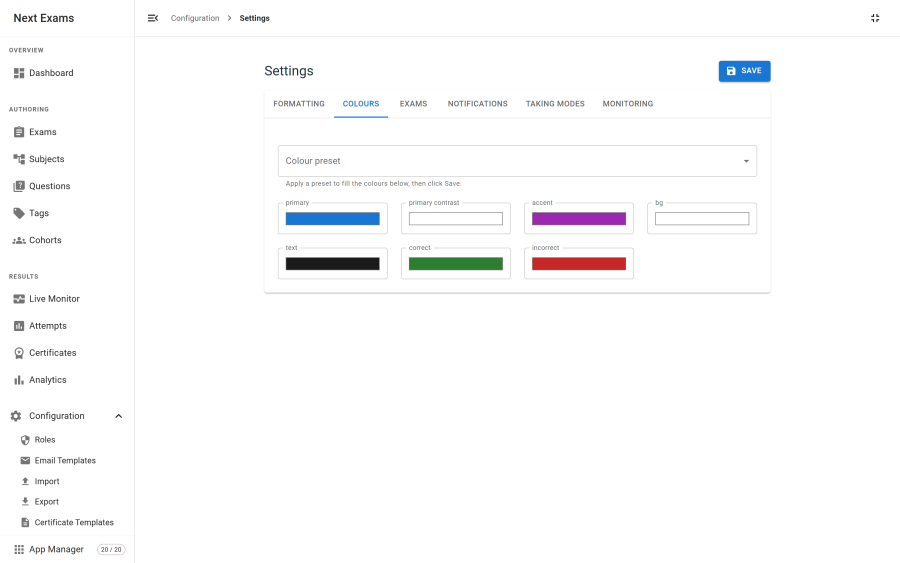
Settings are grouped into six sections. Two of them disappear entirely when their app is switched off, so the page only ever shows what is relevant to your installation.
| Section | What it covers | Hidden when |
|---|---|---|
| Formatting | Date, time and number presentation, and the timezone | Always shown |
| Colours | The site colour scheme used by the runner and result pages | Always shown |
| Exams | Global exam defaults and result behaviour | Always shown |
| Notifications | Sender identity, admin recipient and the notification master switch | The Notifications app is off |
| Taking modes | Global defaults for the per-exam taking behaviours, and the auto-close policy | Always shown |
| Monitoring | Poll, stale and ping intervals for the live board | The Monitoring app is off |
Each section saves independently — saving one does not reset the others.
Formatting
| Field | What it does |
|---|---|
| Decimal places, decimal and thousands separators | How scores and other numbers are printed |
| Date format, time format | How dates and times are printed, in PHP date notation (Y-m-d, H:i) |
| Timezone | The zone for everyone without a personal timezone — see below |
Timezones
Every date is stored, and every deadline compared, in UTC. Only what a person reads is converted, and the zone depends on who is reading:
| Who | Sees times in |
|---|---|
| A signed-in user | Their own Joomla timezone (Edit Profile → Basic Settings → Time Zone), if they set one |
| Everyone else, and every guest | The Timezone setting here |
| An examinee receiving an email | Their zone — never the zone of the administrator whose action sent it |
| Certificates, administrator emails, invigilator invites | The Timezone setting |
Leave Timezone on Use site default to follow System → Global Configuration → Server → Website Time Zone; that is the default. To set one, search for a region or city, for example Europe/Budapest. Choose a named zone rather than a fixed offset such as UTC+1: a fixed offset does not follow daylight saving, so it is wrong for half the year.
The times people type follow the same rule: an exam's Open from, Open until and Release at are entered in the zone the author is shown, and stored as UTC. Whole-day entries — an API token's or an invigilator invite's expiry date — last until the end of that day in the zone of the person who set them.
On the site, the exam page and the My Exams module add a short note under the times a learner acts on, such as Times are shown in Europe/Budapest, with a hint when the learner's device is set to a different offset. Its Change link lets a signed-in learner set their own timezone on the spot. It is offered only while Users → Options → Frontend User Parameters is shown, since that is what lets users edit the setting at all.
Upgrading from 6.0.0: before 6.1.0 the timezone setting was saved but not applied — every screen and email showed UTC. The upgrade changes a setting still at its old untouched default, UTC, to Use site default. Any other zone you chose is kept.
Colours
The colour scheme is applied to the site-facing pages through CSS custom properties, so the runner and result pages pick up your palette without a template override.
| Key | Used for |
|---|---|
| Accent | Primary actions, the current-question cue, progress |
| Background | The page surface behind exam content |
| Text | Body text on that surface |
| Correct | Correct-answer markers on the review page |
| Incorrect | Incorrect-answer markers |
Correct and incorrect are never the only signal for a state — the review page distinguishes them by more than colour — so changing these does not create an accessibility problem. See Accessibility.
Exams
Global defaults applied to result handling and to new exams. Anything set here can be overridden on an individual exam.
| Field | What it does | Notes |
|---|---|---|
| Result release | The default release policy for a new exam | Immediate, after close, scheduled, or manual |
| Anonymous identity | How a guest examinee is identified | Token, login, or identify — must match the access gate's expectations |
| Integrity capture | The master switch for signal capture | Also needs the per-exam flag. See Integrity signals |
Taking modes
Each per-exam taking behaviour has a global default here, which seeds a new exam when it is created. Changing a default does not retrospectively alter existing exams — that would silently change how a published assessment behaves.
The taking behaviours are attempt mode, layout, pause and resume, and cooldown. See Exam Builder for what each one does.
It also carries the defaults for how the runner presents itself:
| Field | What it does |
|---|---|
| Review answers before submitting | Whether new exams show the review step listing every question's state before the paper can be handed in. On by default |
| Allow finishing early | Whether new exams put a Finish action in the runner header, reachable from any question. On by default |
| Fullscreen | Default fullscreen policy for new exams: off, offered, or expected. Off by default |
See Exam Runner for what each does, and note that fullscreen is always best-effort — some browsers and LMS embeds cannot grant it, and those examinees continue in a distraction-free view instead.
This tab also carries the auto-close defaults, and the master switch that governs them:
| Field | What it does |
|---|---|
| Close abandoned attempts automatically | The master switch. With it off, an attempt the examinee walked away from stays open indefinitely and keeps holding one of their allowed attempts |
| When an attempt is closed automatically | Default for new exams: mark what was saved, or void the attempt |
| Close after inactivity | Default inactivity period in minutes; 0 disables it |
| When the exam window shuts | Default for whether Open until stops attempts already running |
| Tell the examinee | Default email behaviour for an automatic closure |
| Time spent on a closed attempt | Whether duration is capped at the real deadline or recorded as true wall clock |
| Also close attempts an invigilator paused | Off by default |
See Auto-close for what each one means, and Scheduled Tasks for when you need the background routine as well.
Monitoring
| Field | Range | What it does |
|---|---|---|
| Poll interval | 3–300 seconds | How often the board refreshes |
| Stale threshold | 15–3600 seconds | How long without a heartbeat before an examinee is flagged as quiet |
| Ping interval | 10–600 seconds | How often an examinee's browser checks in |
| Stream transport | On or off | Uses server-sent events instead of polling. Off by default |
| PIN grants | On or off | Whether invigilator PINs may be issued at all |
The floors are not arbitrary. A zero poll interval would turn the board into a self-inflicted denial of service, so values are clamped into these ranges on save rather than accepted and regretted.
Enabling the stream transport removes HTTP round trips but does not reduce latency — the server re-checks at the same interval either way.
Notifications
Sender name, sender address, the administrator recipient, the master switch, and the opt-in for an administrator email on every submission. Covered in full under Notifications.
Access control
| Action | Required permission |
|---|---|
| View and change settings | configuration — manage_settings |
The App Manager is a separate page with its own permission, and is deliberately not inside Settings — see App Manager.
Some values that appear in the settings table are not editable here at all. The LTI key pair is generated by the component and excluded from the settings interface entirely, and demo-mode state is owned by the demo tasks rather than being a setting you toggle.