Listening Audio
A part of an exam can play a recording: the conversation of a listening test, a lecture, a set of short extracts. Under exam conditions the learner presses Play, cannot pause or go back, hears it as many times as you allow — once, usually — and then has a checking pause before the part closes.
The file stays private. It is never linked to, never offered for download, and is streamed only to a learner sitting that part, while the part's rules allow it.
Adding a recording to a part
Audio is set on a part, under Part settings → Listening audio in the Exam Studio.
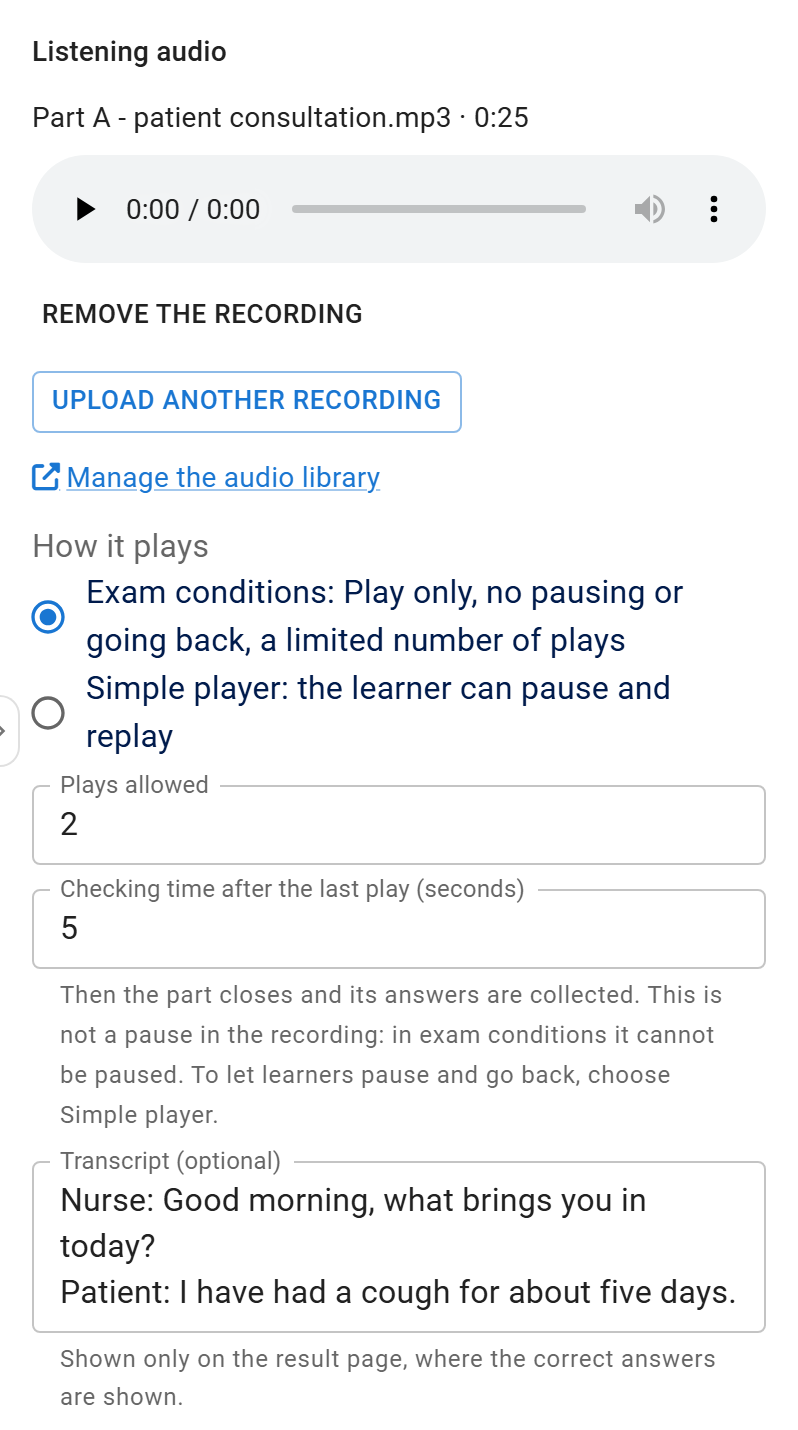
- Select the section, so its Part settings open on the right.
- Under Recording, choose Upload a recording, or pick one you uploaded before.
- Choose How it plays, and the settings below.
In a part made from a blueprint, the first recording you attach starts with the blueprint's settings — for the OET-style Listening parts, Exam conditions with one play and its checking time — shown under Part settings → Defaults for new content. Change them for the recording as you like; replacing a recording keeps the settings you chose.
| Field | What it does |
|---|---|
| Recording | An MP3 or M4A file the learner listens to in this part |
| How it plays | Exam conditions or Simple player — see below |
| Plays allowed | 1 to 10. Exam conditions only |
| Checking time after the last play (seconds) | Up to an hour, 30 by default. Then the part closes and its answers are collected. This is not a pause in the recording: under exam conditions the recording cannot be paused. To let learners pause, choose Simple player |
| Transcript (optional) | Plain text, shown only on the result page — see The transcript |
The file
- MP3 or M4A only. Each upload is checked by its contents, not just its name: a file that is not really MP3 or M4A audio is refused.
- Size. The upload limit is 50 MB by default (Settings → Largest listening audio file (MB)), and never more than your PHP
upload_max_filesizeandpost_max_sizeallow. A 30-minute spoken MP3 at 128 kbit/s is about 29 MB. - Length. From one second to four hours. The length is measured when you upload and checked against the file's size, so a file whose length cannot be read is refused.
Uploaded recordings form a library that every exam can choose from.
The audio library
Authoring → Audio library lists every recording with its length, size and upload date, and Used in: the exams, and the parts within them, that play it. From there you can:

- Listen to a recording.
- Upload a new one. You can also upload from a part's settings in the Exam Studio, which links to the library under Manage the audio library.
- Rename it. Only the name shown in the library and the Studio changes. The file and every part that plays it stay as they are.
- Delete it, only while nothing uses it. A recording a part plays, or one an attempt under way is listening to, cannot be deleted, and the library names those exams. To retire a recording, remove it from those parts in the Studio first. Attempts already handed in never play their audio again, so they never keep a recording in use. A deleted file is removed from the server and cannot be recovered.
Remove the recording in a part's settings only takes the recording off that part. The file stays in the library.
Exam conditions and the simple player
| Exam conditions | Simple player | |
|---|---|---|
| Controls | Start listening only. No pause, no seeking, no going back | Play / Pause, Back 10 seconds, and a track the learner can click, drag or move with the arrow keys (5 seconds a press). Drawn like the exam player; without JavaScript it is the browser's own player |
| Plays | Counted by the server, up to Plays allowed | Unlimited |
| After the last play | The checking time counts down, then the part closes. In a strict exam the next part opens a few seconds later | Nothing changes |
| Learner is told | The recording plays once. It cannot be paused or replayed. | — |
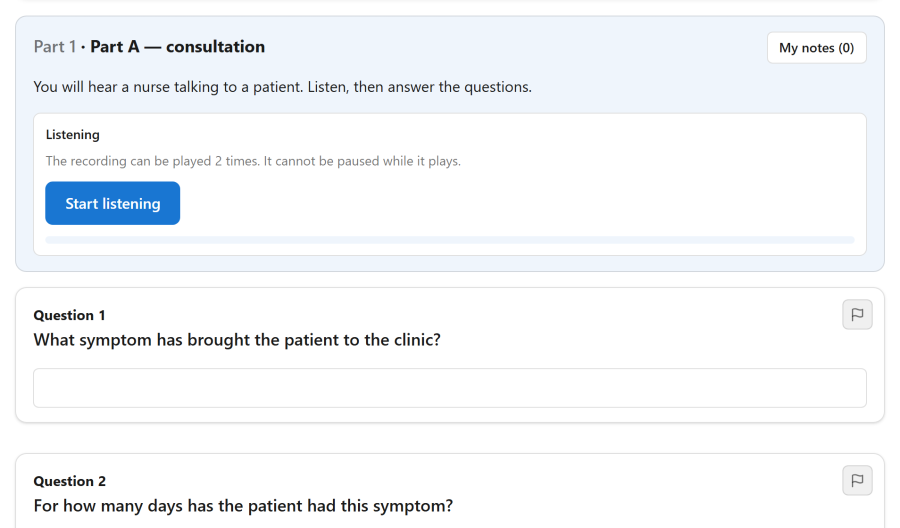
While it plays, the learner sees Playing: 2:14 of 5:30; when it ends, The recording has finished; then Time to check your answers: 0:30. With more than one play allowed, Play again (1 left) appears after each play.
Practice mode always uses the simple player, with no checking time, whatever the part says.
The play count is the server's
The number of plays is counted and enforced by the server, not by the page.
- A refresh, a phone call or a locked screen does not cost a play. If the learner comes back while the recording would still be playing, Resume listening continues from where the recording is now — as if it had kept playing in the room — without counting another play.
- Once the plays are used and the recording has ended, the server stops sending the file, so re-opening the page does not bring it back: You have used every play of this recording.
- The last play gives the part its deadline: the length of the recording plus the checking time. The part then closes through its ordinary clock, even if the learner closes the tab.
- Pausing the attempt — by the learner, where the exam allows it, or by an invigilator — freezes the recording's position with the part's clock, and resuming continues from the same point.
- A learner who only listens is not idle. While the recording plays, the runner checks in with the server, so the auto-close inactivity rule does not close the attempt of someone who is listening without typing.
On iPhone and iPad a page may only start sound after a tap, which is why playback always begins with the learner pressing Start listening.
Without JavaScript
The part shows the browser's own audio player. The server still counts plays and still stops sending the file once they are used, but the player itself cannot prevent pausing.
The transcript
A transcript is shown only on the result page, inside the part it belongs to (Transcript of part 1), and only where the exam shows the correct answers. It is never sent to the browser during the exam.
Hosting requirements
The recordings live in a private folder of your site:
images/com_nextexams/private/audio/Speaking-question recordings live beside them, in images/com_nextexams/private/recordings/ — see Speaking questions. Files are stored under random names and served only through Next Exams, which checks the attempt, the part and the play count on every request. The web server must not serve that folder directly — otherwise anyone who learned a file name could download it.
Apache and LiteSpeed
Nothing to do. Next Exams writes an .htaccess that refuses every request into the folder, for Apache 2.4 and 2.2, and rewrites it whenever it is missing or changed. It also writes an empty index.html.
The .htaccess only works if your host allows it (AllowOverride must not be None for that folder) — the App Manager check below tells you if it does not.
IIS
Nothing to do. Next Exams writes a web.config that denies every request into the folder.
nginx
nginx ignores .htaccess and web.config. On nginx you must add the rule yourself, in the server block of your site, before any location that serves static files:
location ^~ /images/com_nextexams/private/ {
    deny all;
    return 403;
}
^~ makes this prefix rule win over the regular-expression location blocks most configurations use for images and other static files. If Joomla is installed in a subfolder, put the subfolder in front: location ^~ /subfolder/images/com_nextexams/private/.
Reload nginx after adding it (nginx -t && nginx -s reload, or your control panel's equivalent). On managed hosting where you cannot edit the nginx configuration, ask your host to add it.
The same applies to Apache behind an nginx proxy that serves static files itself: the rule must be on the nginx side.
The App Manager check
Next Exams checks the folder for you. While Listening Audio or Speaking is on, the App Manager asks your own site, over HTTP, for a test file in each private folder and expects to be refused. If the file is served, the app's card warns:
The private audio folder can be reached from the web. On nginx add the location rule from the documentation, then choose Check again.
The result is remembered for an hour. After you fix the server, choose Check again on the warning to test it at once; uploading an audio file also clears the remembered result.
The honest limit
Next Exams controls what leaves the server: no bytes once the plays are used and the recording has ended, and none for a part that has closed. It cannot control what happens to sound once it has reached a learner's device. A determined learner can record what plays in the browser — with a second device, or software that captures the computer's sound — and listen to it again.
Treat exam conditions as protection against casual replaying and sharing, not against someone set on it. For a high-stakes sitting, invigilate the room. The Exam Studio says the same beside the audio settings.
The Listening Audio app
Recordings belong to the Listening Audio app in the App Manager. It needs the Exam Parts app, because a recording is attached to a part. Switched off, or with Exam Parts off, the audio fields in the Exam Studio and the Audio library are hidden. Parts that already have a recording keep playing it, with the same rules, and nothing is deleted.
Access control
| Action | Required permission |
|---|---|
| Upload a recording | exams — create or edit |
| Choose a recording for a part | exams — edit |
| Listen to a recording in the studio or the library | exams — view |
| Rename a recording | exams — edit |
| Delete an unused recording | exams — delete |
| Listen during an exam | Being the learner sitting that part, while its rules allow |