Grading and Results
Grading happens in two passes. When an attempt is submitted, everything that can be scored by machine is scored immediately. Anything that needs a human — essays — is queued for a grader, and the attempt is not considered fully graded until that marking is done.
What the examinee sees, and when, is a separate decision controlled per exam.
Automatic grading
Eight of the nine question types grade themselves at submission.
| Type | How it is scored |
|---|---|
| Multiple choice (single) | The chosen option is correct, or it is not. |
| Multiple choice (multiple) | Compared against the full correct set, with optional partial credit. |
| True / false | As single-answer multiple choice. |
| Short answer | Compared against the accepted-answer list, with trimming, case handling, regular expressions or numeric tolerance as configured. |
| Ordering | Scored per position. |
| Matching | Scored per pair. |
| Extended matching | Scored per stem against the shared option bank. |
| Cloze | Scored per blank. |
Partial credit is per question, and follows one of two policies: all or nothing, or proportional. All-or-nothing is the default, so a question awards partial marks only when you ask it to.
Note: blank is not the same as wrong. Next Exams treats
0,"0"andfalseas real answers rather than emptiness, so a learner who answers zero is recorded as having answered — which matters for progress counts, for the question navigator, and for anyone watching the live monitor.
Manual grading
Essays go to a person.
- Open Results → Attempts and find the attempt. Attempts awaiting marking are identifiable in the list.
- Open the attempt and work through its essay responses, awarding points and adding feedback.
- Save. When no ungraded responses remain, the attempt is finalised and its overall result computed.
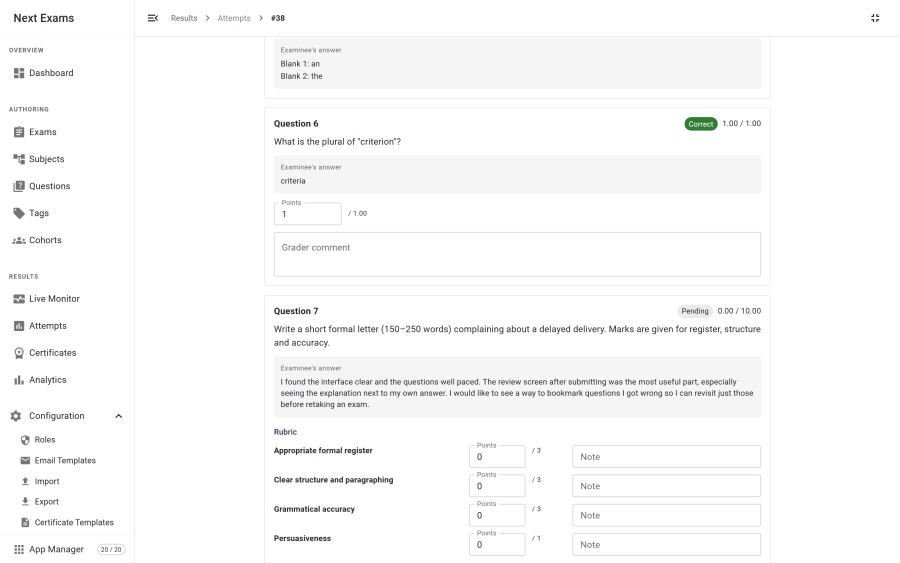
Two things happen automatically around this:
- The review stays locked while marking is outstanding. The examinee sees a pending notice, not a partial score. This is deliberate — a half-marked paper is misleading, and a learner who sees one will draw the wrong conclusion.
- An optional email tells you there is work waiting. When an attempt is submitted with essays in it, an administrator notification can be sent. It is off by default.
Marking saves as you type, so there is no separate save step per response.
Rubrics
An essay question can carry a rubric: a list of named criteria, each with its own maximum. The grader then scores each criterion separately, with a note against each, instead of putting one number against the whole answer.
| Element | What it does |
|---|---|
| Criterion label | What is being judged — "Clear structure and paragraphing", "Grammatical accuracy" |
| Criterion points | The maximum for that criterion |
| Criterion note | Free text explaining that particular score |
| Grader comment | One overall comment on the response |
The awarded points are the sum of the criterion scores. If the rubric's total does not match the question's own points, the editor warns you, and grading clamps the result to the question's points rather than letting a mis-specified rubric inflate a score.
Rubrics are optional — an essay with no rubric is marked with a single points field and a comment. Two related settings live alongside the rubric on an essay question: a minimum and maximum word count, shown to the examinee as guidance.
Note: a rubric is a structure for the human marker, not an automatic grader. Nothing in the rubric is scored by machine; it exists to make marking consistent between graders and to show the examinee where the marks went.
Result release
Releasing a result is a per-exam policy, not a global one.
| Policy | When the examinee sees their score |
|---|---|
| Immediate | As soon as grading completes |
| After close | Once the exam's closing time has passed |
| Scheduled | At an absolute time you set |
| Manual | Only when you release it explicitly |
Showing the correct answers is a separate switch. You can publish a score while keeping the paper hidden — useful when the same questions are still in use for other candidates.
Everything on the result page inherits this gating, including the per-exam pass and fail messages, so nothing leaks before release.
What the result page shows
| Element | Shown when |
|---|---|
| Pass or fail banner | Results are released |
| Score, maximum and percentage | Results are released |
| Pass or fail message | Results are released, and the exam defines one |
| Per-subject breakdown | Results are released, the attempt is fully graded, and the paper spans two or more subjects |
| Question-by-question review | Results are released and the exam reveals answers |
| Certificate download | A certificate was issued for this attempt |
| Pending notice | Marking is still outstanding |
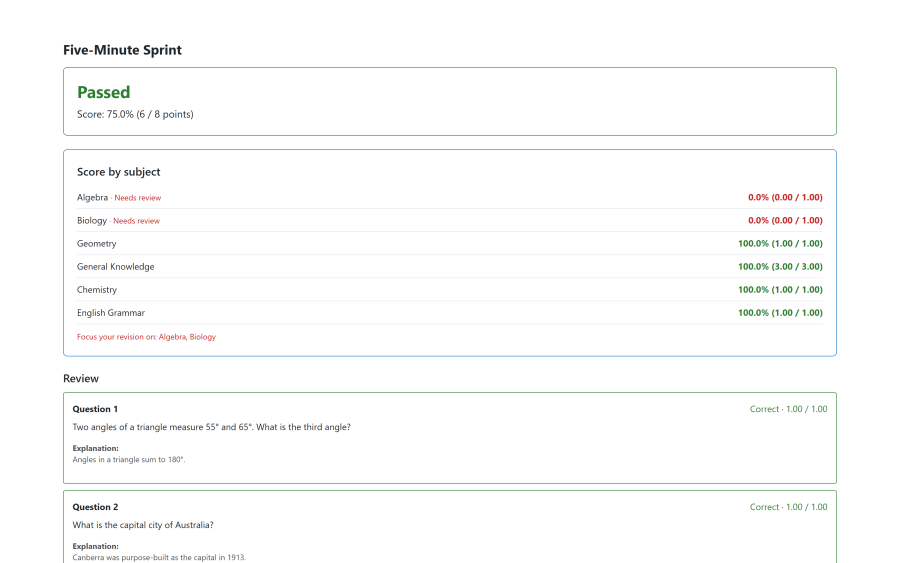
Per-subject breakdown
When an exam covers more than one subject, the result page reports how the examinee did in each one.
- Responses are bucketed by the subject their question belongs to, and points awarded and available are summed per subject.
- Subjects are listed weakest first, so the problem is the first thing read.
- Any subject scoring below the exam's pass mark is flagged Needs review.
- A closing hint names the areas to concentrate on.
The breakdown is skipped when it would say nothing — a single-subject paper adds no information by being split, and questions with no subject are excluded rather than bucketed into an "unknown" row.
Locked review
An exam can lock an attempt's review after it has been seen, so a candidate cannot keep the paper open as a revision aid or share a live rendering of it. Practice attempts are never locked, whatever the exam's policy says.
Exporting results
Attempts can be exported to CSV, filtered exactly as they are on screen — by exam, status and submission date range. The export contains the examinee, exam, status, score, maximum, percentage, pass state, time spent and submission time.
For question-level statistics rather than per-attempt rows, see Analytics and reports.
Access control
| Action | Required permission |
|---|---|
| View attempts | attempts — view |
| Grade an attempt | attempts — the grading action |
| Delete an attempt | attempts — delete |
| Export attempts to CSV | attempts — view |
| Release results manually | exams — edit, since release is an exam setting |
An examinee always sees their own result, subject to the release policy, without needing any permission.