Exam Runner
The runner is what the examinee actually uses. Its guiding principle is that the server owns the truth: the clock, the question set, the answers of record and the score all live server-side, so nothing an examinee does in their browser can change the outcome of the exam.
Its second principle is that the runner is a real HTML form. The page is rendered by the server with genuine named inputs and a working submit button; JavaScript adds the timer, autosave, paging and the floating navigator on top. Turn scripting off and the examinee can still complete and submit the paper.
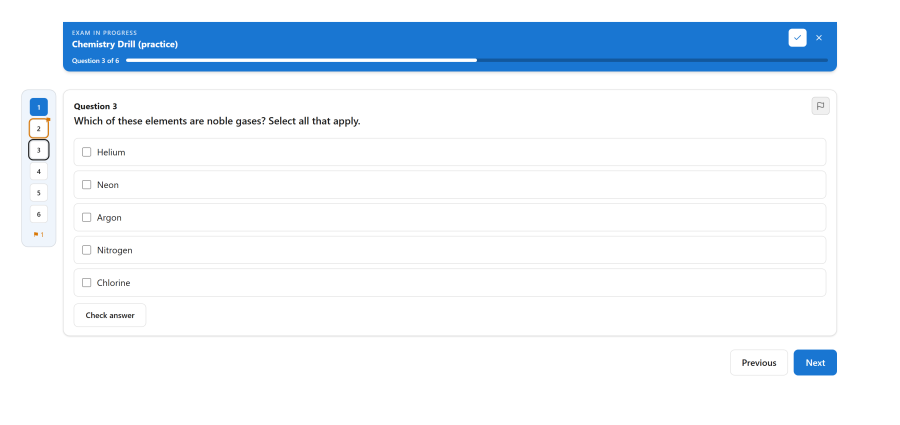
The runner shell
Everything an examinee needs to orient themselves lives in one sticky header: the exam title, the countdown, how far through they are, and the controls. It stays put as they scroll, because "how long is left" and "where am I" are the two questions people ask constantly during an exam.
| Element | Purpose |
|---|---|
| Progress rail | How far through the paper they are. One-per-page counts steps ("Question 7 of 25"); single page counts answers ("12 of 25 answered"). |
| Questions | Opens the question navigator. Only shown on a screen too narrow for the floating rail — see below. |
| Finish | Goes to the review step from any question. Only shown when the exam allows finishing early. |
| Fullscreen | Enters distraction-free mode. Only shown when the exam offers or expects it. |
| Pause | Freezes the clock. Only shown when the exam allows pausing. |
| Leave | Steps out without ending the attempt. |
The controls are icons, because a phone header cannot hold five words alongside a title and a clock. Each carries both a tooltip and an accessible name, and the tooltip appears on keyboard focus as well as hover — a keyboard user meeting an unlabelled icon is exactly who needs it.
The progress bar never carries information on its own: the text beside it always says the same thing.
Each question sits in its own card, titled with its number, with a mark-for-review flag in the top-right corner. Answer options are full-width rows with generous tap targets, and the selected one is marked by a border, a fill and a tint together rather than colour alone.
The question's type — "Multiple choice (single answer)", "Cloze (fill in the blanks)" — is a tooltip on the card title rather than a permanent label. It is context an examinee reads once and never again, and as a badge under every title it pushed the stem, which is the loudest thing on the page, down the card. Hovering or focusing the title reveals it, and it is also part of the card's accessible name, so it reaches a screen reader whether or not the tooltip is ever shown.
Leaving without ending the attempt
The Leave control never abandons an attempt. What it does depends on the exam:
- If pausing is allowed, it pauses — walking away from a running clock without freezing it is the more expensive mistake.
- Otherwise, it asks for confirmation, notes that answers are already saved, and returns to the exam page. The attempt stays in progress and can be resumed.
Starting an attempt
When an examinee starts, the server does several things at once and then freezes the result:
- Checks the access gate — window, cap, cooldown, code, allow-list.
- Resolves any pool rules into an actual list of questions.
- Applies question and option shuffling.
- Records the taking mode into the attempt — attempt mode, layout, practice reveal, integrity tracking, and how the runner presents itself: whether to review before submitting, whether finishing early is allowed, and the fullscreen policy.
- Creates the response records the attempt will fill in.
That frozen paper is what the examinee sees for the rest of the attempt. Editing the exam or the question bank afterwards cannot change it — including the presentation settings, so an author turning the review step off does not remove it from under somebody who is already three questions in.
Layouts
| Layout | Behaviour |
|---|---|
| Single page | Every question is on one page. The navigator scrolls to a question, and marks whichever one you are reading as current. |
| One per page | One question is visible at a time, with Previous and Next controls. |
One-per-page is not a different page load per question. The server renders the whole paper and the client shows one fieldset at a time, which is why paging is instant and why the no-JavaScript fallback still submits everything.
The question navigator
Every question in the paper as a numbered cell, showing state at a glance:
- Answered cells are marked distinctly, and the state is also in each cell's accessible name — not conveyed by colour alone.
- Flagged cells carry a badge as well as a colour, for the same reason.
- The current question is marked with a non-colour cue and announced as the current item. On a single-page exam that follows what the examinee is reading as they scroll.
Clicking a cell moves to that question — scrolling on a single page, paging on one-per-page — and moves keyboard focus with it.
Where it sits
The navigator has to be reachable at the moment somebody wants it, which on a long paper is not the moment they are at the top of the page. It takes one of three forms:
| Form | When |
|---|---|
| A floating vertical rail, left of the questions | Whenever the page is wide enough to hold one. It stays with the examinee as they scroll. |
| A panel that lifts from the bottom of the screen | On a narrow screen. A button in the sticky header opens it, so it is one tap away from any question. |
| A plain panel above the questions | With JavaScript disabled. |
Which of the first two applies is measured, not guessed from a screen size: the runner looks at how much room actually sits beside the question column. That is what makes it behave correctly in distraction-free mode, where the paper recentres itself and the space beside it changes without the window changing at all.
The rail is drawn outside the question column rather than taking a slice of it, so questions keep their full width either way. On a long paper the rail scrolls within itself and keeps the current question in view.
Autosave
Answers are saved as the examinee works, without them doing anything.
- Only what changed is sent. The client tracks which answers the server has confirmed and posts the difference.
- The first save is a full sync. The acknowledged set starts empty deliberately, so the opening save carries everything and only later saves are deltas.
- An unconfirmed answer is re-sent. The acknowledged set advances only on a confirmed write, so a save lost to a network blip goes out again with the next one.
- Submit always sends the whole paper. A lost autosave is recoverable; a lost submit is a grade. Submission does not take the delta shortcut.
The save indicator reports progress and turns assertive on an error so a screen reader announces it.
Timing
The time limit is enforced by the server. The countdown in the browser is a display of the server's clock, not the authority for it.
- Reaching zero auto-submits the attempt.
- The runner announces the five-minute, one-minute and time-up thresholds to screen readers as they are crossed — the per-second countdown itself is hidden from assistive technology, because reading it aloud every second would be unusable.
- A short exam that starts inside a threshold does not mis-announce it.
Pause and resume
When the exam allows it, an examinee can pause.
| Behaviour | Detail |
|---|---|
| The clock freezes | The remaining time is stored and restored on resume. |
| The attempt stays in progress | Pausing does not create a new status; the attempt is simply paused. |
| Caps are enforced | Both the number of pauses and the total paused minutes can be limited. Zero means unlimited. |
| Caps are checked at the next request | An examinee who has exhausted their pauses is refused the next one, not interrupted mid-pause. |
| Resuming after closing time finalises | If the exam's closing time passed while paused, the resume submits the attempt rather than reopening it. |
The pause overlay is a proper modal dialog, and a paused page that is reloaded puts keyboard focus on the Resume button.
Practice mode
An exam set to practice behaves differently in ways that are all deliberate:
- The time limit, attempt cap and cooldown are ignored.
- The attempt never auto-locks, whatever the exam's lock policy says.
- Feedback can be revealed per question — answering locks that one response, grades it, and shows the outcome immediately — or held to the end like a normal exam.
Because the mode is frozen into the attempt at start, a practice attempt already under way is unaffected by later changes to the exam, and remains a practice attempt even if the Practice app is switched off mid-flight.
Mark for review
Any question can be flagged to come back to, from the flag button in the top-right corner of its card. It is an icon, like the header controls, and its tooltip says what the next click will do — "Flag for review", then "Remove flag" — rather than restating the state the filled button already shows. Flags:
- Appear on the navigator as a badge and an outline, and in the cell's accessible name.
- Are counted in a running summary — "2 flagged for review".
- Are persisted server-side, carried by the same autosave that saves answers, so they survive a pause, a reload or a closed laptop.
- Are re-rendered by the server on the next page load, so they are correct before JavaScript has even run.
A submit from a browser with scripting disabled never clears them, because the server distinguishes "no flags" from "the client did not mention flags".
Images in questions
Images inside a question stem can be opened in a lightbox — click, or press Enter or Space on a focused image. The overlay is a modal dialog with the image's alt text as its label, focus trapped to the close button, and Escape or a backdrop click to close, restoring focus where it was.
The lightbox reads the image and appends its own overlay; it never rewrites the question content, so the server-rendered stem stays exactly as authored.
Reviewing before submitting
When the exam asks for it, a review step stands between the examinee and the submit button.
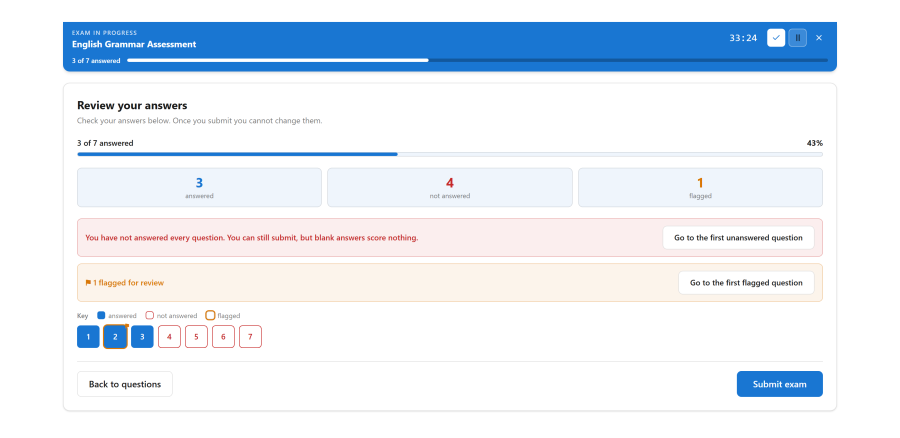
It answers "am I done?" in three passes, coarse to fine:
| A progress bar and a percentage | The one-line answer. |
| Three counts — answered, not answered, flagged | Which greys out at zero, so "0 not answered" reads as reassurance rather than as a problem. |
| A grid of numbered cells | The same squares, states and key the navigator uses all through the attempt, so nothing here has to be learned twice. |
- Anything that needs attention comes with the way to reach it: Go to the first unanswered question, and the same for the first flagged one.
- Clicking any cell goes back to that question.
- Nothing is submitted until the examinee presses Submit on this screen, and Submit sits at the opposite end of the row from Back — the irreversible action is never where a thumb lands after tapping the grid.
- The state shown here is computed from the same rule that fills the navigator, so the two can never disagree.
- Each cell says its state in words to a screen reader, so the colours and outlines are never the only carrier.
A grouped question — matching, ordering, extended matching, cloze — only counts as answered once every part of it is set. A half-finished matching question is genuinely not done, and telling somebody otherwise on a review screen would be worse than saying nothing.
If the exam requires an answer on every question, submitting from here is still refused: the examinee is returned to the first blank question with the reason shown against it.
Turn the review step off and the finish action submits directly.
Fullscreen
An exam can offer a distraction-free mode, or expect it.
| Setting | Behaviour |
|---|---|
| Off | No fullscreen control. |
| Offered | A fullscreen button in the header. Nothing is enforced. |
| Expected | The examinee is asked to start in fullscreen, and asked to return if they leave. |
Three things about this are deliberate and will not change:
- It never blocks an attempt. Safari on iPhone and iPad cannot put an arbitrary element into fullscreen at all, and an exam embedded in an LMS is often refused it by the host page. Those examinees are given a distraction-free view instead and carry on. "Expected" means the exam asks firmly, not that it can insist.
- Leaving fullscreen is recorded, never punished. It adds one to an integrity counter and raises a banner offering the way back. It never fails, locks or submits an attempt. A browser can drop fullscreen on its own — a print dialog, an operating-system notification, a permission prompt — and none of those are cheating.
- The prompt cannot appear on its own. Browsers only grant fullscreen in response to a deliberate action, which is why the exam asks with a button rather than taking over the screen as the page loads.
See Integrity signals.
Submitting
An examinee submits explicitly, or the server submits for them when the time runs out. On submit:
- The whole paper is posted.
- Everything except essays is graded immediately, with partial credit where the question allows.
- If the paper contains an essay, the attempt is marked as needing grading and the review is locked.
- Events fire for notifications, webhooks, certificates and LTI score passback.
What the examinee sees next depends entirely on the exam's release policy. See Grading and results.
Access control
The runner is reached by examinees, including guests, so it does not sit behind an administrative permission. Instead, every runner request authorises itself:
| Check | Enforced on |
|---|---|
| The access gate | Starting an attempt |
| Attempt ownership | Every save, pause, resume and submit — an attempt belongs to one user or one guest token |
| Attempt status | Writes are refused unless the attempt is in progress |
| The frozen mode | Practice-only actions are checked against the attempt's frozen mode, not the exam's current setting |
Because the runner endpoints are reachable without a login, they are deliberately narrow: each one resolves the attempt first and derives everything else from it, rather than trusting an identifier supplied alongside.