App Manager
Next Task is built from apps. The App Manager switches the optional ones on and off for the whole site. Open it from Configuration > App Manager in the navigation; it needs the Configuration > Apps permission (see Roles).
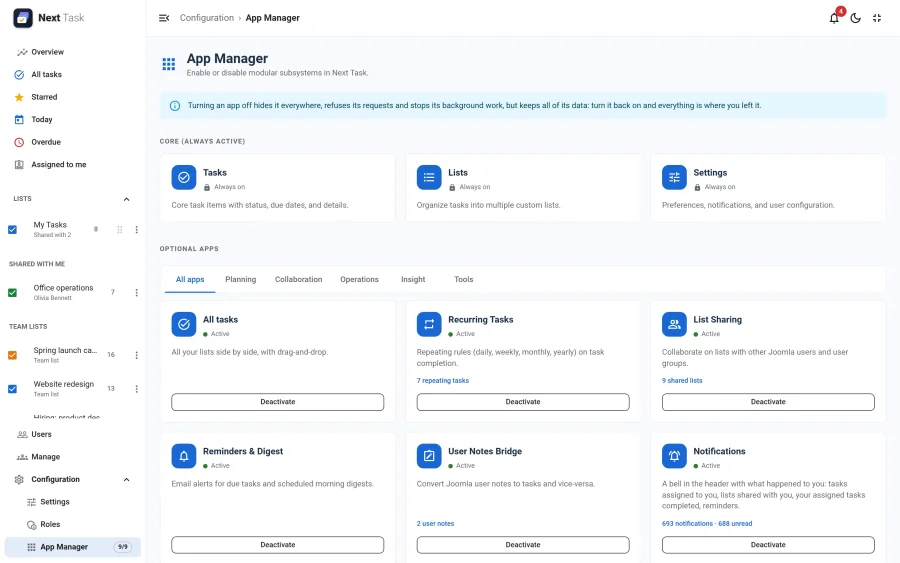
Turning an app off hides it everywhere, refuses its requests on the server (the app and the REST API answer 403 with the code APP_DISABLED) and stops its background work, but keeps all of its data. Turn it back on and everything is where you left it.
The Apps
The core apps, Tasks, Lists and Settings, are always on. The optional apps, grouped by category:
| App | Category | Switched off |
|---|---|---|
| All tasks | Planning | The board is hidden. Anyone whose home page is All tasks opens their default list instead. |
| Recurring Tasks | Planning | Completing a repeating task no longer creates its next occurrence. The repeat rules are kept. |
| List Sharing | Collaboration | People lose access to the lists shared with them, and team lists, which have no owner, are out of everyone's reach. The shares are kept. |
| Reminders & Digest | Operations | No reminder, digest or assignment emails are sent, and their settings are hidden. |
| User Notes Bridge | Operations | The User Notes panel and the task / note conversions are hidden. |
| Notifications | Operations | The bell disappears and nothing new is added to it. Reminder emails still go out. |
| Overview & Management | Insight | The Overview dashboard and the Users page are hidden. |
| Installable App | Tools | Installed copies stop working offline: their cache is removed on the next visit. |
| Demo Mode | Tools | The Demo tab in Settings, which loads sample lists and tasks so you can try Next Task straight away and removes them with one click, is hidden. Off by default. |
Each card shows whether the app is Active, Inactive or Paused, and the category filter narrows the list.
Changing Apps
Switch the cards you want and click Save in the bar at the bottom of the screen, or Discard to go back. Before an app is switched off, a dialog says what will be out of reach until it is back, with the live figures, for example "12 shared lists" or "340 emails sent in the last 90 days". Nothing is deleted.
The page reloads after a save that changed something, so the navigation and every screen pick up the new set of apps. People who already have Next Task open see the change on their next page load.
Requires, Paused and Locked
- Requires: an app that depends on another shows "Requires (app)" and its switch stays disabled while the app it needs is off. Switching the needed app off doesn't switch its dependents off: the dialog names them, they show as Paused, and they come back by themselves when the needed app is on again. None of the shipped apps depends on another today.
- Locked: an app that can't be switched right now has its switch disabled and says why. If a save includes a locked app, the other apps are saved and a message names the one that was not changed.