Sharing and Team Lists
Lists are private by default. A list can be shared with people or with whole Joomla usergroups, to view or to edit, and lists that belong to the team rather than to one person are team lists.
Sharing a List
Open the list's menu and choose Share list. On the Share with a user or Share with a group tab, search for the person or group, pick Can view or Can edit, and click Share. Everyone the list is shared with is listed below with their permission; the bin icon revokes access. To change a permission, revoke the share and share again (or change it in Manage > Shares).
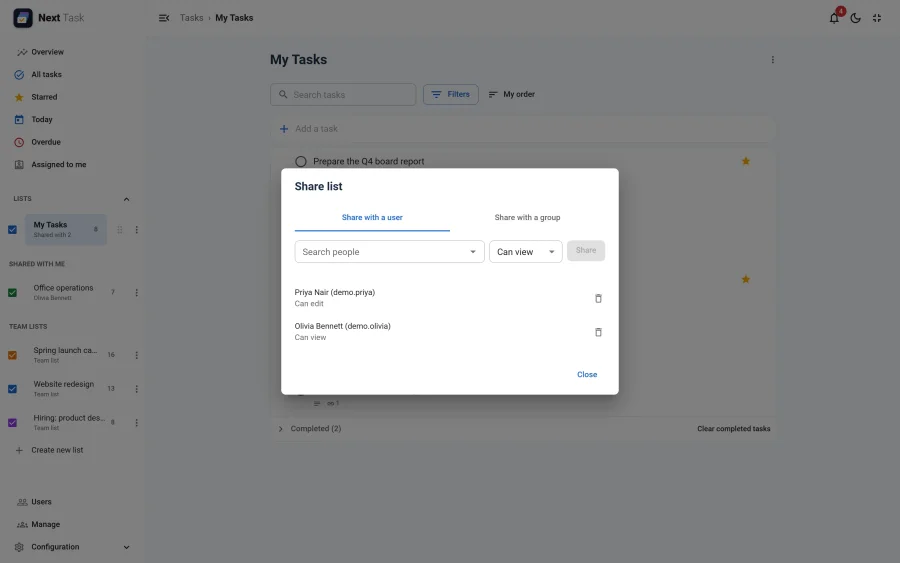
- Can view: they see the list and its tasks, read-only (apart from completing tasks assigned to them, see Assignment).
- Can edit: they add, change, complete, move, assign and delete tasks, like the owner. They can't rename, delete or share the list.
- A usergroup share reaches every current and future member of the group, and of the groups below it.
- The people it is shared with find it under Shared with me in their lists panel, with the owner's name, and get a notification.
- Sharing your own list needs the Lists > Share permission. You can always remove a share from your own list; while a list has shares, its menu shows People with access.
- Removing a share unassigns the people who lost access from the list's tasks.
Leaving a List
Someone a list is shared with by name can leave it: Leave list in its menu. The list disappears from their views and they are unassigned from its tasks; only its owner can share it with them again. Access that comes only through a usergroup can't be left, and an owner can't leave their own list.
Team Lists
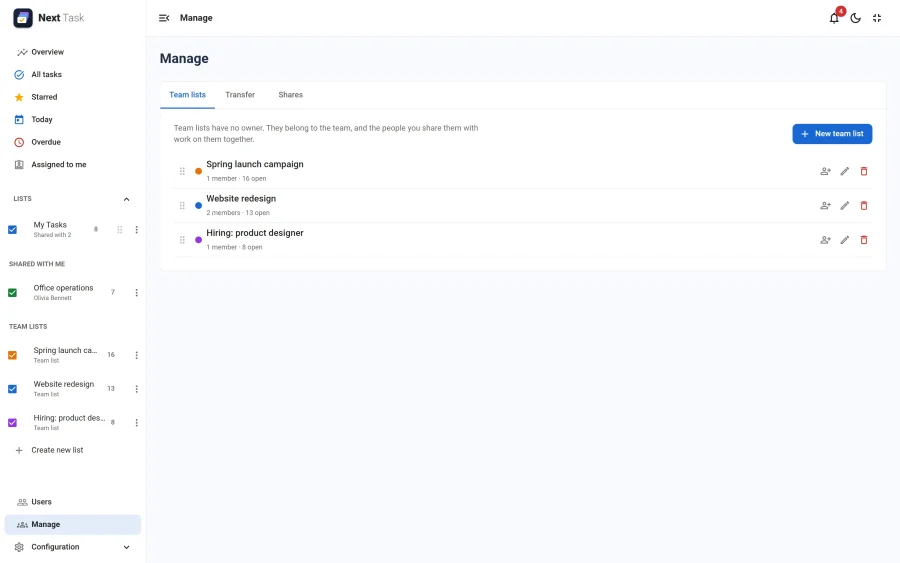
A team list belongs to the site, not to a person. Nobody owns it, so nothing needs handing over when someone leaves, and no member can rename or delete it. A typical team list is "Website redesign" for the web team.
-
People with the Team lists > Manage permission create, rename, recolour, order, share and delete team lists in Manage > Team lists (see Managing team lists).
-
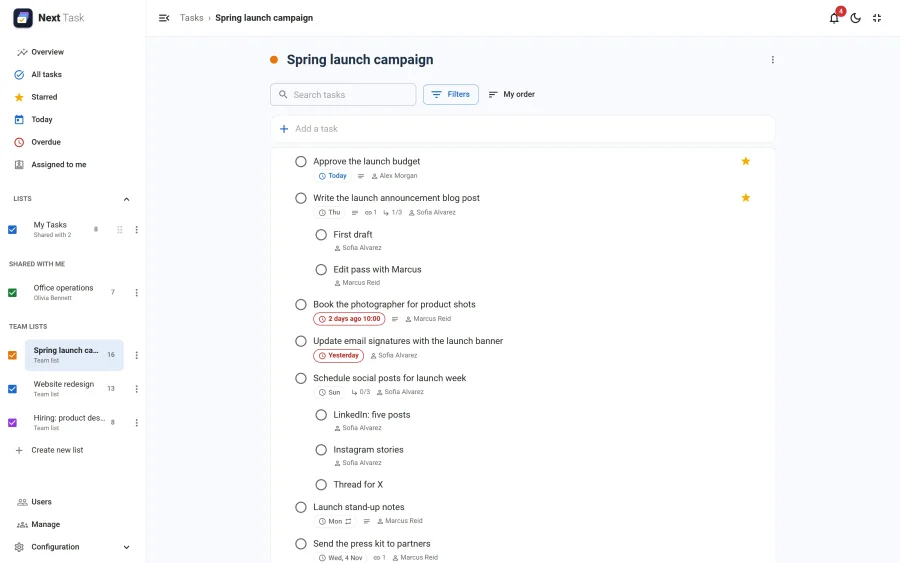
Members reach a team list through its shares only, and find it under Team lists in the lists panel. On All tasks its column comes after their own lists, until they drag it elsewhere.
-
With an edit share members work its tasks as on any shared list; with a view share they read.
-
Due-time reminders and the digest for a team list's task go to its assignee only.
Switching Sharing Off
List Sharing is an app. Switched off in the App Manager, shares grant nothing: people lose the lists shared with them, and team lists are out of everyone's reach. The shares are kept and work again when the app is back on.