Quick Start
Three steps from a fresh install to a working task list.
1. Open the App
In the administrator, go to Components > Next Task. On the site front-end, logged-in users open the same application from the My Tasks menu item (see Installation).
The navigation runs across the top of the page: Overview, All tasks, Tasks (your lists and the Starred, Today, Overdue and Assigned to me views), Users, Manage and Configuration (Settings, Roles, App Manager). Each person sees only the entries their role allows. On a phone the navigation opens from the menu button. In the administrator, the Full screen button in the header hides Joomla's own menu and toolbar, and Next Task remembers that choice for the next visit.
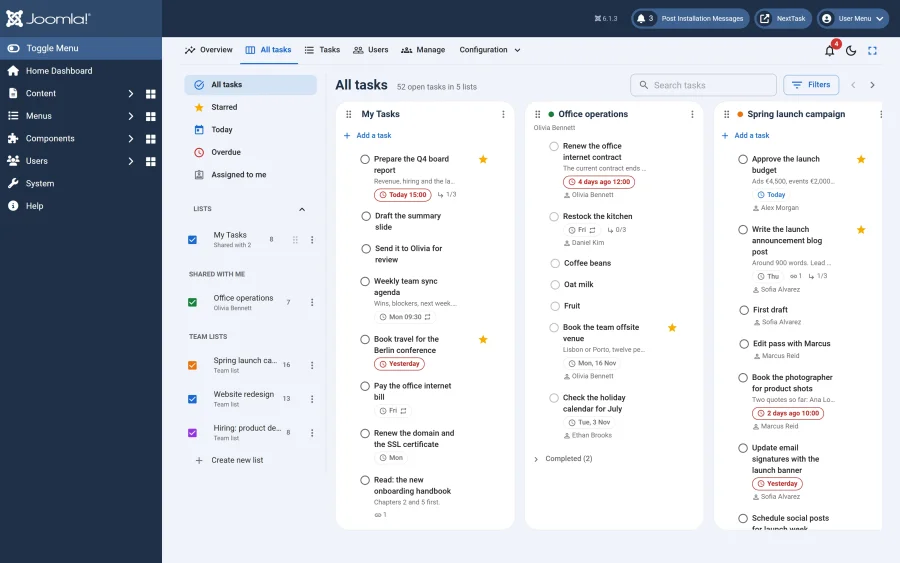
The first page you see is the home page: All tasks unless the site or you picked another one (see Settings). Every user starts with a "My Tasks" list. Click Create new list in the lists panel, type a name, for example "Work", and press Enter. The list appears with a live counter of open tasks.
2. Add Tasks and Subtasks
Type into the Add a task bar of a list and press Enter. Click a task row to open its editor, where you can:
- add details (a free-form notes field),
- set a due date and optional time (or tap the Today / Tomorrow chips),
- make it repeat daily, weekly, monthly or yearly,
- add links, star it, or assign it to another person who can reach the list,
- add subtasks in the "Add subtask" field and indent or outdent them.
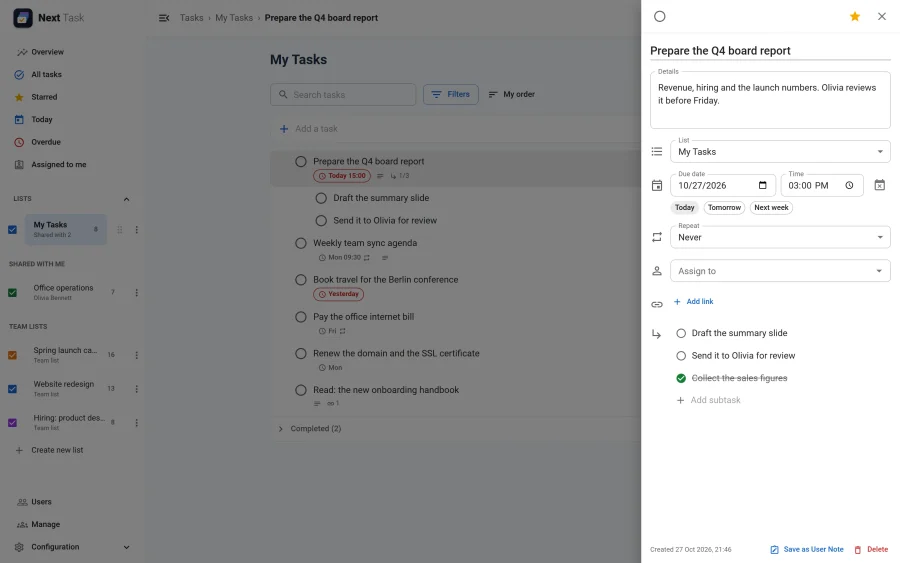
Press n anywhere in the list to jump to the add bar. Check the round checkbox to complete a task: it moves to the Completed section at the bottom, and a recurring task immediately gets its next occurrence.
All tasks shows every list side by side, one column each. Drag a column by its header to put your lists in your own order, drag cards between columns, and drag an empty part of the board to scroll it sideways.
3. Share With Your Team
Open a list's menu and choose Share list. Add a user or a whole usergroup with Can view or Can edit permission, and everyone gains the list in their own lists panel. Lists that belong to the whole team rather than to you are team lists, created in Manage (see Sharing and team lists).
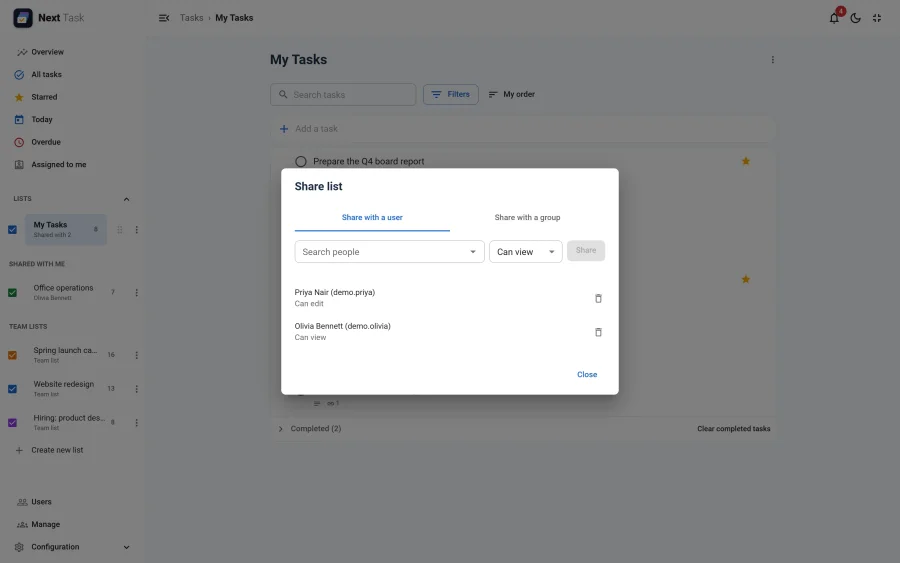 Assign individual tasks to any member of a shared list: they get an email and a notification, and the task shows up under Assigned to me for as long as they can reach the list.
What Happens Next
- Due tasks appear in Today, overdue ones in Overdue, and starred tasks in Starred, across all your lists.
- With the Scheduled Task routines enabled (see Reminders and scheduled tasks), timed tasks send reminder emails and every user gets their daily digest at the time they chose in Settings.
- Team leads open Overview for the site-wide figures and charts, and Users for a searchable table of everyone's open and overdue work; a row opens that person's tasks read-only (see Roles for the permissions).