Full-Screen and Embedded Layouts
Next Task runs inside Joomla, in the administrator and on the site, and it can take the whole window.
Embedded
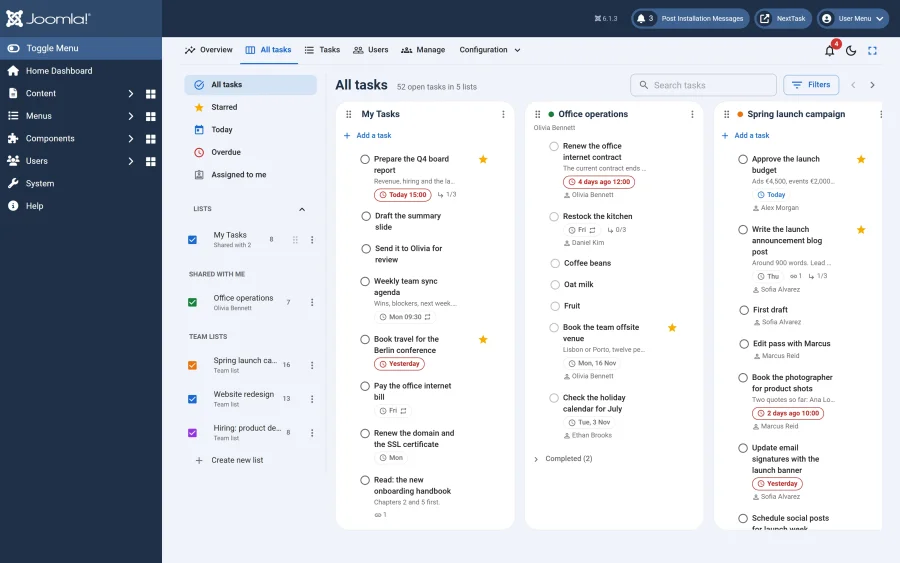
By default the app sits inside the page around it: the administrator's menu and toolbar, or your site template on the front end. The navigation runs across the top of the app (Overview, All tasks, Tasks, Users, Manage, Configuration), with the bell, the colour scheme and the full-screen buttons on the right. On task screens, the lists panel sits on the left.
Full Screen
The Full screen button (the arrows at the top right) gives Next Task the whole window: the Joomla menu and toolbar, or the site template, go away, and the navigation moves into a sidebar with the smart views, the lists panel and the other screens.
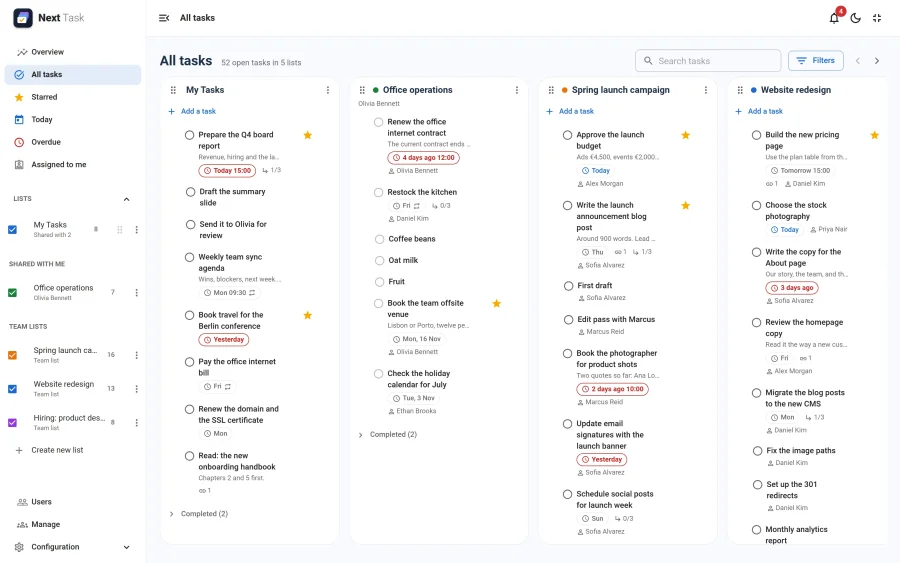
- The sidebar collapses to a narrow rail of icons with the button at the top left; Next Task remembers that choice.
- In the administrator, Next Task also remembers full screen itself: the next time you open it, it opens full screen.
- On the site, full screen is not remembered: the next visit shows the site template again.
- The same button leaves full screen.
The Colour Scheme
The sun and moon button switches between light and dark. Next Task follows Joomla's own colour scheme, so the administrator's setting and the app stay in step.