Roles
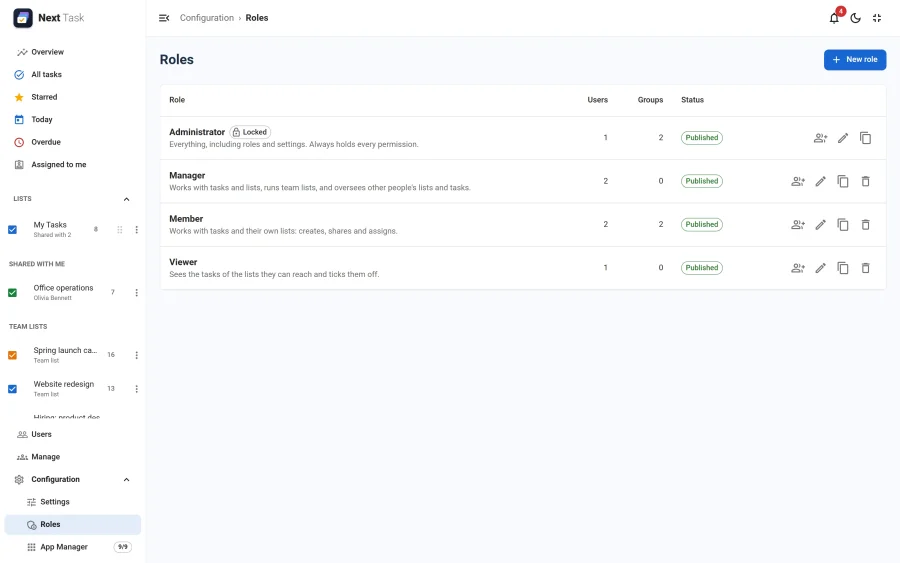
A role is a named set of permissions. It decides what a person may do in Next Task: see tasks, create, edit, complete, delete and assign them, create and share lists, run team lists, open the Overview, change settings. Roles are assigned to Joomla users or to Joomla user groups, and you edit them in the app under Roles, in the Configuration part of the menu (people with the "Roles" permission).
Roles decide what someone may do. Which lists and tasks they can reach is still decided by list ownership and sharing: owner, then edit, then view. A role never opens someone else's list by itself (apart from the read-only "View all" permission below).
The Permissions
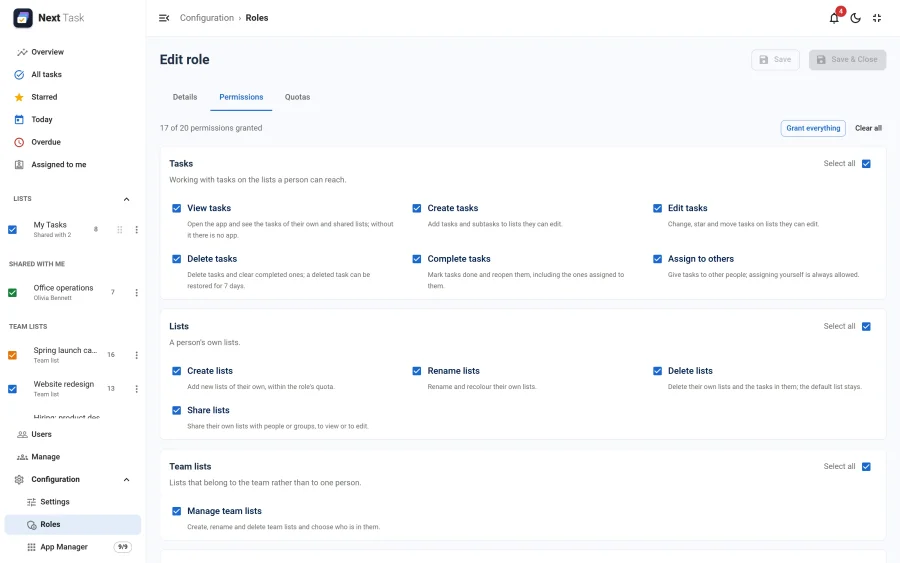
In the role editor's Permissions tab, each feature is a card: its name, a line on what it covers, a Select all box (half-ticked while only some of its actions are on) and each action as a checkbox with a short line on what it allows. Grant everything and Clear all above the cards switch every permission at once, beside a count of how many are granted. A feature or action whose app is switched off in the App Manager shows an App disabled chip: its grants are kept and apply again when the app comes back on.
| Feature | Action | What it allows |
|---|---|---|
| Tasks | View | Seeing tasks and using the app at all. Without it, a person sees "You have no Next Task role" and every request is refused. |
| Create | Adding tasks and subtasks (the "Add a task" field, a User Note turned into a task). | |
| Edit | Changing tasks: title, notes, due date, star, moving and reordering. Without it, the task drawer is read-only. | |
| Delete | Deleting tasks (and Undo), and "Clear completed tasks". | |
| Complete | Ticking tasks off and reopening them. | |
| Assign | Assigning a task to someone other than yourself. Assigning to yourself, clearing the assignee and saving a task with its assignee unchanged need only Edit. | |
| Lists | Create | Creating lists beyond the personal "My Tasks" list. |
| Edit | Renaming and recolouring lists you own. | |
| Delete | Deleting lists you own. The default list can never be deleted. | |
| Share | Sharing lists you own: adding and changing shares. You can always remove a share from a list you own, whatever your role. | |
| Team lists | Manage | The Team lists tab in Manage: create, edit, delete, share and order lists that belong to the team. It gives no access to their tasks. See Managing Team Lists. |
| Overview | View | The Overview screen: component-wide figures and charts. |
| Users | View | The Users page (everyone's open and overdue counts), the Overview's Top 5 and its "Most open tasks" chart. |
| Notes | Joomla User Notes from a task or a user. | |
| Manage | View all | Opening any user's tasks, read-only, from the Users page. |
| Transfer | The Transfer tab in Manage: move a personal list to another person, or between personal and team. | |
| Shares | The Shares tab in Manage, and changing the sharing of lists you do not own. | |
| Configuration | Settings | The System tab in Settings, and "run reminders". |
| Apps | The App Manager. | |
| Roles | The Roles screens. |
Every permission is checked on the server, not only hidden in the app. A request without the permission is refused with 403 FORBIDDEN, and the matching button or screen is not shown.
A Write Needs the Role and the List
To change something, a person needs both: the role says what they may do, the list says where. Editing a task needs Tasks > Edit and edit access to its list (they own it, or it is shared with them to edit). A list shared with someone to view stays read-only, whatever their role. And a role without Tasks > Edit keeps even their own lists read-only.
The one exception is completing: someone a task is assigned to may complete or reopen it on a list shared with them to view (with Tasks > Complete). Nothing else: they cannot rename, move, delete or restore it, star it or add subtasks to it.
The Roles That Come With Next Task
| Administrator | Manager | Member | Viewer | |
|---|---|---|---|---|
| Tasks: view, complete | Yes | Yes | Yes | Yes |
| Tasks: create, edit, delete, assign | Yes | Yes | Yes | No |
| Lists: create, edit, delete, share | Yes | Yes | Yes | No |
| Team lists, Overview, Users, Manage | Yes | Yes | No | No |
| Configuration: settings, apps, roles | Yes | No | No | No |
- Administrator always holds every permission, including any permission added to Next Task later. Its permissions cannot be edited, and it cannot be deleted or unpublished. You can change its title and description.
- Manager, Member and Viewer are ordinary roles: edit, duplicate or delete them as you like.
- Viewer sees the tasks of the lists they can reach and ticks them off, nothing more.
On installation, Next Task assigns roles to your Joomla groups by rule:
- Administrator goes to each group that may manage the component or administer the site (on a standard Joomla: the Administrator group and Super Users) and whose parent group may not.
- Member goes to every other group directly under Public, except Guest. On a standard Joomla that is Registered and Manager. Their child groups inherit it.
Manager and Viewer are not assigned to anyone. Check the result under Roles, and change it if your site's groups are set up differently.
Limits
A role can also carry two optional limits: the most personal lists a person may own, and the most open tasks a list may hold. They are in the role editor's Quotas tab.
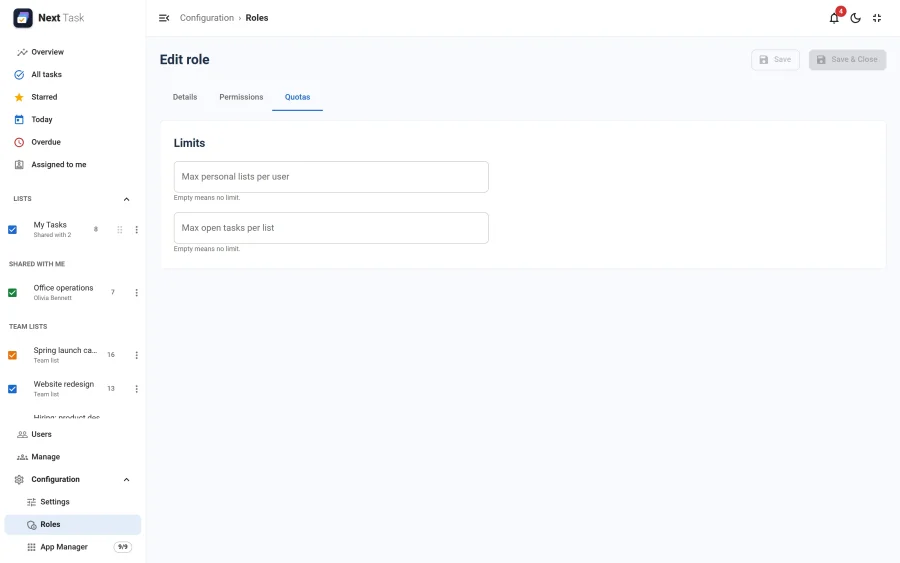 When several roles apply, the highest limit wins and a role without a limit lifts it; Administrator and Super Users have none. See Managing Team Lists.
Assigning Roles
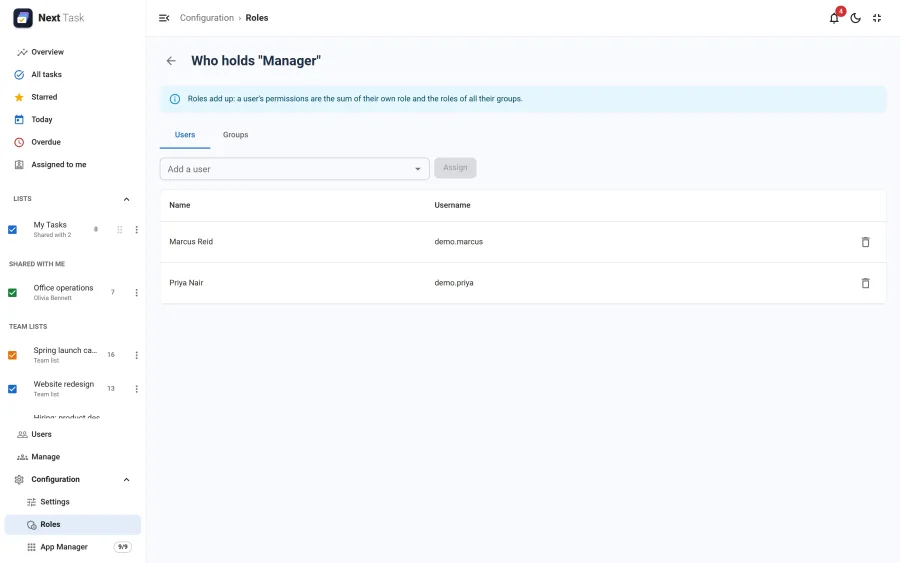
Open a role and choose Assignments. The Users tab assigns the role to individual people; the Groups tab assigns it to Joomla user groups, and every current and future member of the group gets it.
A person can hold one role directly. Assigning someone a role when they already hold another moves them to the new one, and the result says how many people were moved.
Roles Add Up
For each person Next Task works out the permissions like this:
- A Super User always passes, every permission, whatever the roles say.
- Otherwise their direct role and the roles of all their groups (including parent groups) are added up. A permission is on when any of those roles grants it.
- If no role applies, every permission is off.
So a direct role can give a person more than their group has, never less. To hold one person below their group, move them to a group with a smaller role. An unpublished role counts as not assigned. A role that can't be read counts as granting nothing.
People With No Role
Without Tasks > View there is no app: a person sees "You have no Next Task role, ask an administrator" instead of their tasks, and the server refuses every request except signing in again. The personal "My Tasks" list is created on a person's first visit only when their roles allow creating tasks.
A top-level Joomla group created after Next Task was installed has no role until you assign one. Assign a role to the group (or to each person) to let its members in. Groups below an existing group inherit that group's role.
The Demo data tab is for Super Users only, whatever the roles say.
When a Permission Is Taken Away
Nothing is deleted when a role changes. A person who loses "Share lists" keeps the shares they made, and a person who loses "Assign" keeps the assignments they made; they just can't add or change them any more. An owner can still remove a share from their own list: while a list has shares, its menu shows People with access in place of Share list. Changes reach a person the next time they load the app, and the server enforces them at once.