Due Dates and Times
A task can have a due date, and optionally a time on that date. Dates decide what shows in Today and Overdue, how Date sort orders a list, and when reminders go out.
Setting a Date
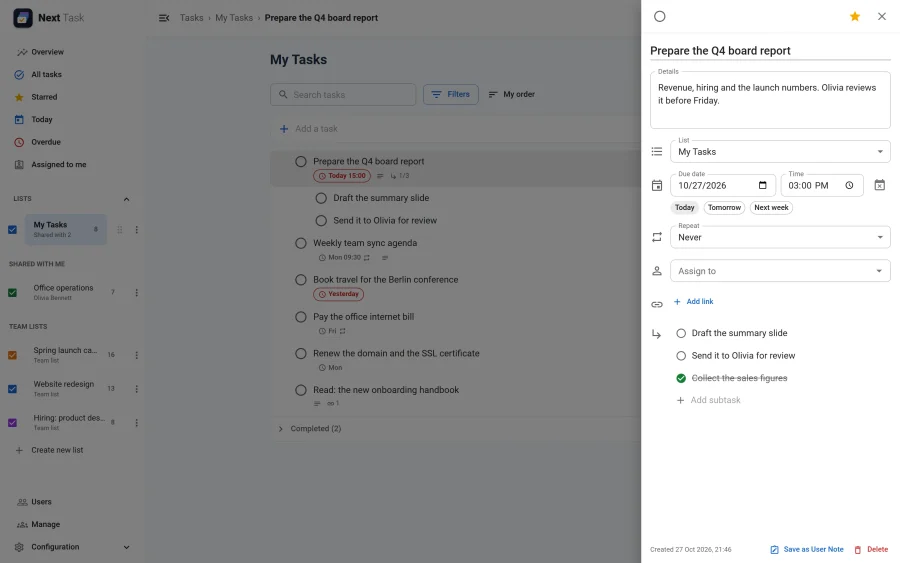
In the task drawer, pick a Due date, or tap Today, Tomorrow or Next week. Add a Time if the task is due at a set moment; leave it empty for a whole day. The button beside the fields removes the date.
How Dates Show
Each row carries a chip:
- Today 15:00, Tomorrow, a weekday (Fri) for this week, or a date (Mon, 16 Nov) further out.
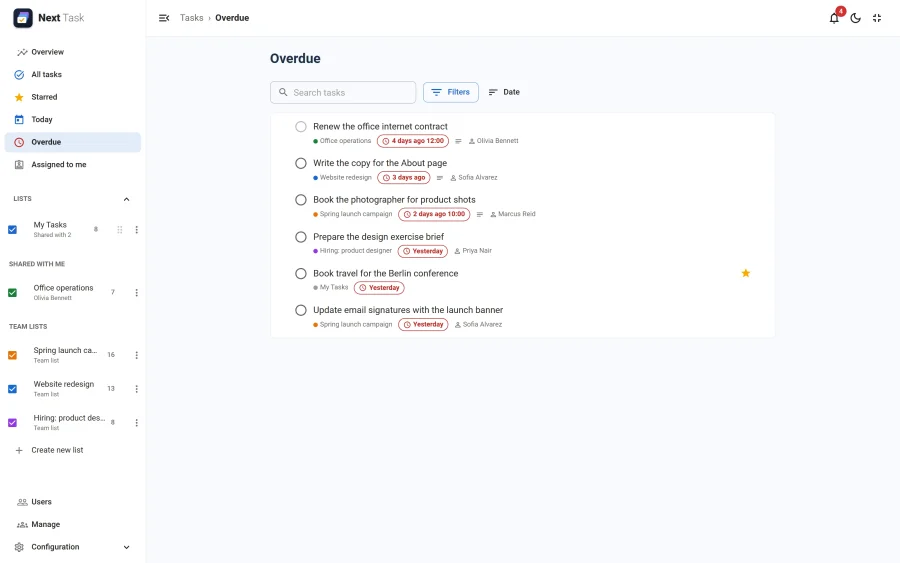
- In red once the task is overdue: Yesterday, 3 days ago, 2 days ago 10:00.
- A repeat icon on a recurring task.
Date-Only and Timed Tasks
- A date-only task is due all day. It is overdue from the next day, appears in the daily digest and sends no due-time reminder.
- A timed task is overdue once its time has passed, and gets a due-time reminder (by email and in the bell) shortly before or at that time.
The Site's Time Zone
Due dates are stored and compared in the Joomla site time zone (System > Global Configuration > Server > Website Time Zone), on the server and in the app. "Today" is the same day for everyone, wherever their browser is. If your team works across time zones, choose the zone the team works in.
Views and Sorting
- Today gathers open tasks due today or earlier, from every list you can reach.
- Overdue gathers open tasks whose date has passed.
- Date sort (in the list menu) orders a list by due date, undated tasks last.
- The Filters of a list narrow it to tasks due today, overdue, with a date or without one.