Managing Team Lists
The Manage screen is where a site administrator runs lists that belong to the team, moves lists between people and cleans up sharing. It opens from Manage in the navigation (between Users and Configuration), and it is shown only to people whose role holds at least one of the permissions below. Each tab appears only for the role that holds its permission.
| Tab | Permission needed |
|---|---|
| Team lists | Team lists > Manage |
| Transfer | Manage > Transfer |
| Shares | Manage > Shares |
Every rule is checked on the server. A request without the permission is refused with 403 FORBIDDEN, and the REST API refuses it in the same way.
Team Lists
A team list belongs to the site, not to a person. Nobody owns it, so nothing has to be transferred when someone leaves, and a member can't rename or delete it. A typical example is a "Sales" list for the Sales group.
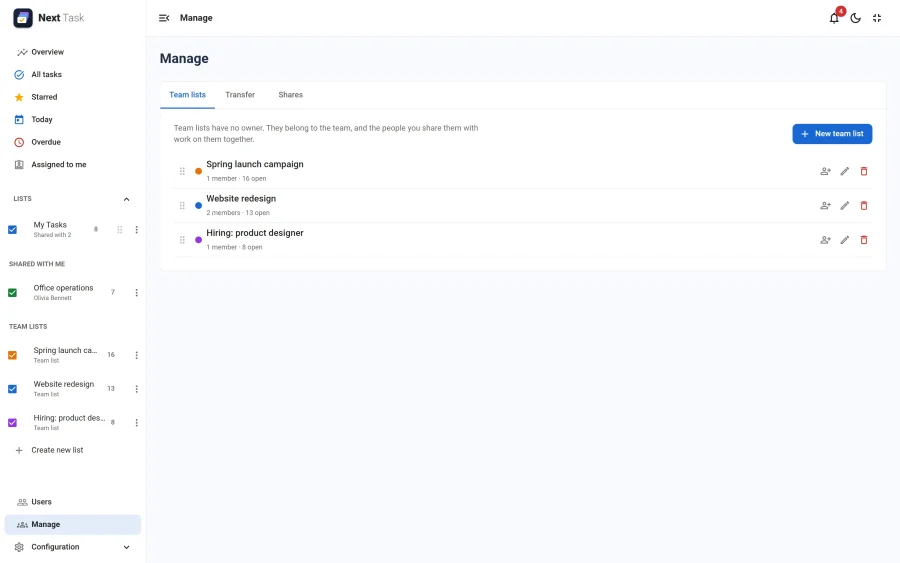
On the Team lists tab you can create, rename, recolour, reorder and delete team lists, and share each one to Joomla groups or to individual users with view or edit access. The order you set is the same for everyone.
- With edit access, members add, complete, move, assign and delete tasks, exactly as on any shared list. With view access they can only read.
- Members see the list under Team lists in the lists panel, and its column comes after their own lists on All tasks until they drag it elsewhere. They can hide it and choose their own sort, as with any list. Their list menu has no rename, delete or share.
- Managing a team list gives no access to its tasks. To work in the list, a manager needs a share like anyone else. Add me on the tab gives you an edit share in one click.
- Deleting a team list asks for confirmation and says how many people can reach it.
- If the Shares app is switched off, shares grant nothing: members lose the list from their lists panel. You can still list and edit team lists in Manage, but Add me and Share are hidden, the Shares tab is left out, and a role that holds only the shares permission gets no Manage entry.
- Reminders and the daily digest for a task in a team list go to its assignee only. A task nobody is assigned to sends no reminder.
Transfer
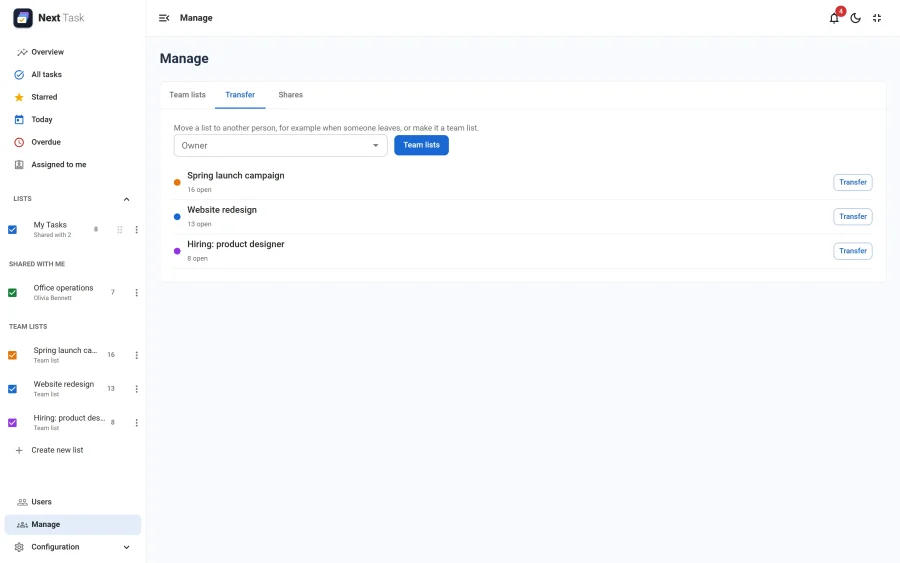
The Transfer tab moves a personal list from one person to another, turns a personal list into a team list, or turns a team list back into a personal list owned by someone you choose. A person's default "My Tasks" list can't be transferred.
The dialog has a checkbox, Keep (name) on this list with edit access, ticked by default. With it ticked, the previous owner keeps working in the list through an edit share. Existing shares are kept. With the Shares app switched off, a share grants nothing, so the dialog notes that the kept share takes effect once the app is back on. Anyone left without access to the list is unassigned from its tasks. Transfers are not held back by quotas, so you can give a person more lists than their limit on purpose.
Shares
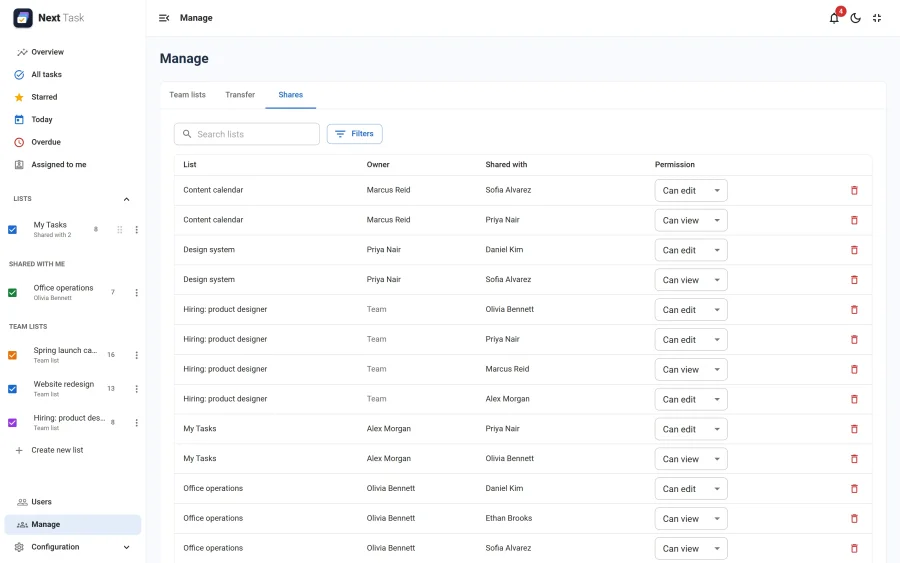
The Shares tab lists every share on the site: the list, its owner (or "Team"), who it is for (a user or a group) and the permission, with a search by list title and filters by user and group. You can change a share between view and edit, or remove it. Removing a share unassigns the people who lost access.
Limits
In the role editor, the Quotas tab holds two optional numbers per role. Editing them needs the Configuration > Roles permission.
- Max personal lists per user: the lists a person owns. Team lists don't count.
- Max open tasks per list: tasks that are not completed and not deleted, subtasks included.
Empty means no limit. A person with several roles (their own and their groups') gets the highest value, and an empty value in any of those roles means no limit. The Administrator role and Super Users have no limits.
A limit stops three things: creating a list, creating a task (a subtask too), and moving a task into a list that is full, one at a time or with a bulk move (bulk actions only move tasks; the other bulk changes don't create anything). A moved parent task counts together with its open subtasks. The app then shows a message such as "You can own at most 10 lists. Ask your administrator for more." and the API answers 422 with the code QUOTA. For a task in a team list, the limit is the one of the person adding it.
A limit never deletes or hides anything. Data already over a limit stays as it is, and restoring a deleted task, the next copy of a recurring task and demo data are not blocked.