Lists and Smart Views
Tasks live in lists. Every person starts with a list called My Tasks, created on their first visit when their role lets them create tasks, and can add as many lists as their role (and its quota) allows.
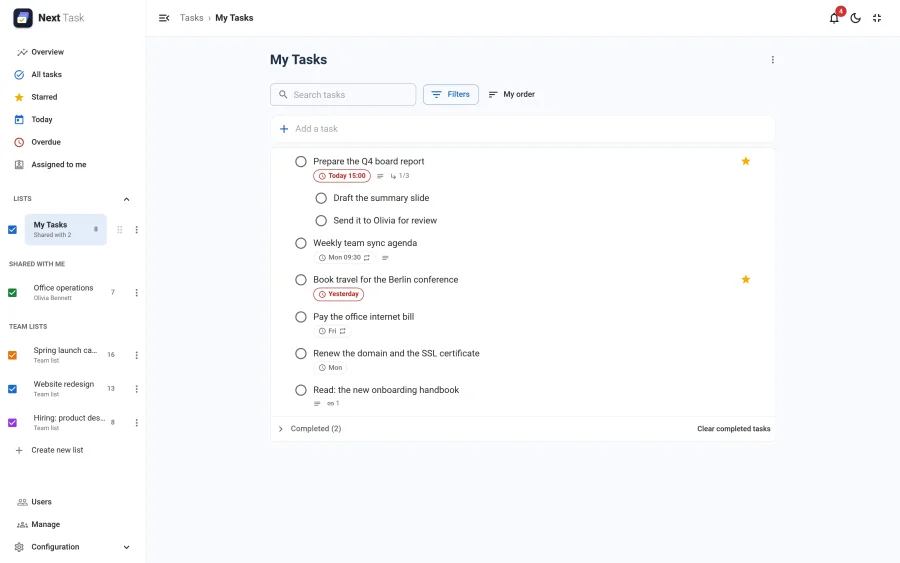
The Lists Panel
The panel on the left (a drawer on phones) has three sections:
- Lists: the lists you own, in the order you drag them into, with the number of open tasks.
- Shared with me: lists other people share with you, with the owner's name under the title.
- Team lists: lists that belong to the site, not to a person (see Sharing and team lists).
Create new list at the bottom adds a list: a title and a colour. The checkbox beside each list shows or hides it on the All tasks board.
The List Menu
The ⋮ button of a list (in the panel and in the list's heading) holds:
- Sort by: My order (the order you drag tasks into), Date, Starred or Title. Each list remembers its own sort, for you.
- Edit list: title and colour (lists you own).
- Share list or People with access (see Sharing and team lists).
- Default list: the list new tasks go to from the smart views. The default list can be renamed but not deleted.
- Clear completed tasks, with Undo.
- Leave list, on a list shared with you by name.
- Delete list, which asks first and removes its tasks with it.
Smart Views
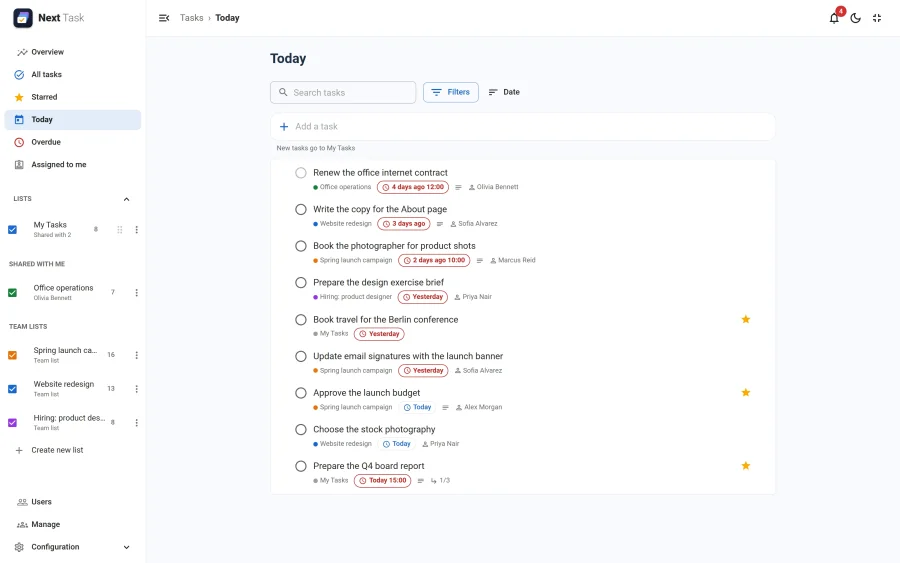
The smart views collect tasks from every list you can reach:
| View | Shows |
|---|---|
| Starred | Open starred tasks |
| Today | Open tasks due today or earlier |
| Overdue | Open tasks whose date has passed |
| Assigned to me | Open tasks assigned to you, on lists you can still reach |
Each row shows which list the task belongs to. Tasks added from a smart view go to your default list. "Today" and "overdue" are counted in the site's time zone, never the browser's, so everybody sees the same day.
Adding Tasks
Type into Add a task and press Enter; the task is added to the list (at the end of My order; drag it wherever you want it). Press n anywhere in a list to jump to the field.
The Task Drawer
Click a task to open its drawer on the right. It saves as you type; there is no Save button.
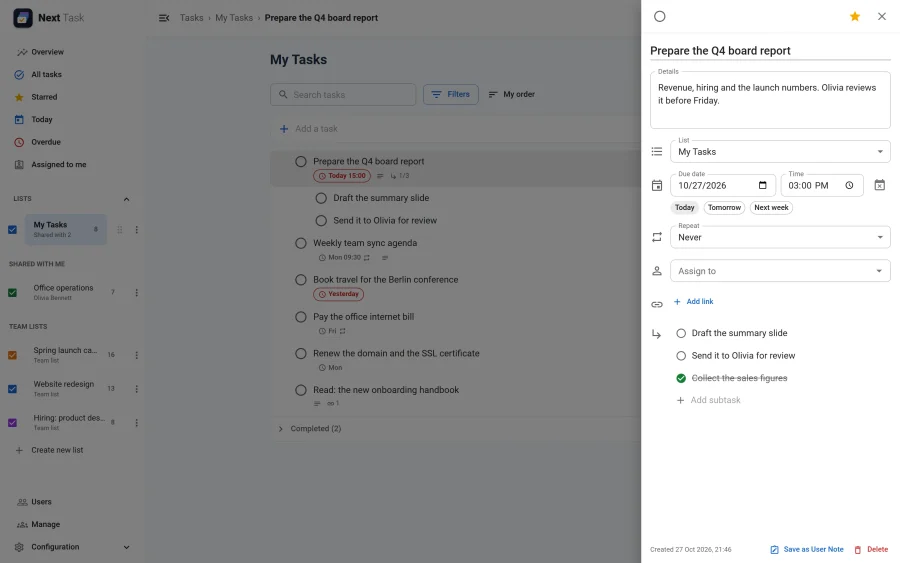
- Title and Details (free-form notes).
- List: move the task (and its subtasks) to another list you can edit.
- Due date and an optional Time, with Today, Tomorrow and Next week chips (see Due dates and times).
- Repeat (see Recurring tasks).
- Assign to (see Assignment).
- Links: web addresses with an optional label.
- Subtasks (see Subtasks).
- The round checkbox completes the task, the star stars it, and the footer has Save as User Note and Delete.
On a list shared with you to view, the drawer is read-only.
Completing and Deleting
Tick the round checkbox to complete a task: it moves to the Completed section at the bottom of the list, which opens with a click. Tick it again to reopen the task.
Deleting a task (from its menu, its drawer, the Delete key or a selection) shows an Undo in the message at the bottom of the screen. Deleted tasks are kept for 7 days and then removed for good by the maintenance routine (see Reminders and scheduled tasks). Lists are not soft-deleted: deleting one asks for confirmation first.
Search, Filters and Sort
Above each list: a search field, Filters (due date: any, due today, overdue, has a date, no date; starred only; show completed tasks) and the sort. Active filters show as chips with a Clear all.