Assignment
A task can be assigned to one person: someone who can reach its list. They are told about it, find it under Assigned to me, and can tick it off.
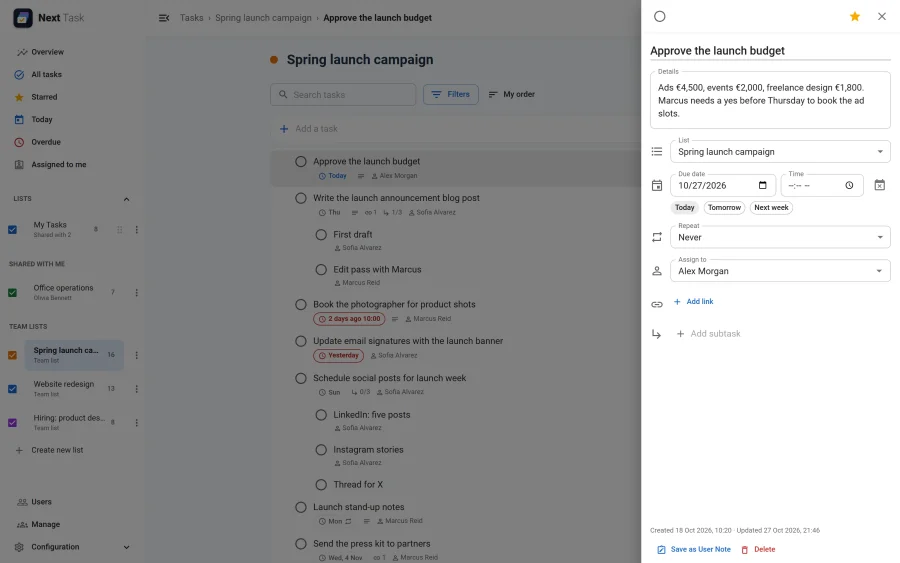
Assigning a Task
Open the task and pick someone in Assign to, or select several tasks and choose Assign to in the selection bar. The list offers the people who can reach the list: its owner and everyone it is shared with, by name or through a usergroup. Choose Nobody to clear it.
- Assigning a task to someone else needs the Tasks > Assign permission. Assigning it to yourself, clearing it, or saving a task with its assignee unchanged needs only Tasks > Edit (see Roles and quotas).
- The row shows the assignee's name under the title.
What the Assignee Gets
- A notification in the bell ("Marcus Reid assigned you …"), and an email unless they switched assignment emails off in their preferences (or the Reminders app is off).
- The task in Assigned to me, for as long as they can reach its list.
- The task's due-time reminder: a reminder goes to the assignee, or to the list's owner when nobody is assigned. On a team list, only an assignee is reminded.
- The task in their daily digest when it is due today or overdue.
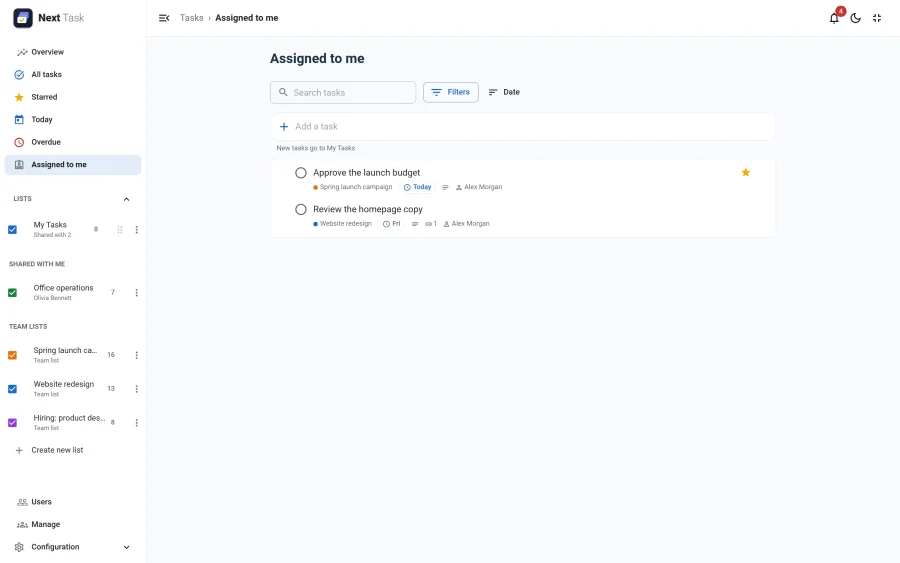
Assignment Is Not Access
Assignment never opens a list. A task is visible to its assignee only through the list it is on, and what they may do follows their access to that list:
- On a list they can edit, they work the task like any other.
- On a list shared with them to view, they may complete and reopen the tasks assigned to them, nothing else: no renaming, moving, deleting, starring or adding subtasks.
- When they lose access to the list (a share removed, a group left, the list left or moved), they are unassigned from its tasks. Moving a task to a list its assignee can't reach unassigns it too.
When an assignee completes their task, the person who created it gets a notification ("Sofia Alvarez completed …"), if they can still reach the list.