Subtasks
A task can have subtasks, one level deep: a checklist under a task, where every item is a task of its own with a title, details, a due date, a star, links and an assignee.
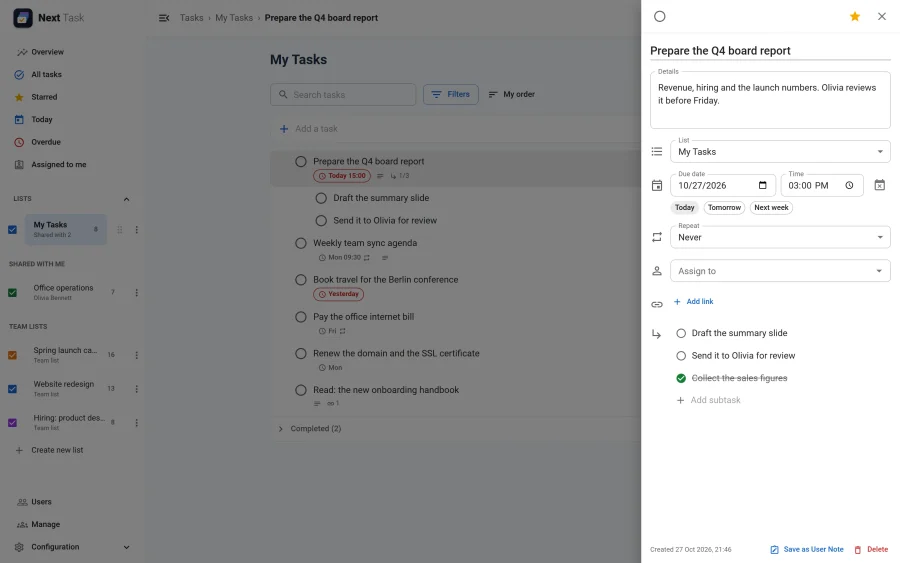
Adding Subtasks
- In the task drawer, type into Add subtask at the bottom and press Enter.
- From a task's row menu, choose Add a subtask.
- To turn an existing task into a subtask of the task above it, choose Make subtask in its row menu. Move out of subtasks turns it back into a task of its own.
- Drag a task under another one to nest it, or out to the left to un-nest it.
How They Behave
- One level only. A subtask can't have subtasks of its own, and a task that has subtasks can't become a subtask.
- The row shows the progress:
1/3means one of three subtasks is done. Subtasks are listed under their parent, indented, in the order you drag them into. - Completing a subtask ticks it off on its own; the parent stays open until you complete it.
- Moving a task to another list takes its subtasks with it. A subtask moved to another list on its own becomes a task of its own there, since a subtask always lives in its parent's list.
- Deleting a task deletes its subtasks with it, and Undo brings them all back. Undoing the delete of a subtask whose parent is also deleted brings the parent back too.
- Repeating: a subtask can't repeat. When a recurring task creates its next occurrence, its subtasks come along, open again.
- Subtasks with a date show up in Today and Overdue like any task.