Roles and permissions
A holiday-letting business often needs rules such as "takes bookings but cannot change prices" or "sees the owners' statements but cannot refund". Joomla's own permissions cannot express that, so Next Self-Catering has its own staff roles: what each role may do, in each area, given to Joomla users or groups.
Open Configure > Staff roles. Only Super Users (or anyone with Configure ACL & Options, core.admin, on the component) can open it.
Two layers
- Joomla lets the person into the component. In Components > Next Self-Catering > Options > Permissions, the person's group needs Access Administration Interface (
core.manage). For the administrator, the group also needs Administrator Login in System > Global Configuration > Permissions. A role alone does not open the component. - The staff role decides what they do inside.
Super Users, and anyone with core.admin on Next Self-Catering, pass every check and have full access, roles or not.
The Manage App on the site applies exactly the same two layers.
Areas and rights
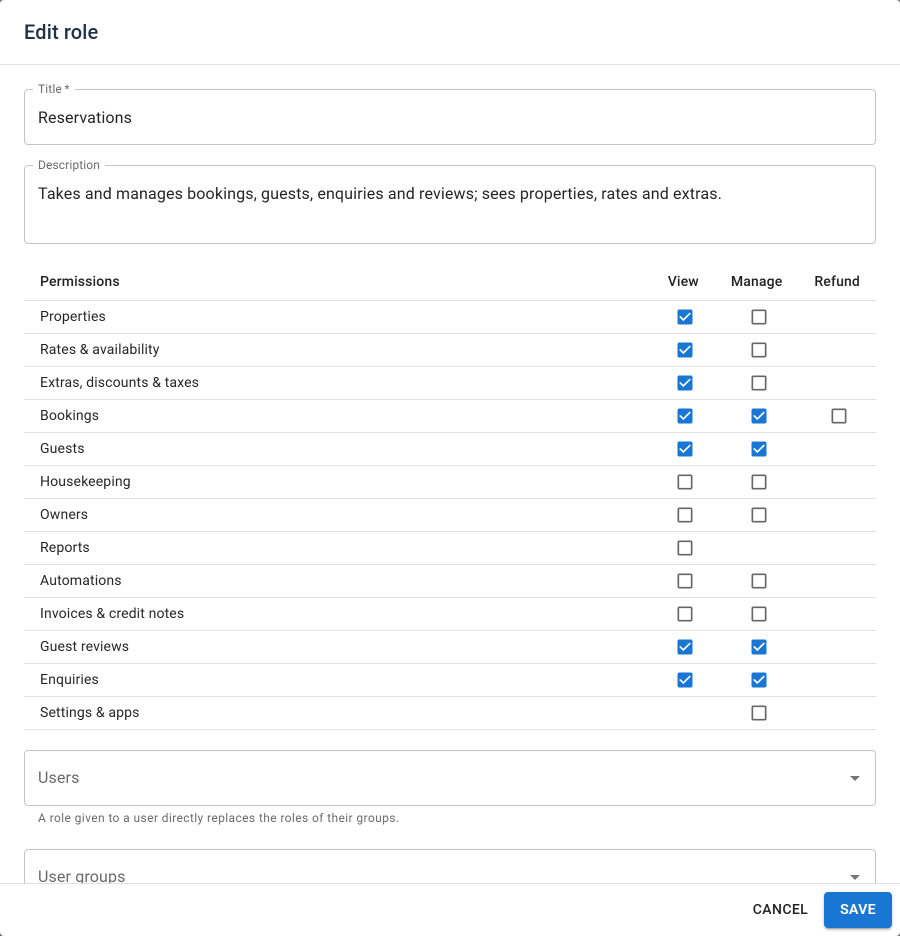
A role is a grid of areas and rights:
| Area | Rights | Covers |
|---|---|---|
| Properties | View, Manage | Properties, locations, features and photos |
| Rates & availability | View, Manage | Seasons, prices, booking rules, short breaks and the rates calendar |
| Extras, discounts & taxes | View, Manage | Extras, discounts, coupons, cancellation policies, VAT rates and tourist tax |
| Bookings | View, Manage, Refund | Bookings, blocks, the tape chart and payments. Refund is needed to give money back, also when cancelling |
| Guests | View, Manage | Guest records, accounts, export and erasure |
| Housekeeping | View, Manage | Schedule, housekeepers, checklists, devices and inspections |
| Owners | View, Manage | Owners, statements and payouts |
| Reports | View | All reports |
| Automations | View, Manage | Automations, their run log and test |
| Invoices & credit notes | View, Manage | Issue, credit and reissue, resend |
| Guest reviews | View, Manage | Moderate, reply, delete |
| Enquiries | View, Manage | Reply, change status, create a booking, delete |
| Settings & apps | Manage | Settings, payment methods, SMS gateways, email templates, currencies, the App Manager and the setup wizard |
View shows the pages read-only. Manage allows changes. A page a person may not view is not in their menu.
Giving a role to people
On a role, add Users and User groups:
- A person holds every role given to any of their groups, combined.
- A role given to a user directly replaces the roles of their groups. Use it for the exception, such as one receptionist who may also refund.
If a group is kept out of the component by Joomla, the role page names it and reminds you to set Access Administration Interface.
Typical roles
| Role | Rights |
|---|---|
| Reservations | View and Manage on Bookings, Guests and Enquiries; View on Properties and Rates |
| Revenue manager | Manage on Rates & availability and Extras, discounts & taxes; View on Bookings and Reports |
| Accountant | View on Bookings; Manage on Invoices & credit notes and Owners; View on Reports |
| Housekeeping supervisor | Manage on Housekeeping; View on Bookings |
These are examples; build the roles your business needs.
Cleaners, owners and guests
Cleaners, owners and guests never get staff roles. They use their own pages on the site: the cleaner app, the owner portal and the guest portal. See Menu items and frontend pages.