Property page
Each property has its own public page: photos, the facts guests look for, a calendar that shows your changeover days, the booking box with a live price, and everything else a guest wants to read before booking. It is server-rendered HTML, so it loads fast, works with Joomla's page cache and reads well in search engines.
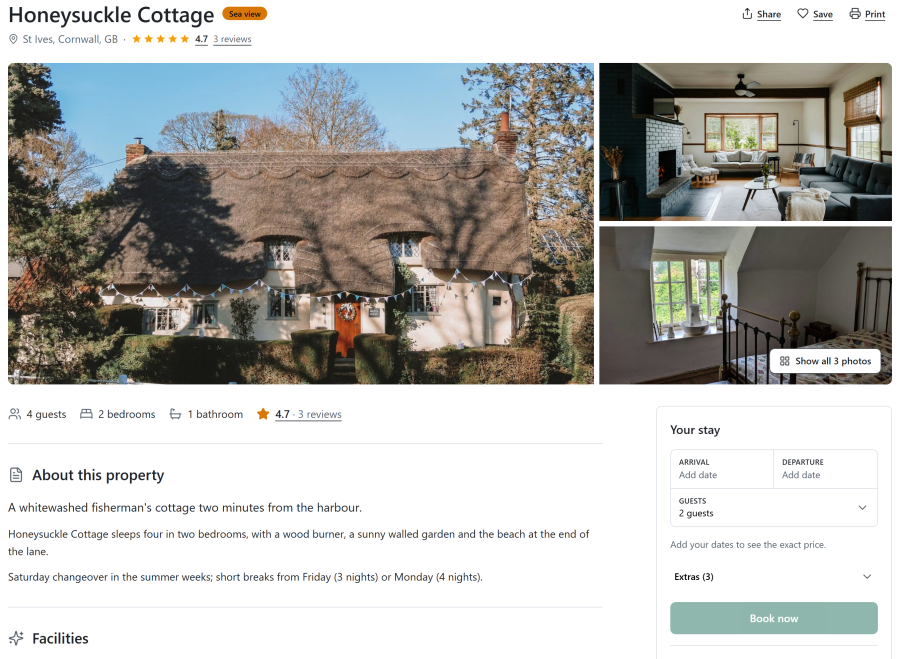
Guests reach it from the Properties list, a module, or a Single Property menu item.
Eight layouts
| Layout | How it places the page |
|---|---|
| Photo mosaic | Title, a mosaic of the cover and four photos, then the sections with the booking box sticky on the right |
| Full-width photo and tabs | A wide photo slider with the title over it, a section menu, then the sections with the booking box on the right |
| Photos on the left | On wide screens, the photos on the left with the sections below them, and the title and booking box on the right, in view as the page scrolls |
| Compact | One column with a photo slider and every section as a row that opens and closes. For narrow templates or a page with a sidebar |
| Showcase | A large photo carousel across the page with the title over it, and the booking box floating over its lower edge |
| Magazine | A large lead photo, one wide reading column, and photos placed between the sections like a magazine story. Booking is always from a slim bar at the top |
| Gallery grid | The photos first, as a grid of up to nine with Show all photos, then the sections with the booking box on the right |
| Sidebar summary | A summary column on the left with the highlights and the booking box, in view as the page scrolls, and the sections in the wider column |
On phones every layout becomes one column with a photo slider. The layout is chosen per property (on its Page tab), per Single Property menu item, or site-wide under Configure > Settings > Site layouts, in that order of precedence.
Sections
The page is made of sections you reorder and switch off site-wide under Configure > Settings > Site layouts, or per property on its Page tab:
Photos, Key facts (sleeps, bedrooms, bathrooms), Description, Video and virtual tour, Features, Availability calendar, Reviews, Map, Questions and answers, Nearby places, House rules and times, Cancellation terms, Ask a question and Similar properties.
A section with nothing to show (no questions, no map position) is left out anyway.
- Video and virtual tour: YouTube and Vimeo play in their privacy-friendly players. Tours from Matterport, Kuula, Momento360, CloudPano, TourMkr, EyeSpy360 and Roundme are embedded
- Questions and answers per property, also published as FAQPage structured data
- Nearby places with their kind and distance
- Similar properties: up to four, same location first, then the same type
- Availability calendar: free, booked and changeover days, optionally with the nightly price on each free day
Map and directions
The Map section shows the property as one pin, with View larger map and Get directions. It appears only when the property has a Latitude and Longitude, set on the Address tab of the property editor; without them the section is left out.
Get directions opens Google Maps' directions to the property, which opens the maps app on phones. Without JavaScript, the page shows a link to the place on OpenStreetMap. The map itself uses the provider chosen under Configure > Settings > Search and map: see OpenStreetMap and Google Maps.
Page options
Under Configure > Settings > Property page, and per Single Property menu item:
| Option | Choices |
|---|---|
| Block style | Thin dividers, Cards or Plain |
| Highlights row | Icons for guests, bedrooms, bathrooms, pets and the rating under the title |
| Section menu | A bar at the top, once guests scroll past the photos, with links to each section and the price |
| Fold blocks on phones | On small screens, the sections after the description become rows guests tap to open |
| Shorten long descriptions | Lines shown before Read more |
| Amenities before "Show all" | How many features show before the rest fold away |
| Map height | 200 to 600 pixels |
| Prices on the calendar | The nightly price on each free day |
| Booking box | Beside the content (a card that stays in view), or Slim bar at the top whose Reserve button opens the booking box. The Magazine layout always uses the bar |
| Ask a question | Button that opens a window, Tabs in the booking box, or Form on the page. See Enquiries |
| Buttons by the title | Share, Save to wishlist and Print / PDF brochure |
A Single Property menu item can also show a bar at the bottom on phones with the lowest nightly price and a Check availability button. The Compact layout always shows its sections as rows that open and close.
The Page tab of a property
On the property's Page tab:
- Featured and a short badge
- Page layout, or Default to follow the menu item or Settings
- Sections: tick Use this property's own sections to choose and order them for this property
- video and virtual tour addresses
- Questions and answers and Nearby places
- search engine texts: browser title, meta description, sharing image and robots (see SEO)