Properties
Each property is one whole unit you let by the night: a cottage, house, villa, apartment, lodge, cabin, chalet, barn conversion or static caravan. Guests always book the whole property, never a room in it.
Open Rentals > Properties and click a property, or New, to open its editor.
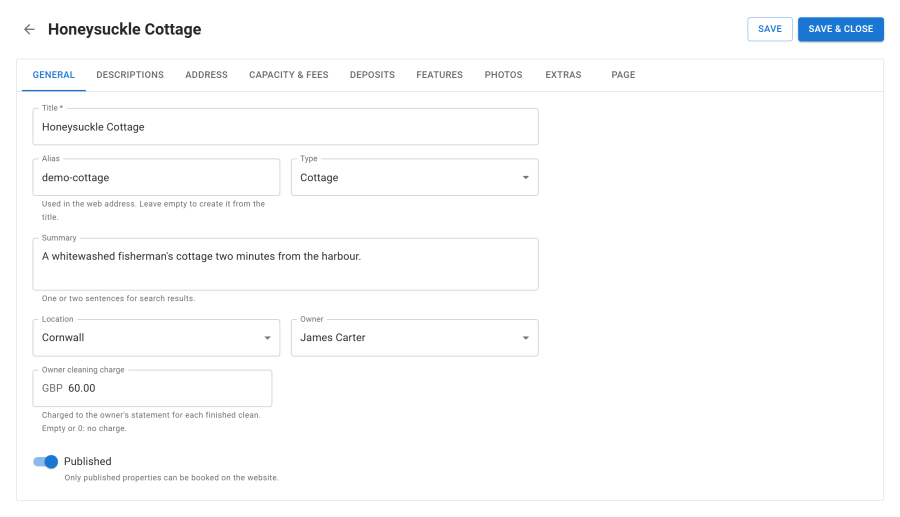
The property editor
| Tab | What you set |
|---|---|
| General | Title, address alias, type, summary, location, owner (with the owner's cleaning charge) and whether the property is published |
| Descriptions | Description, house rules, and the arrival information (directions, key safe, Wi-Fi) that guests can read a set number of days before arrival |
| Address | Address, map position and the property's own time zone, used for lead times, same-day cutoffs and due dates |
| Capacity & fees | Bedrooms, bathrooms, guests included in the rent, maximum guests and pets, check-in and check-out times, currency, supplements for extra adults, children and pets, the cleaning fee and the booking fee (an amount or a percentage) |
| Deposits | Deposit (a percentage or a fixed amount), balance due date and how the balance is collected, damage deposit and how it is collected, the cancellation policy, and whether the property books instantly or on request |
| Features | The amenities guests filter by, such as hot tub, dog friendly or EV charger |
| Photos | Photos from upload or the Joomla Media Manager, with a cover photo, alt text and captions |
| Extras | The extras this property offers, at their list price or its own price |
| Page | How the property's public page looks: featured flag, badge, page layout and sections, video and tour addresses, questions and answers, nearby places and search engine texts. See Property page |
New properties start with the values of Configure > Settings > New property defaults. See Settings.
On a multilingual site, texts can be translated for each content language. See Multilingual content and currencies.
Instant booking or on request
Each property books either instantly (the guest pays and the booking is confirmed) or on request (the guest sends a request, you approve or decline it, and the guest pays after approval). See Checkout and booking modes.
Cancellation terms
Each property has one cancellation policy, chosen on its Deposits tab. Policies are made under Rentals > Cancellation policies. A booking keeps the terms it was made under, even if you change the policy later. See Cancellations and refunds.
Locations
Configure > Locations holds the places guests search by. Locations can sit inside each other, for example a region with its towns. A search for a region also finds the properties in its towns. Locations can also appear in property addresses and have their own landing pages. See SEO.
Features
Configure > Features holds the amenities you tick on each property. Group them as you like (outdoors, kitchen, family) and give each an icon. Guests filter by them on the Properties list, which shows how many results have each one.
Extras
Rentals > Extras holds the things guests can add to a stay, such as a welcome hamper, a cot or late check-out. An extra is charged per stay, per night, per person, per person per night or per pet, and can be optional or compulsory. Each property chooses which extras it offers on its Extras tab.
Featured properties and badges
A property can be featured, and can carry a short badge such as "New" or "Sea view". Both show on the cards and the property page, and guests can sort and filter by featured. Mark a property featured with the star in the property list, or on its Page tab.