Rates and availability
Pricing in Next Self-Catering is built for holiday lets, not hotel rooms: seasons with a nightly and a weekly price, short breaks, changeover days and stay rules.
Open Rentals > Rates & Availability and pick a property at the top. Arrows beside the picker step to the previous and next property. The page has three tabs: Calendar, Season prices and Booking rules.
How a night is priced
- Seasons are date ranges. A season is either global (shared by every property) or belongs to only this property. Create and edit them under Rentals > Seasons, or from the Season prices tab.
- Where seasons overlap, the priority decides. A night takes its price from the highest-priority season covering it that the property actually has a price in.
- Weekly price: a fixed price for a whole week from the changeover day.
- Short breaks: stays of a set number of nights at a fixed price or a percentage of the weekly price.
- Nightly price: every other stay is priced by the night, with an optional weekend supplement on the nights you choose.
- Nights with no priced season cannot be booked.
The calendar
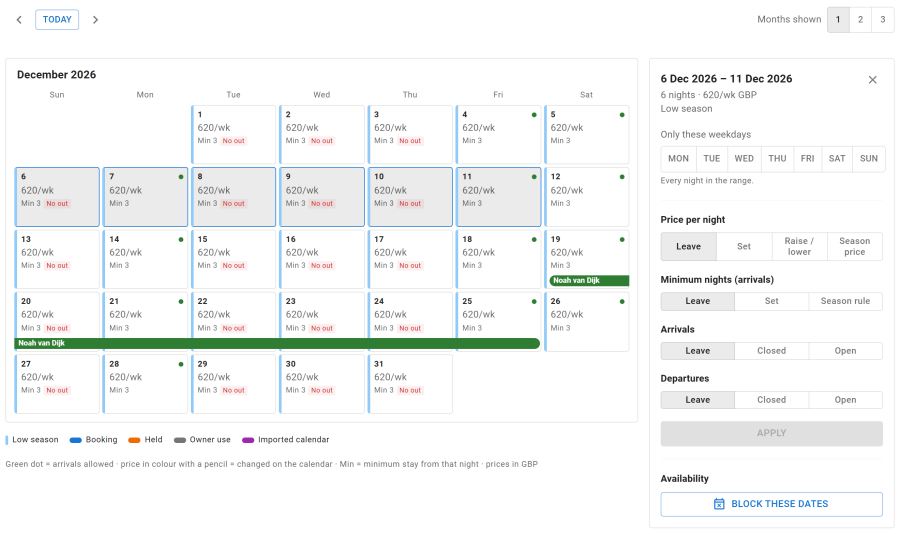
The Calendar tab shows one to three months of nights (Months shown). Each night shows its price, its minimum stay, whether arrivals and departures are allowed, and its season. Bookings, holds, blocks and imported calendar nights run across the nights as bars.
Select nights by dragging across them, or click the first and then the last night. The keyboard works too. The side panel then changes the selected nights:
| In the panel | Effect |
|---|---|
| Price | Set a new nightly price for the selected nights |
| Raise / lower | Raise or lower the price by a percentage or an amount. Nights with no price are left as they are, and the panel says how many |
| Season price | Return the nights to their season's price |
| Minimum stay | Change the minimum stay from those nights, or return to the Season rule |
| Arrivals and Departures | Open or close arrivals and departures |
| Weekdays | Apply the change to chosen weekdays only, for example Fridays and Saturdays |
| Block these dates | Block free nights for owner use or maintenance |
A price set on the calendar replaces the nightly price only: weekly and short-break prices still follow the season. Changed prices show in colour with a pencil. Changes are kept in a save bar until you Save or Discard changes. If some selected nights are already booked, the panel says so: those bookings keep the price they were booked at.
Season prices
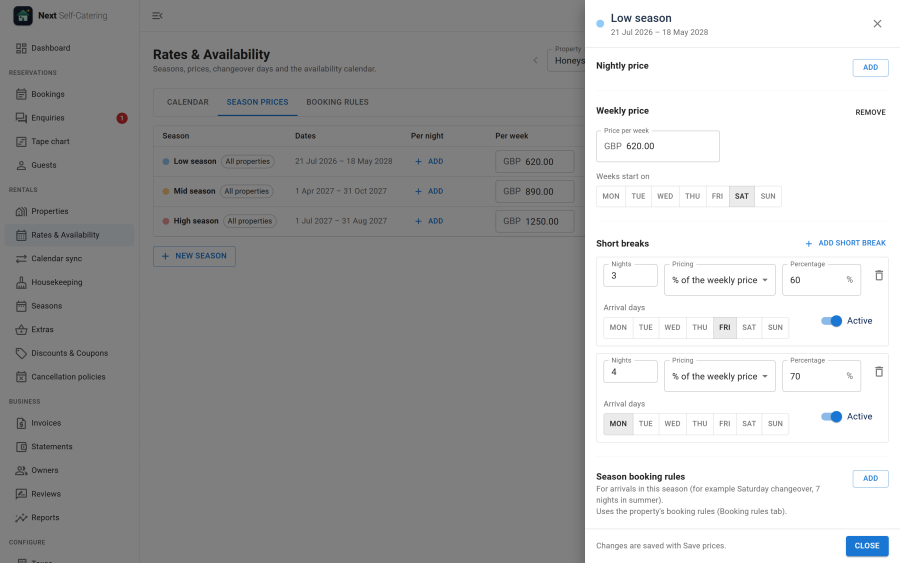
The Season prices tab lists every season the property can use, with its dates, Per night, Per week, Minimum stay and Changeover. Edit the prices in the table. Details opens a side drawer with the season's short breaks and its own booking rules. You can add a season, or change a season's dates, without leaving the page. Changing the dates of a global season changes them for every property that prices it, and the drawer warns you.
Booking rules
Booking rules are set per property on the Booking rules tab, and can be overridden per season:
| Group | Rules |
|---|---|
| Length of stay | Minimum and maximum nights |
| Arrival & departure days | The days stays may start and end, for example Saturday only |
| Booking window | Book at least or at most so many days ahead, a same-day cutoff hour, closed to arrival or departure, and buffer nights between bookings |
| Gap filling | A stay that exactly fills a gap between two bookings may be shorter than the minimum, and optionally ignore the changeover day |
Lead times and cutoffs use the property's own time zone.
Copy rates
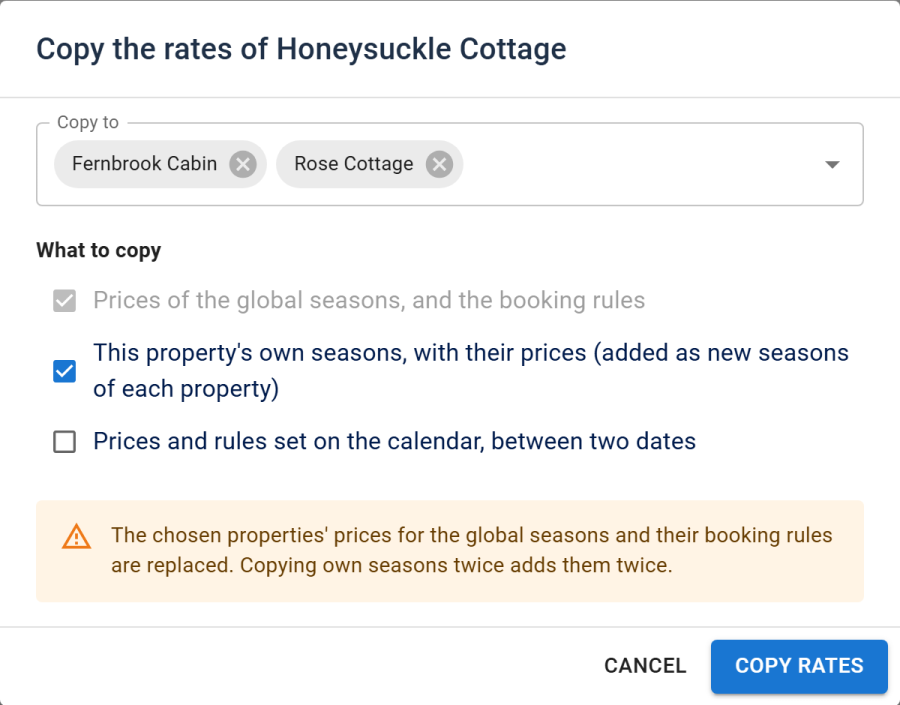
Copy rates copies the open property's rates to other properties:
- always: the prices of the global seasons, and the booking rules
- optionally: this property's own seasons with their prices, added as new seasons of each property
- optionally: the prices and rules set on the calendar between two dates
The chosen properties' prices for the global seasons and their booking rules are replaced. Copying own seasons twice adds them twice, and the dialog warns you.
Nights with no price
When nights in the next 18 months have no price, a warning above the calendar lists them, so guests are not turned away without you knowing. Show in calendar jumps to them, and Add a season for these dates creates a season covering them.
Price check
Price check gives an itemised quote for any dates and party on the open property, with the exact reasons a stay cannot be booked (a night already taken, no price, an arrival day not allowed, a stay too short).
Supplements, fees and extras
- Supplements for extra adults, children and pets beyond the guests included in the rent
- A cleaning fee, and a booking fee as a fixed amount or a percentage
- Extras charged per stay, night, person, person per night or pet
All of these appear as their own lines in the guest's quote.
Discounts and coupons
Rentals > Discounts & Coupons has two tabs:
- Discounts apply by themselves: Long stay, Last minute and Gap filler (cheaper nights for a stay that fills a gap between two bookings)
- Coupons are codes guests enter at checkout, with an amount or a percentage, the arrival dates they apply to and a usage limit. Codes are not case-sensitive. A coupon either combines with the automatic discounts or is used only when it beats them. Coupons are an app you can switch off.
Blocks
Block dates for owner use or maintenance from the calendar's side panel, or by dragging across free nights on the tape chart. Owners can also block their own dates in the owner portal. A block claims its nights like a booking, so the nights cannot be sold.