Checkout and booking modes
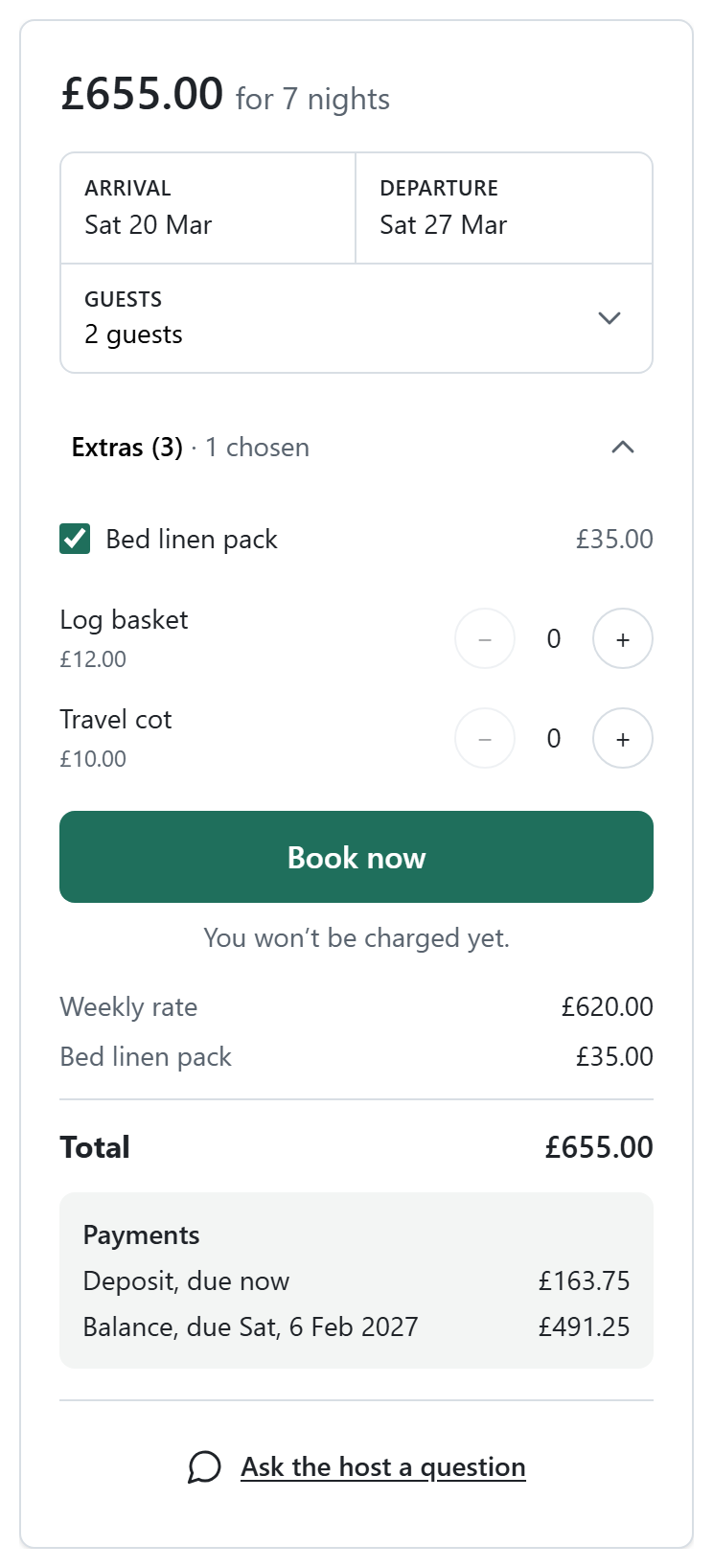
Guests book from the booking box on a property page: they pick dates on a calendar that shows your changeover days, choose the guests and extras, and see the itemised price and the payment schedule before they continue.
Booking modes
Where the booking steps open is a setting, under Configure > Settings > Site layouts > Booking. A Single Property menu item can choose its own.
| Mode | What the guest sees |
|---|---|
| Booking page | The steps on their own page (the default) |
| Booking window over the property | The steps in a window over the property page |
| Side panel | The steps in a panel that slides in from the side |
| Distraction-free page | A page with only your logo, the steps and the summary, without the template's menus |
Steps or one page
Under Site layouts > Checkout, choose Steps (Your stay, Your details, Payment) or One page with everything on one screen.
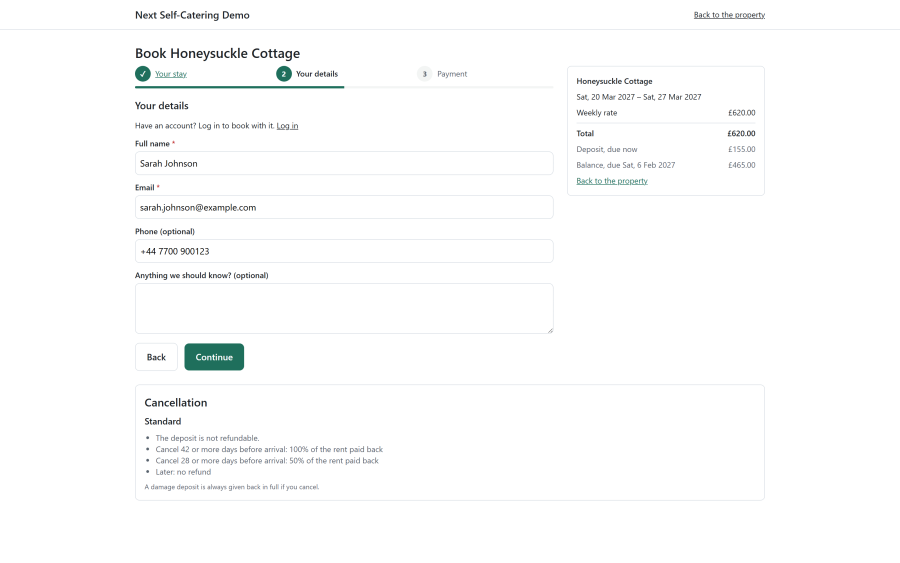
At checkout the guest can:
- change the dates, guests or extras
- enter a coupon code, when the Coupons app is on
- log in to book with their account, or create one with a password (see Guest accounts and portal)
- tick your terms and privacy policy, when consent checkboxes are on (see Privacy and GDPR)
- agree to save a card for the balance, with Stripe (see Payments and deposits)
- pay with the methods offered for the property's currency
Under Configure > Settings > Bookings, Guests must log in to book sends visitors to the login page before checkout.
Instant booking or on request
Each property is set to Instant booking or On request on the Deposits tab of its editor.
With On request:
- The guest sends a request. The nights are kept for them (status Requested).
- Staff Approve or Decline it from the booking in the admin. When Owners can answer booking requests is on (Configure > Settings > Owners), the owner can also answer it in the owner portal.
- After approval the guest gets an email with a link to pay. The guest pays only then.
- A request nobody answers runs out after Request answer time (Configure > Settings > Bookings, 48 hours by default), and the nights are free again.
Guests, staff and owners get their own emails at each step. The emails are editable templates. See Email templates.
After booking
The guest lands on a confirmation page and receives an email with a private link to their booking. See Guest accounts and portal.