Guest accounts and portal
Guests do not need an account to book. Every booking has its own private page, the guest portal, reached from a link in the booking emails. Guests who want one can also have a Joomla account and see all their stays in one place.
The guest portal
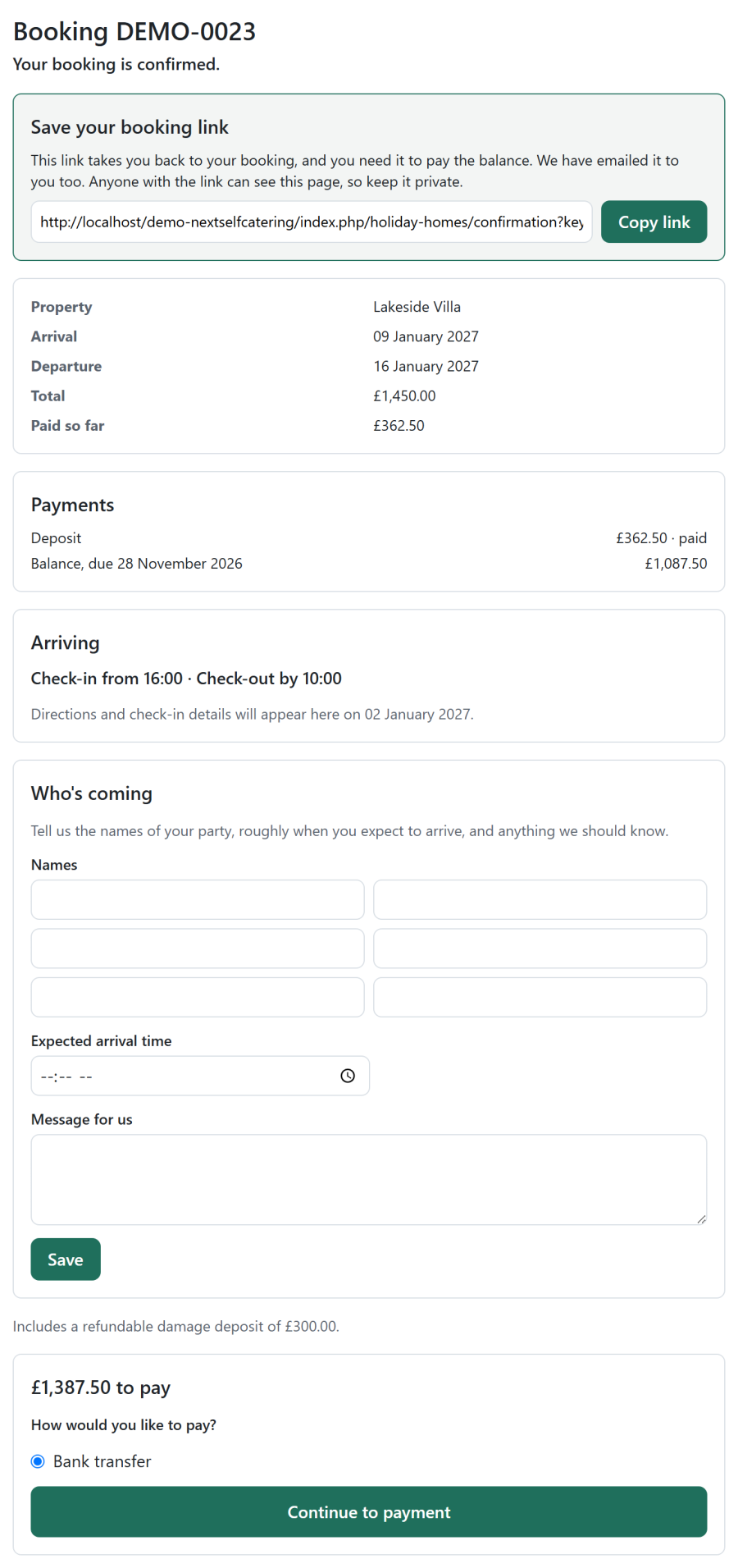
After booking, the guest lands on their booking page and receives its link by email. There they can:
- see the status of the booking, the dates and what was paid so far
- read the payment schedule: deposit, balance and its due date, and anything to pay at the property
- pay the balance, or follow the bank transfer instructions
- see a saved card and Remove card and pay by link instead
- fill in Who's coming: the names of the party, the expected arrival time and a message for you
- read the arrival details (directions, key safe, Wi-Fi) once they open, a set number of days before arrival. The Arrival details for guests task emails the guest when they do
- download their invoices and credit notes as PDFs
Party details the guest saves show on the booking in the admin. When a review can be written, the page also links to the review form.
The Guest portal app covers the party form and the arrival details. Switched off, the booking page still shows the booking, the payments and the invoices.
Find my booking
Guests who lost their link enter their email address and booking reference on the Find my booking page, and the link is emailed to them again. The page never shows a booking itself. Staff can also reset or resend a guest's link from the booking.
Guest accounts
Creating an account
When Joomla's Users > Options > Allow User Registration is on, checkout offers Create an account, to see all your bookings in one place, with a password. The guest's email address becomes their username. Joomla's own activation setting applies; the booking is placed either way.
Guests who already have an account can log in to book with it: their details are filled in, and the booking joins the account.
To make every guest log in first, turn on Guests must log in to book under Configure > Settings > Bookings. Visitors are then sent to the login page before checkout.
My bookings
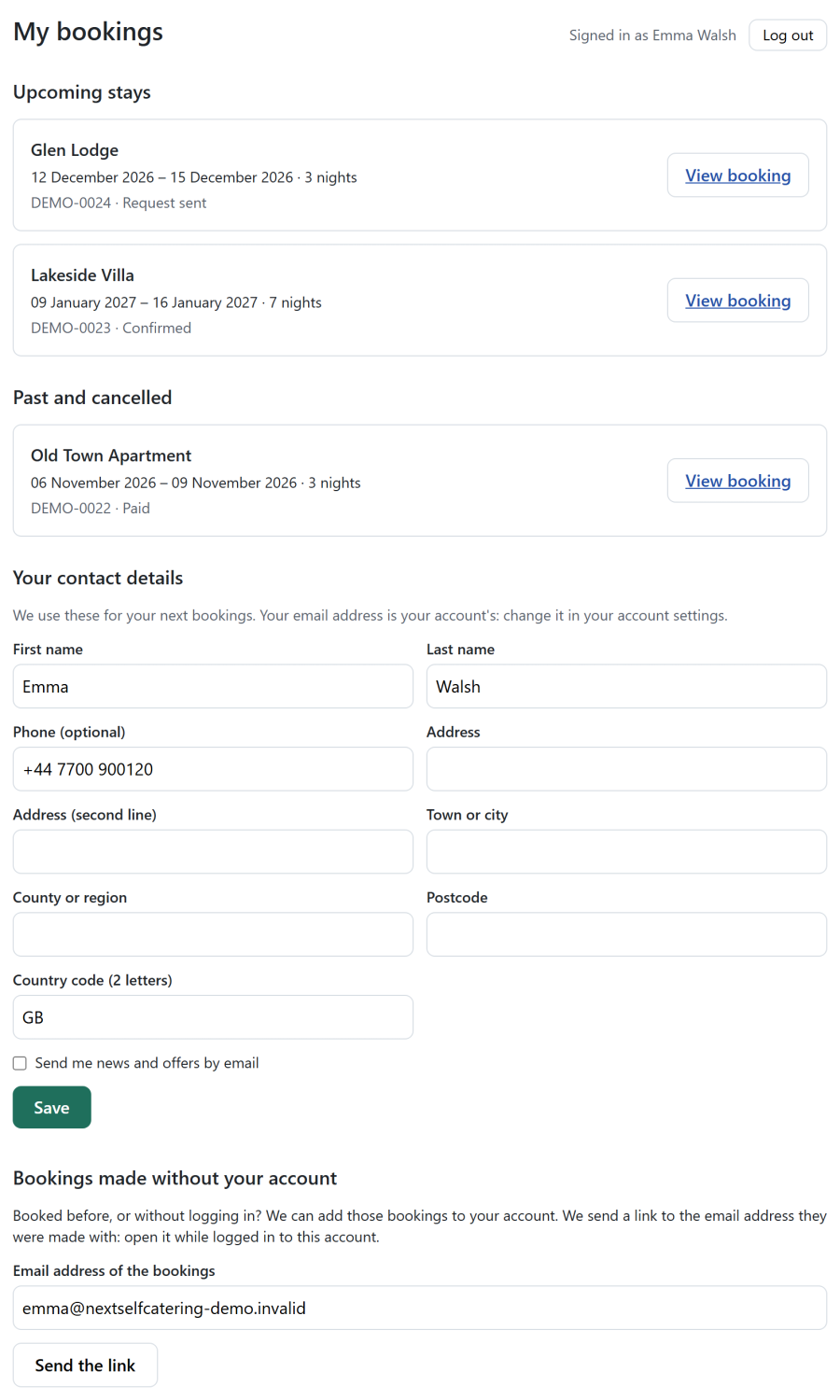
Publish a My Bookings menu item. A logged-in guest sees their Upcoming stays and their Past and cancelled stays, each with a View booking link to its guest portal, and can keep their contact details and marketing consent up to date. Visitors who are not logged in are sent to the login page.
Adding earlier bookings
Bookings never join an account just because the email address matches, because Joomla does not check a typed address. Bookings made before the account existed, or with another email address, are added from a link:
- Under My bookings, the guest asks for the link for that email address.
- The link is emailed to that address, and works for 24 hours.
- The guest opens it while logged in, and the bookings join the account.
Bookings made while logged in are always listed. One guest record belongs to one account.
Staff and accounts
On a guest's record under Reservations > Guests, staff can link the guest to an existing site account, or press Create account to make one and email the guest an invitation to choose a password.
When a guest changes their account email or the account is deleted, the included user plugin keeps the guest record right, and the old address is told about the change.