Setup wizard
On a fresh site, the Set up your site wizard takes you to a first property guests can book in a few steps. Every value it saves goes through the same settings, property and rates pages you use afterwards, so anything it sets can be changed later.
When it opens
- On a site with no properties and no bookings, the dashboard opens the wizard by itself.
- If you close it, the dashboard keeps a Finish setting up your site prompt with Continue setup and Dismiss. The wizard resumes at the first step you have not saved.
- Skip setup leaves it; Run setup wizard again under Configure > Settings > Sample data opens it later.
- A site that already has data is never offered the wizard by itself.
You need Manage on Settings & apps, or to be a Super User.
The steps
Each step is saved with Save & continue.
1. Business & emails
- Your business: business name, address, country, email, phone and VAT number. They are printed on invoices and used in the emails guests receive. The country also sets the invoice paper size.
- Emails: the From name and From address of booking emails, and the Staff address that receives new bookings and payment warnings. Leave the addresses empty to use Joomla's Global Configuration.
2. Booking terms
The defaults every new property starts with: Currency, Deposit (% of total) (0 takes the full payment at once), Balance due (days before arrival), Damage deposit collected, Prices include VAT, and the check-in and check-out times. Each property can override them in its own editor.
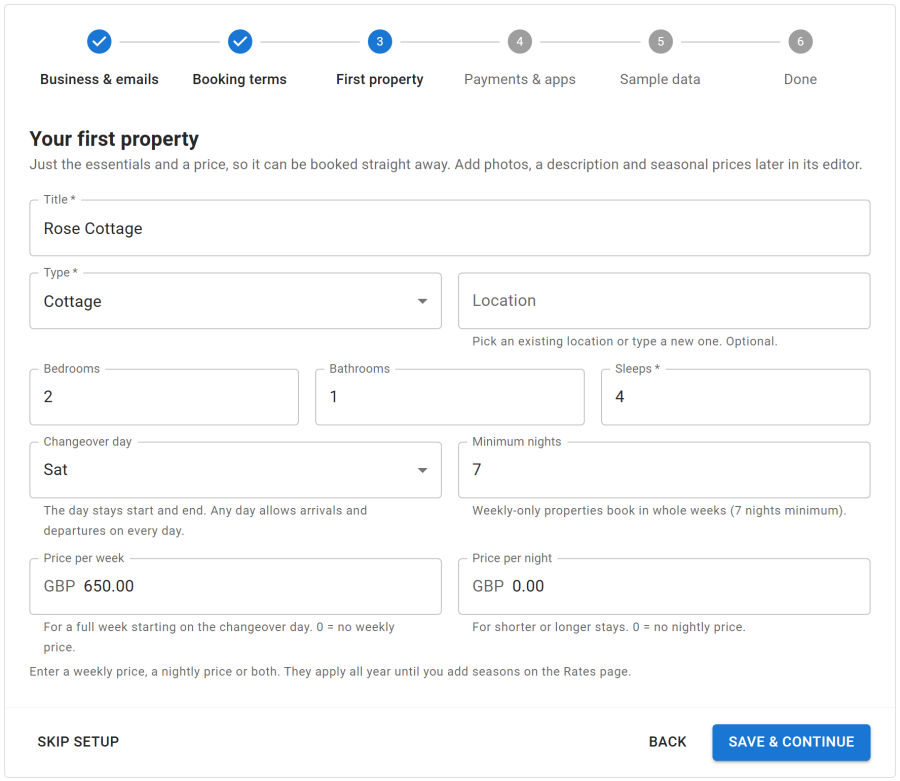
3. First property
The essentials, so the property can be booked straight away: Title, Type, an optional Location, Sleeps, Bedrooms and Bathrooms, the Changeover day (or any day), Minimum nights, and the Price per week and/or Price per night. Enter at least one price. A property with a weekly price only books in whole weeks.
The wizard creates an All year season covering today and stores your prices in it, so the property can be quoted at once. Going back and saving the step again updates the same property rather than adding another.
4. Payments & apps
- Payments: choose how guests can pay: Bank transfer, Card (Stripe) or PayPal. Configure opens the method's settings in place: keys, bank instructions and test mode. A method that still needs setup is marked as not offered to guests yet.
- Apps: switch on only what you need. The admin menu shows just the apps that are on, and an app that needs another switches that one on too. See App Manager.
Without any payment method guests can still send enquiries, and staff can add bookings by hand.
5. Sample data (optional)
Install sample data adds sample properties, locations, seasons, extras, guests and bookings around today's date. Remove it before you go live. See Demo and sample data.
Done
The last screen links to Edit the property and Open the calendar, or to Set up payments if no payment method is ready yet.
Next
Add photos and descriptions in the property editor, set seasonal prices under Rentals > Rates & Availability, and publish a Properties list or Single Property menu item. See Quick Start.