Cleaner app
The cleaner app is the housekeepers' side of Housekeeping. It is an installable web app (a PWA): cleaners open it in the phone's browser, add it to the home screen, and from then on it starts from its own icon and runs full screen like an app from a store. There is nothing to download from Google Play or the App Store, and nothing to publish or update by hand.
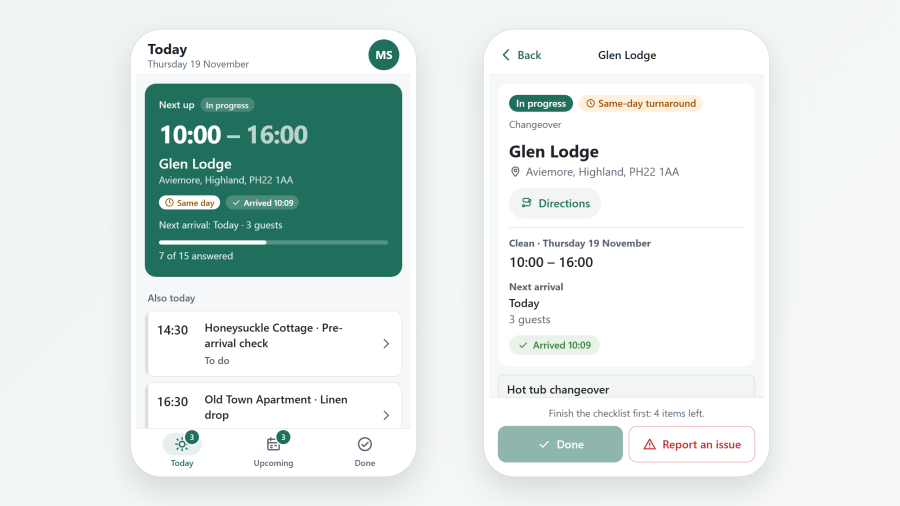
What cleaners see
- Today, Upcoming and Done: their jobs, with the property, the time to clean and the next arrival.
- On a job: start cleaning, work through the checklist, add notes and photos, report a problem and mark it done.
- At the end of a job: an inspection, All fine or Problem found, with notes and up to 8 photos.
Cleaners never see guest names or contact details. See Housekeeping for how jobs, checklists and inspections are set up.
Two apps
| App | Name on the home screen | Used for |
|---|---|---|
| Cleaning | "Your site name cleaning" | One cleaner's own phone. Opens from their private link or the Housekeeper Jobs menu item |
| Team tablet | "Your site name team tablet" | A shared tablet or team phone paired on the Devices tab. Cleaners tap their name and type their PIN |
Both use the app icons and the green of the public site, and both can be installed on the same device.
Installing it
The app can only be installed from an HTTPS site. On a site without HTTPS it still works in the browser, but there is no install option and no offline page.
Android (Chrome, Edge, Samsung Internet)
- Open the cleaner's private link, or the Housekeeper Jobs page, on the phone.
- Tap Install app in the banner, or in the app's menu. Not now hides the banner on that phone.
- Confirm. The Cleaning icon appears on the home screen.
iPhone and iPad (Safari)
Safari has no install button, so the app shows the steps instead:
- Tap the Share button in Safari's toolbar.
- Scroll down, tap Add to Home Screen, then Add.
Once the app runs from its icon, it no longer offers to install itself.
No signal
Cleaners often work where the signal is weak. When the connection drops:
- The app shows Offline, keeps the changes made on the phone and sends them when the connection is back.
- Checklist answers are kept on the phone too. Photos need a connection.
- Opening the app with no connection at all shows a No signal page with a Retry button.
The job pages themselves are never stored on the phone: they are private, and they always load fresh from your site.
Updates
The app updates itself. After you update Next Self-Catering, the next time a cleaner opens the app it loads the new version. Nobody has to reinstall it, clear a cache or reload anything by hand.
Removing it
Cleaners remove the app like any other: press and hold the icon, then Uninstall or Remove App. To stop a cleaner's access, give them a New link or make them inactive under Housekeepers; for a shared device, Revoke it on the Devices tab. See Housekeeping.